

Lab 41 – LXC containers: privileged and unprivileged, mount points, features, limits and comparison with VMs
Dependencies
Section titled “Dependencies”- Previous labs:
- Lab 07: the first container (here the
debian-13-standardtemplate is also downloaded tocephfs, in step 3); - Lab 13: the NFS export of the NAS
172.27.199.10:/mnt/dati/nfs; - Lab 17: the shared storages
rbd-vmandcephfs; - Lab 22: the migration network on VLAN 100;
- Lab 40: template
9000, for the comparison with a VM.
- Lab 07: the first container (here the
- Nodes and storage: cluster
desopve01-03; templates oncephfs, container disks onrbd-vmandlocal-zfs. - Network: the proxy
proxy.proxmox.community:3128for templates, images and packages. - Addresses: CT 141 on 172.27.199.141, CT 142 on .142, CT 143 on .143, VM 144 on .144, CTs 150-159 on .150-.159.
- Credentials: container
rootwith<lab-password>→ Appendix B.
Objectives
Section titled “Objectives”- Download system templates, TurnKey templates and OCI images, and understand what to do when the download goes through a proxy.
- Understand the difference between privileged and unprivileged containers by looking at the UIDs from the node.
- Use mount points on storage and bind mounts from the node, solving permission issues with UID mapping.
- Enable the
nesting,fuseandmountfeatures and pass a device to the container. - Apply CPU and RAM limits and measure their effect.
- Migrate a container and compare it with a VM: boot times, RAM and density.
How it works
Section titled “How it works”A container is not a VM. The processes of an LXC container run on the node’s kernel, isolated with namespaces (PID, network, mount, user) and limited with cgroup v2. There is no virtualized operating system: this is why a container starts in a few seconds and takes up only a few MiB.
Privileged or unprivileged.
| Unprivileged (default) | Privileged | |
|---|---|---|
Container root on the node |
UID 100000 (no privileges) | UID 0, that is, the node’s root |
| Mapping | /etc/subuid and /etc/subgid: 65536 UIDs starting from 100000 |
none |
| If a process escapes from the container | it is an ordinary user on the node | it is the node’s root |
| Limitations | cannot mount NFS/CIFS, some devices require configuration | can do almost anything, hence more risk |
Mount points.
mpX: storage:sizecreates a volume on the storage, managed by Proxmox VE: included in backups (backup=1), migratable if the storage is shared.mpX: /path/on/the/nodeis a bind mount: a node folder seen inside the container. It is not included in backups and it blocks migration.
Templates. Three sources, all in a storage with the CT Templates content type:
- Proxmox system images (
pveam,systemsection); - TurnKey Linux appliances (
turnkeylinuxsection); - since Proxmox VE 9.1, OCI images (the same formats as Docker/Podman) from a registry: they become application containers with their own entrypoint.
Procedure
Section titled “Procedure”1. System and TurnKey templates
Section titled “1. System and TurnKey templates”Update the index and search it:
pveam updatepveam available --section turnkeylinux | wc -lpveam available --section system | grep -E "debian-13|alpine-3.23|ubuntu-2[46]"update successful112system alpine-3.23-default_20261105_amd64.tar.xz amd64system debian-13-standard_13.6-1_amd64.tar.zst amd64system debian-13-standard_13.6-1_arm64.tar.zst arm64system ubuntu-24.04-standard_24.04-2_amd64.tar.zst amd64system ubuntu-26.04-standard_26.04-1_amd64.tar.zst amd64system ubuntu-26.10-standard_26.10-1_amd64.tar.zst amd64The same list can be seen from the GUI: storage cephfs → CT Templates → Templates, searching for turnkey:
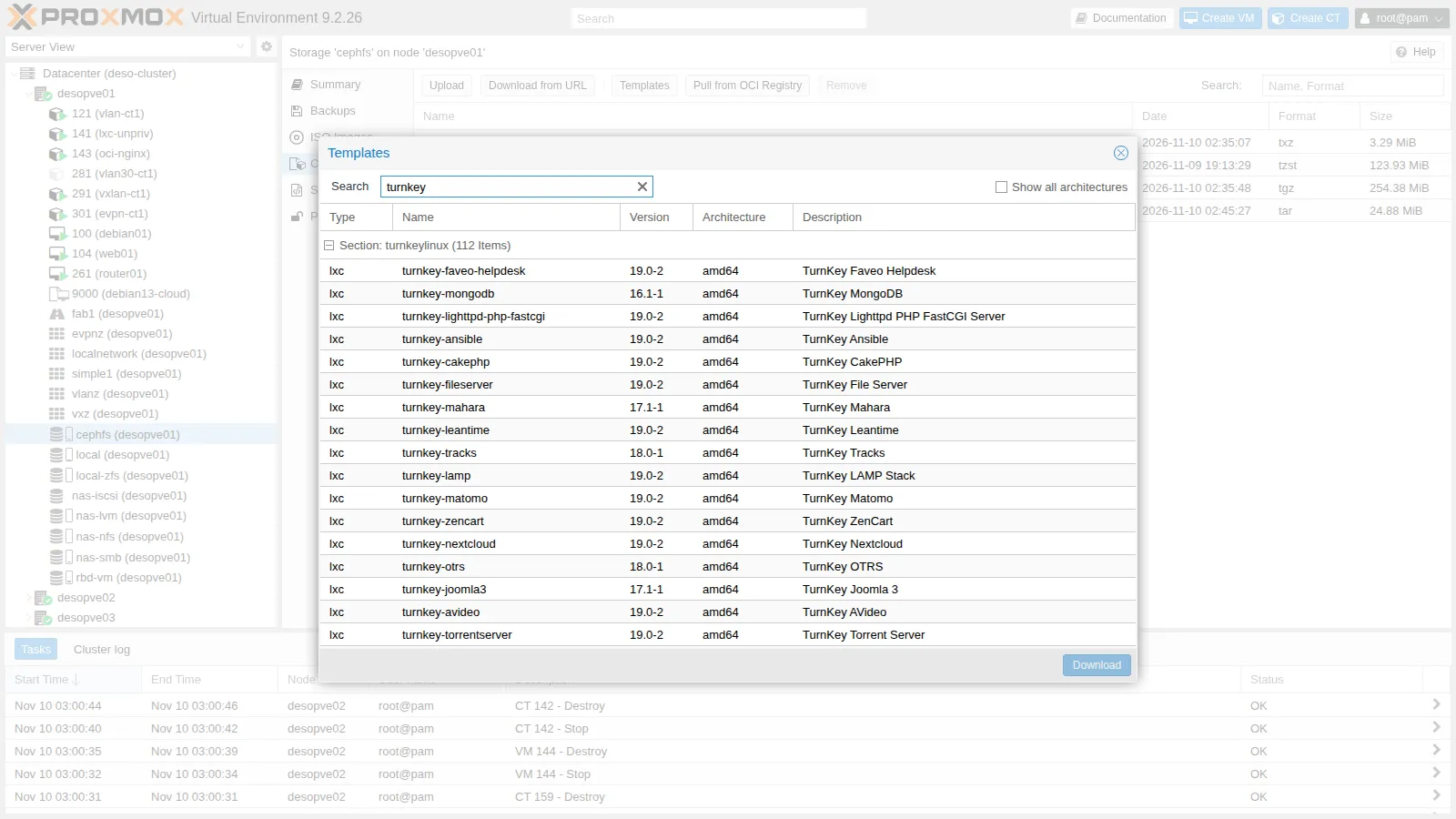
Download Alpine and TurnKey Core:
pveam download cephfs alpine-3.23-default_20261105_amd64.tar.xzpveam download cephfs debian-13-turnkey-core_19.0-2_amd64.tar.gzProxy request sent, awaiting response... 200 OKcalculating checksum...OK, checksum verifiedResolving mirror.turnkeylinux.org (mirror.turnkeylinux.org)... failed: Temporary failure in name resolution.download failed: wget: unable to resolve host address 'mirror.turnkeylinux.org'Alpine arrives in 2 seconds, TurnKey does not. The reason is in the index: TurnKey appliances are downloaded over HTTPS (Location: https://mirror.turnkeylinux.org/...), and pveam sends only HTTP requests through the proxy. In a network without direct Internet access, the HTTPS download attempts direct DNS resolution and fails.
Workaround: the storage’s Download from URL button, which uses the proxy for HTTPS too. The URL and the SHA512 checksum can be read in the index (/var/lib/pve-manager/apl-info/releases.turnkeylinux.org):
pvesh create /nodes/desopve01/storage/cephfs/download-url --content vztmpl \ --filename debian-13-turnkey-core_19.0-2_amd64.tar.gz \ --url https://mirror.turnkeylinux.org/turnkeylinux/images/proxmox/debian-13-turnkey-core_19.0-2_amd64.tar.gz \ --checksum f70345d6b1d5…ba7f11 --checksum-algorithm sha5122026-11-10 02:35:47 (76.0 MB/s) - '/mnt/pve/cephfs/template/cache/debian-13-turnkey-core_19.0-2_amd64.tar.gz.tmp_dwnl.407164' saved [266734332/266734332]calculating checksum...OK, checksum verified254 MB in 7 seconds, with SHA512 verification.
2. An OCI image as an application container
Section titled “2. An OCI image as an application container”The Pull from OCI Registry button downloads an image from a registry such as Docker Hub. The Reference field is automatically split into image and tag:
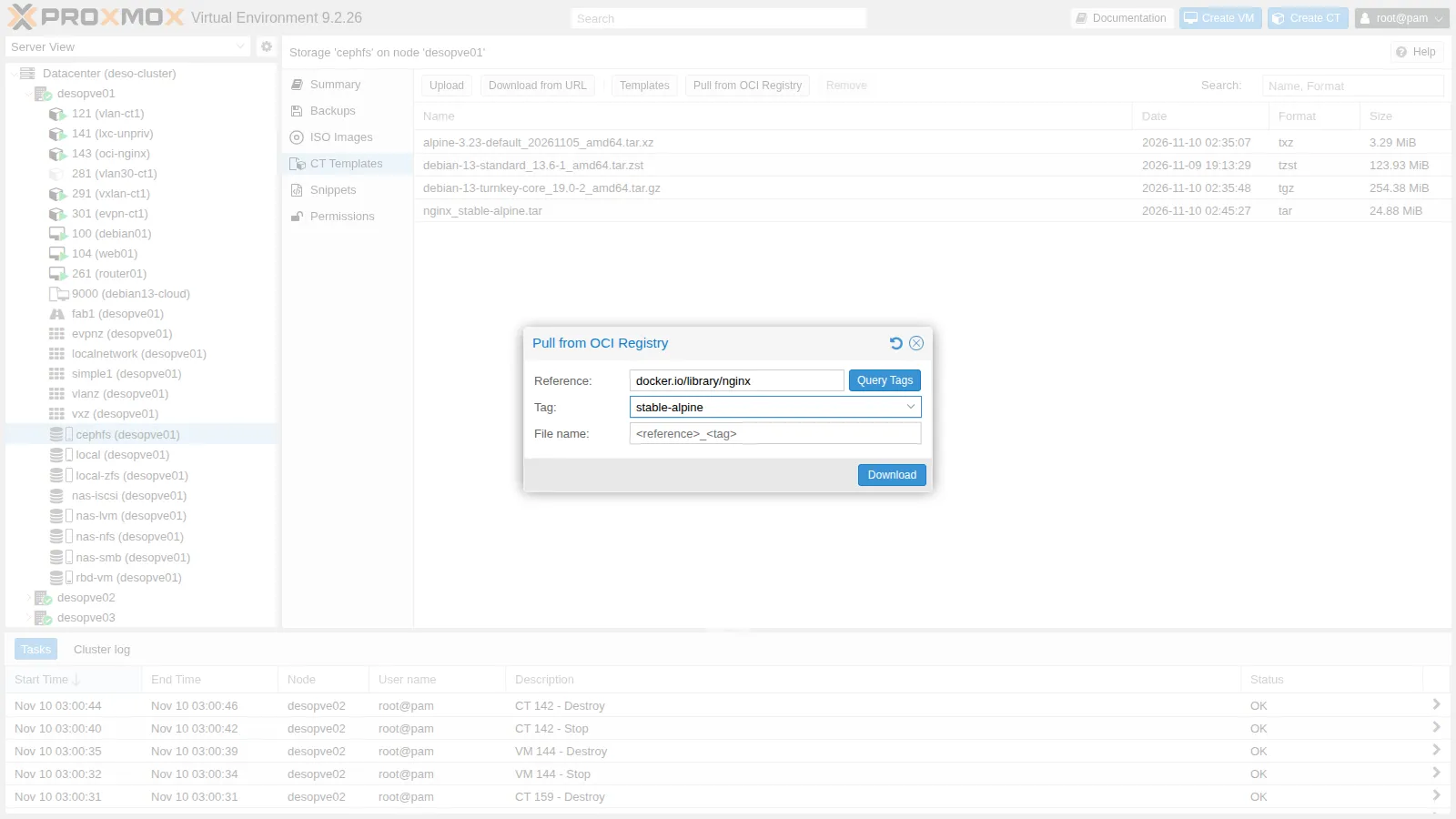
In the lab, the download from the GUI fails:
time="2026-11-10T02:44:57+01:00" level=fatal msg="initializing source docker://nginx:stable-alpine: pinging container registry registry-1.docker.io: Get \"https://registry-1.docker.io/v2/\": dial tcp: lookup registry-1.docker.io on 172.27.199.20:53: read udp 172.27.199.21:43629->172.27.199.20:53: i/o timeout"command 'skopeo copy docker://docker.io/library/nginx:stable-alpine oci-archive:/mnt/pve/cephfs/template/cache/nginx_stable-alpine.tar.tmp.418582' failed: exit code 1Proxmox VE uses skopeo, which does not read the Datacenter proxy setting. The same command with the HTTPS_PROXY variable works; the lab proxy must allow the domains docker.io, production.cloudflare.docker.com and production.cloudfront.docker.com:
HTTPS_PROXY=http://proxy.proxmox.community:3128 skopeo copy \ docker://docker.io/library/nginx:stable-alpine \ oci-archive:/mnt/pve/cephfs/template/cache/nginx_stable-alpine.tarCopying config sha256:1390db6b01a8b0c865b157c7f036b0772534418b1701f598737de546d208b6e4Writing manifest to image destinationThe file shows up among the templates (25 MiB) and is used like a normal template:
pct create 143 cephfs:vztmpl/nginx_stable-alpine.tar --hostname oci-nginx --unprivileged 1 \ --memory 256 --rootfs rbd-vm:2 --net0 name=eth0,bridge=vmbr0,ip=172.27.199.143/24,gw=172.27.199.1pct start 143curl -s -o /dev/null -w "HTTP %{http_code}\n" http://172.27.199.143/Detected OCI archiveAuto-Enabling host-managed network for network device net0.Detected container architecture: amd64HTTP 200Proxmox VE recognizes the OCI image, takes the entrypoint and the environment variables from the image, and manages the container’s network itself (host-managed=1), because an application image has no networking setup of its own:
cmode: consoleentrypoint: /docker-entrypoint.sh nginx -g 'daemon off;'env: PATH=/usr/local/sbin:/usr/local/bin:/usr/sbin:/usr/bin:/sbin:/bin NGINX_VERSION=1.30.6 PKG_RELEASE=1 …net0: name=eth0,bridge=vmbr0,gw=172.27.199.1,host-managed=1,ip=172.27.199.143/24,type=vethostype: alpinelxc.signal.halt: SIGQUITInside the container there is no systemd: process 1 is nginx itself.
PID USER TIME COMMAND 1 root 0:00 nginx: master process nginx -g daemon off; 47 nginx 0:00 nginx: worker process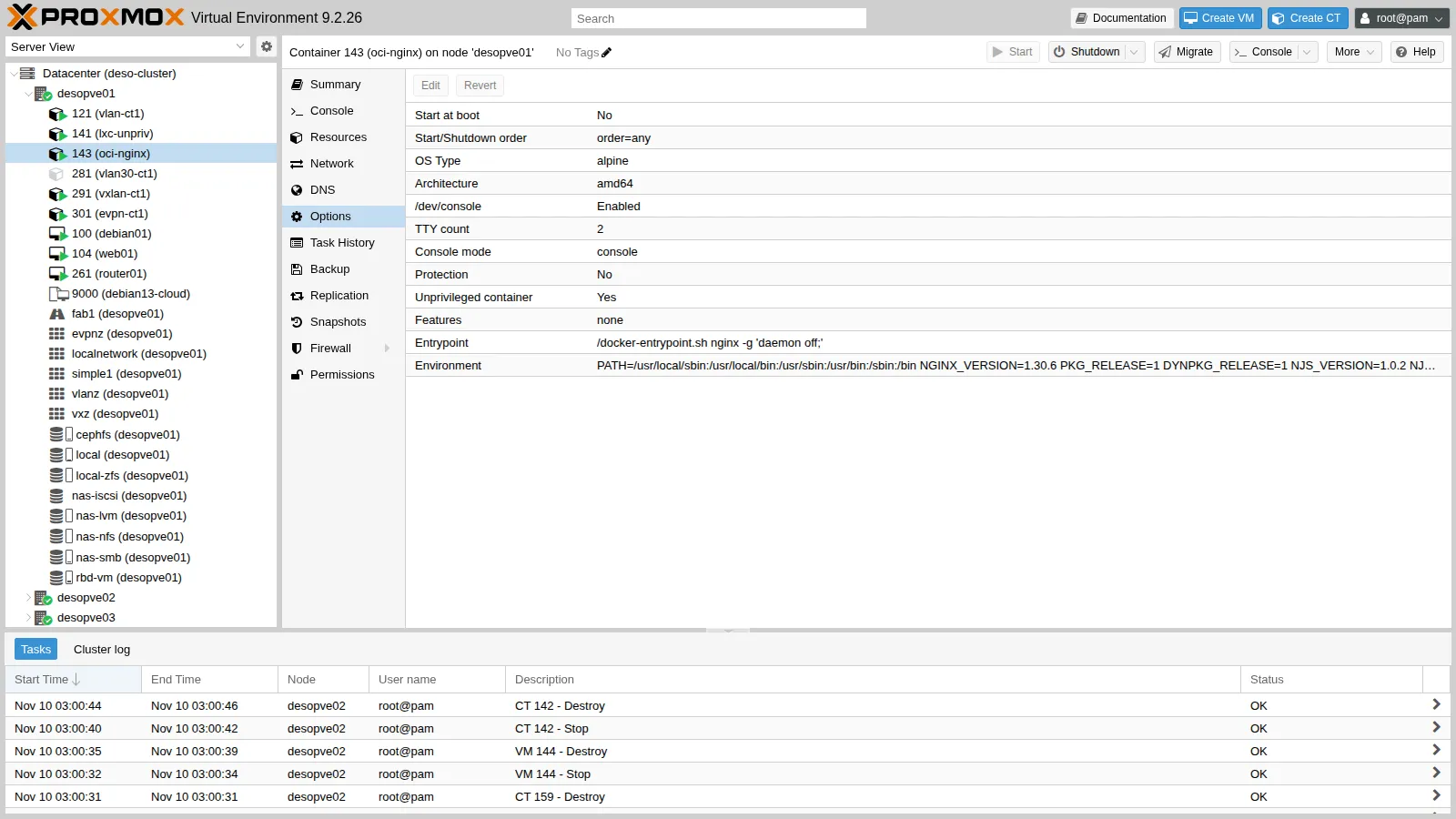
3. Unprivileged and privileged containers
Section titled “3. Unprivileged and privileged containers”In the Create CT wizard, the Unprivileged container and Nesting checkboxes are already checked:
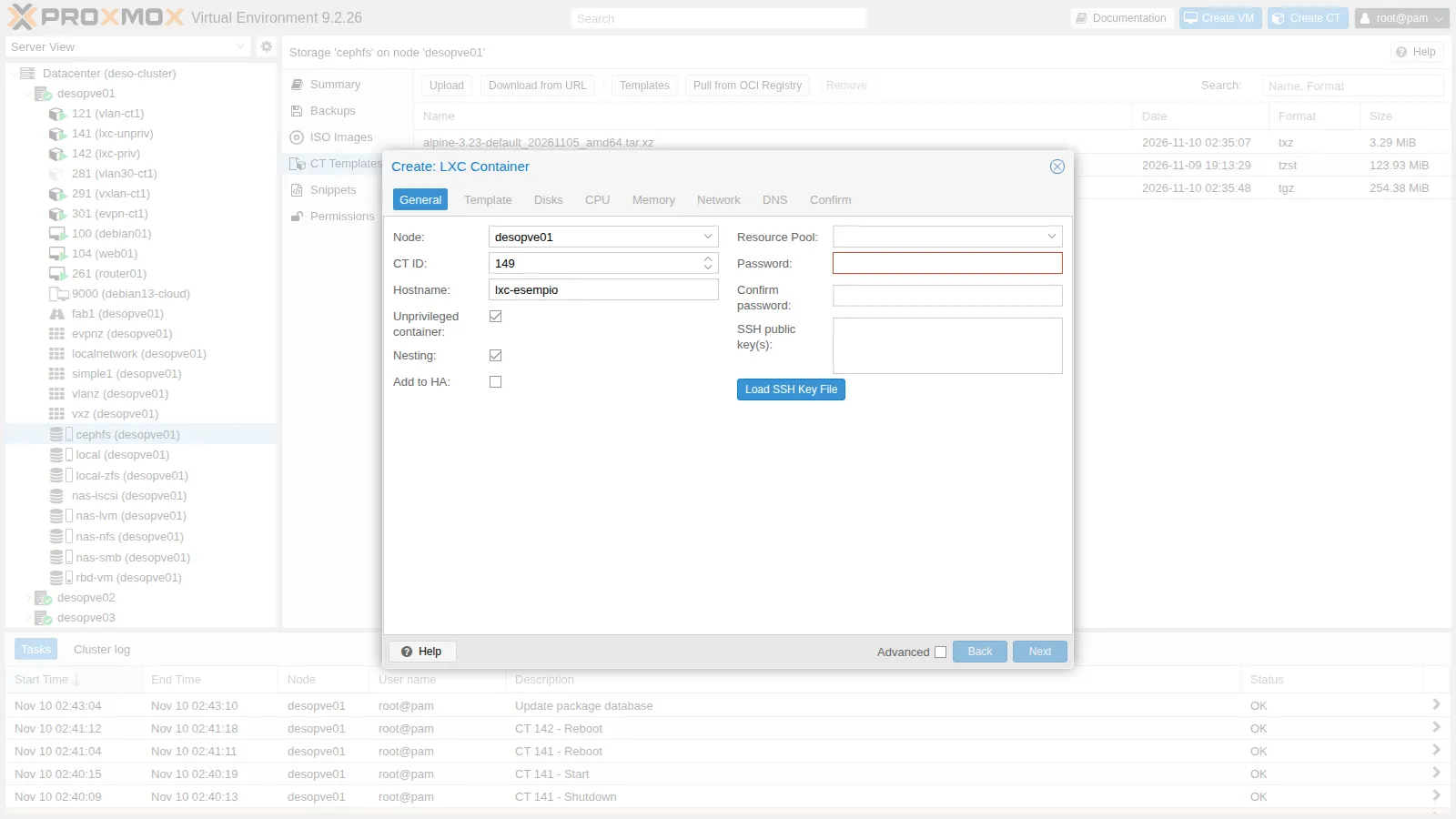
To compare them, create the two containers from the CLI, identical except for --unprivileged:
pveam download cephfs debian-13-standard_13.6-1_amd64.tar.zst # if it is not already on cephfsT=cephfs:vztmpl/debian-13-standard_13.6-1_amd64.tar.zstpct create 141 $T --hostname lxc-unpriv --unprivileged 1 --features nesting=1 --cores 2 --memory 1024 --swap 512 \ --rootfs rbd-vm:8 --net0 name=eth0,bridge=vmbr0,ip=172.27.199.141/24,gw=172.27.199.1 \ --nameserver 172.27.199.20 --searchdomain proxmox.community --password '<lab-password>'pct create 142 $T --hostname lxc-priv --unprivileged 0 --cores 2 --memory 1024 --swap 512 \ --rootfs rbd-vm:8 --net0 name=eth0,bridge=vmbr0,ip=172.27.199.142/24,gw=172.27.199.1 \ --nameserver 172.27.199.20 --searchdomain proxmox.community --password '<lab-password>'For 142, created without nesting, Proxmox VE warns:
WARN: Systemd 257 detected. You may need to enable nesting.With recent systemd versions, some service features (private namespaces, sandboxing) require nesting=1, which the wizard already enables.
Start the two containers, configure the apt proxy and install the packages needed later (the NFS client and stress-ng, which the template does not include):
pct start 141 && pct start 142for c in 141 142; do pct exec $c -- sh -c 'echo "Acquire::http::Proxy \"http://proxy.proxmox.community:3128\";" > /etc/apt/apt.conf.d/80proxy && apt-get update -qq && apt-get install -y -qq nfs-common stress-ng'doneUID mapping. The node reserves 65536 UIDs for root, starting from 100000:
# /etc/subuid and /etc/subgidroot:100000:65536root:100000:65536Inside the two containers:
pct exec 141 -- cat /proc/self/uid_mappct exec 142 -- cat /proc/self/uid_mapCT 141: 0 100000 65536CT 142: 0 0 4294967295141 sees UIDs 0-65535 as the node’s 100000-165535; 142 uses the node’s UIDs without translation. From the node, process 1 of the two containers:
P=$(lxc-info -n 141 -p -H); ps -o uid=,user=,pid=,cmd= -p $PP=$(lxc-info -n 142 -p -H); ps -o uid=,user=,pid=,cmd= -p $P100000 100000 408967 /sbin/init 0 root 409389 /sbin/initA file created by root inside each container, seen from the node through /proc/<PID>/root:
pct exec 141 -- touch /root/prova-lxc-unprivpct exec 142 -- touch /root/prova-lxc-privP=$(lxc-info -n 141 -p -H); ls -ln /proc/$P/root/root/prova-lxc-unprivP=$(lxc-info -n 142 -p -H); ls -ln /proc/$P/root/root/prova-lxc-priv## CT 141-rw-r--r-- 1 100000 100000 0 Nov 10 02:39 prova-lxc-unpriv## CT 142-rw-r--r-- 1 0 0 0 Nov 10 02:39 prova-lxc-privThis is why unprivileged containers are more secure: if a process managed to escape from 141, on the node it would be user 100000, which owns nothing. From 142 it would be root.
4. Mount points and bind mounts
Section titled “4. Mount points and bind mounts”A volume on rbd-vm, added live and included in backups:
pct set 141 -mp0 rbd-vm:4,mp=/data,backup=1pct exec 141 -- df -h /data/dev/rbd5 3.9G 1.1M 3.7G 1% /dataA bind mount of a node folder:
mkdir -p /srv/condivisa && echo 'file creato sul nodo' > /srv/condivisa/leggimi.txtpct set 141 -mp1 /srv/condivisa,mp=/condivisapct exec 141 -- ls -ln /condivisapct exec 141 -- touch /condivisa/scrivo-io-rw-r--r-- 1 65534 65534 21 Nov 10 01:39 leggimi.txttouch: cannot touch '/condivisa/scrivo-io': Permission deniedThe file belongs to the node’s root (UID 0), which is not mapped in the container: inside, it appears as nobody (65534) and the container’s root cannot write. The simplest solution is to give the folder to the UID that corresponds to the container’s root:
chown -R 100000:100000 /srv/condivisapct exec 141 -- touch /condivisa/scrivo-io && ls -ln /srv/condivisa-rw-r--r-- 1 100000 100000 21 Nov 10 02:39 leggimi.txt-rw-r--r-- 1 100000 100000 0 Nov 10 02:39 scrivo-ioMapping a specific UID. If the folder on the node belongs to a real user (UID 1000) and the same UID must use it inside the container, you open a “hole” in the mapping. To also see a common mistake, first create the user ana in the container, as if it already existed (it gets UID 1000):
pct exec 141 -- useradd -m -s /bin/bash anaOn the node:
mkdir -p /srv/progetti && echo 'documento di ana' > /srv/progetti/progetto.txt && chown -R 1000:1000 /srv/progettiecho 'root:1000:1' >> /etc/subuidecho 'root:1000:1' >> /etc/subgidShut down the container (pct shutdown 141) and add the mapping, split into three ranges, to /etc/pve/lxc/141.conf: 0-999 as before, 1000 to 1000, 1001-65535 as before:
lxc.idmap: u 0 100000 1000lxc.idmap: g 0 100000 1000lxc.idmap: u 1000 1000 1lxc.idmap: g 1000 1000 1lxc.idmap: u 1001 101001 64535lxc.idmap: g 1001 101001 64535pct set 141 -mp2 /srv/progetti,mp=/progettipct start 141pct exec 141 -- cat /proc/self/uid_mappct exec 141 -- su - ana -c 'echo modifica di ana >> /progetti/progetto.txt && touch /progetti/nuovo-da-ana'ls -ln /srv/progetti 0 100000 1000 1000 1000 1 1001 101001 64535-rw-rw-r-- 1 1000 1000 0 Nov 10 02:40 nuovo-da-ana-rw-r--r-- 1 1000 1000 33 Nov 10 02:40 progetto.txtThe user ana (UID 1000) writes to the node folder with its own UID.
Pitfall: the user ana was created before changing the mapping, so its home directory on the node belongs to 101000, which with the new mapping no longer corresponds to any UID in the container:
su: warning: cannot change directory to /home/ana: Permission denieddrwx------ 2 65534 65534 4096 Nov 10 01:40 /home/anachown: cannot read directory '/home/ana': Permission deniedThe container’s root cannot fix it, because the file does not belong to any mapped UID. Fix it from the node:
P=$(lxc-info -n 141 -p -H); chown -R 1000:1000 /proc/$P/root/home/anaRule of thumb: define the mapping before creating the users in the container.
5. Features and devices
Section titled “5. Features and devices”Device: /dev/net/tun, needed for VPNs such as userspace WireGuard or OpenVPN:
pct exec 141 -- ip tuntap add mode tun dev tun0pct set 141 -dev0 /dev/net/tunpct exec 141 -- ip tuntap add mode tun dev tun0 && pct exec 141 -- ip -br link show tun0open: No such file or directorytun0 DOWN <POINTOPOINT,MULTICAST,NOARP>The device is added live.
FUSE (filesystem in userspace, for example sshfs): it is enabled with the fuse=1 feature and a container reboot, after which the device appears:
pct set 141 -features nesting=1,fuse=1 && pct reboot 141 && pct exec 141 -- ls -l /dev/fusecrw-rw-rw- 1 nobody nogroup 10, 229 Nov 9 13:31 /dev/fuseMounting NFS inside the container. The mount=nfs feature can be set on both, but the result differs:
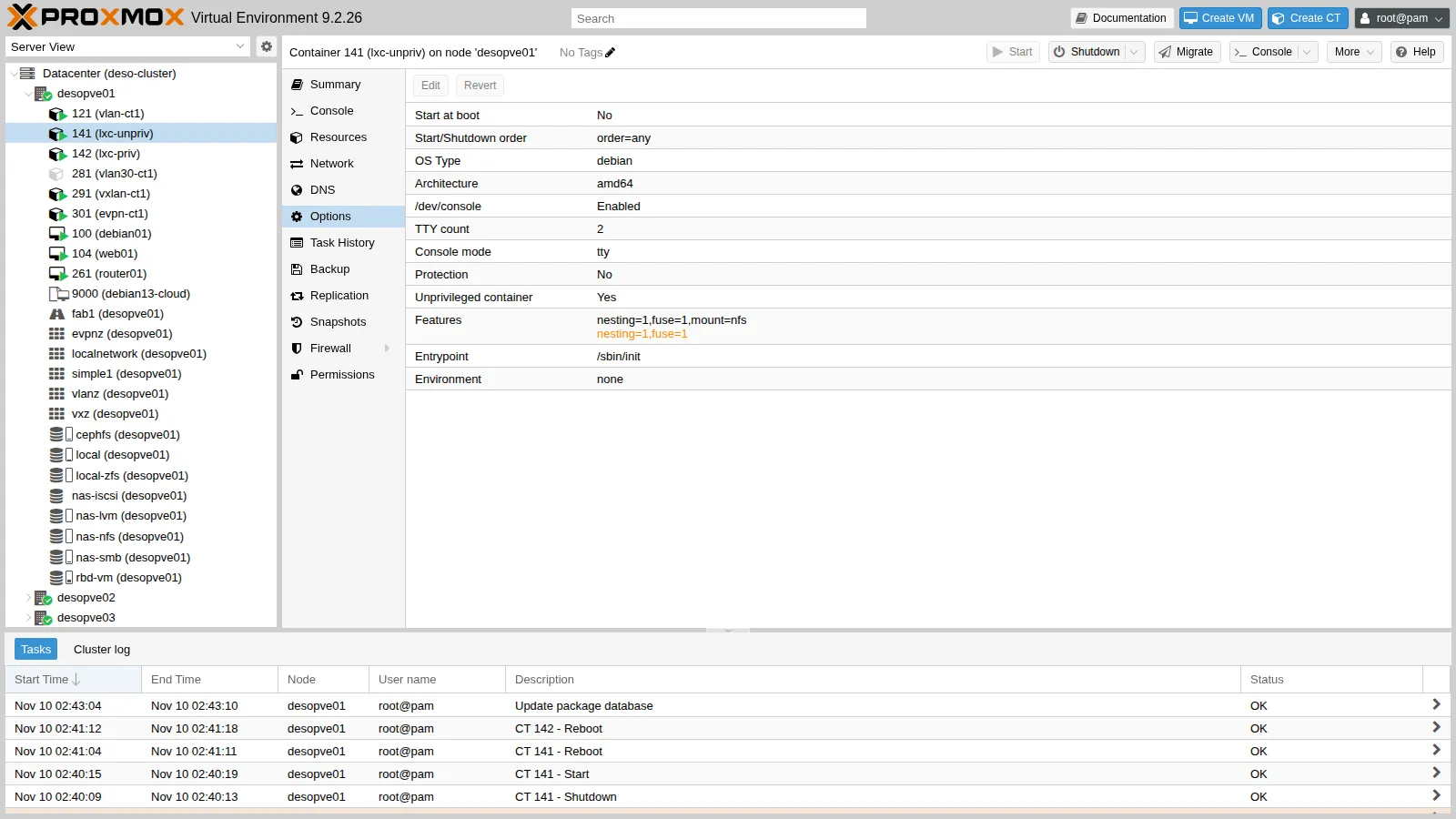
pct set 142 -features nesting=1,mount=nfs # privilegedpct set 141 -features nesting=1,fuse=1,mount=nfs # unprivilegedpct reboot 142 && pct reboot 141pct exec 142 -- mkdir -p /mnt/nas && pct exec 141 -- mkdir -p /mnt/naspct exec 142 -- mount -t nfs -o vers=4.2 172.27.199.10:/mnt/dati/nfs /mnt/naspct exec 141 -- mount -t nfs -o vers=4.2 172.27.199.10:/mnt/dati/nfs /mnt/nasCT 142: 172.27.199.10:/mnt/dati/nfs 54G 0 54G 0% /mnt/nasCT 141: mount.nfs: Operation not permitted for 172.27.199.10:/mnt/dati/nfs on /mnt/nasThe kernel does not allow mounting NFS from a user namespace. For an unprivileged container, the right way is to mount the share on the node, or use a Proxmox VE storage, and pass it in with a mount point. Then remove mount=nfs from 141, where it is not needed: pct set 141 -features nesting=1,fuse=1 and pct reboot 141.
The enabled features are shown in Options:
Other useful features:
keyctl=1: the system calls for kernel keys, needed by Docker inside an unprivileged container;nesting=1: nested namespaces, for recent systemd and for containers inside the container.
6. CPU and RAM limits
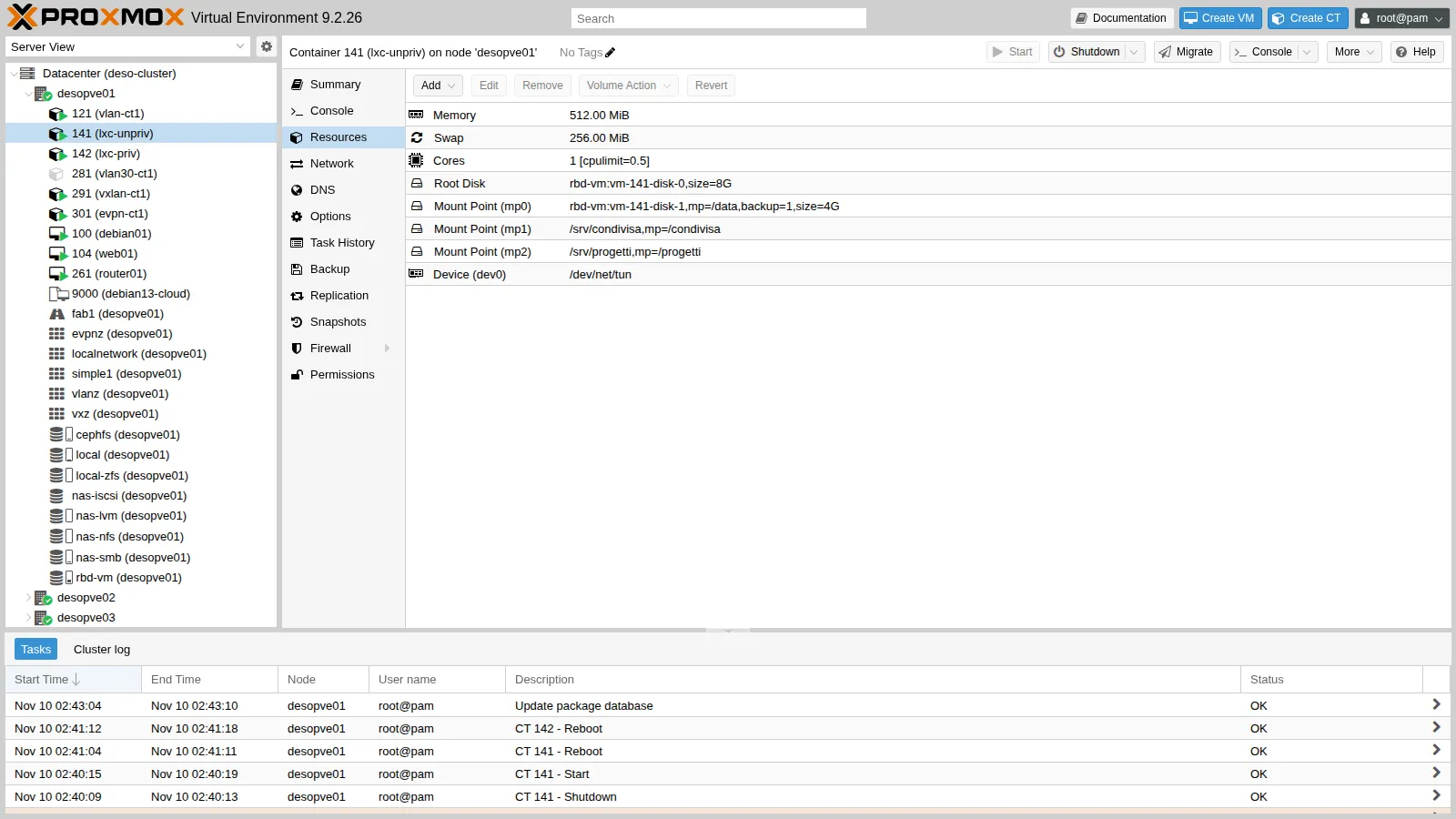
Section titled “6. CPU and RAM limits”Give 141 one core, a cap of half a core, 512 MiB of RAM and 256 MiB of swap:
pct set 141 -cores 1 -cpulimit 0.5 -memory 512 -swap 256Proxmox VE translates them into the files of the cgroup /sys/fs/cgroup/lxc/141/:
cpu.max: 50000 100000memory.max: 536870912memory.swap.max: 268435456cpu.max means “50 ms of CPU every 100 ms”, that is, half a core. The number of cores, on the other hand, is a cpuset: right after the command it was still 0,3, a few seconds later it was 0, and inside the container nproc returned 1.
Inside the container, free shows the RAM of the limit, not that of the node:
total used free shared buff/cache availableMem: 512 16 262 0 232 495Swap: 0 0 0Measured CPU. stress-ng with 2 processes for 20 seconds; the usage is read from the node in the cgroup’s cpu.stat, before and after. The script misure.sh, to be copied to the node, does the math (here together with the stress-ng metrics line):
./misure.sh cpu 141 pct exec 141 -- stress-ng --cpu 2 --timeout 20s --metrics-briefstress-ng: metrc: [1381] cpu 12146 20.05 10.00 0.02 605.90 1211.82CPU usata dal cgroup: 10.1 s su 21.3 s di orologio = 47% di un coreThe half-core cap is respected.
Measured RAM. stress-ng tries to allocate 900 MiB:
pct exec 141 -- stress-ng --vm 1 --vm-bytes 900M --vm-keep --timeout 20s >/dev/null &./misure.sh mem 141 12journalctl -k --since "-2min" | grep -m1 "Memory cgroup out of memory" | sed 's/^.*kernel: //'t+3s memory.current=506 MiB swap.current=0 MiBt+6s memory.current=290 MiB swap.current=0 MiBt+9s memory.current=511 MiB swap.current=0 MiBt+12s memory.current=512 MiB swap.current=0 MiBoom_kill: 11 -> 16Memory cgroup out of memory: Killed process 826768 (stress-ng-vm) total-vm:1001468kB, anon-rss:475832kB, file-rss:4kB, shmem-rss:64kB, UID:100000 pgtables:1024kB oom_score_adj:1000The cgroup’s oom_kill counter goes up with every killed process (here it started from 11 because of the previous tests).
At the 512 MiB limit the kernel kills the process inside the container’s cgroup (UID:100000): the node and the other guests do not notice. The container’s swap is not used because desopve01 has no swap: the installation on ZFS does not create it (swapon --show is empty). The swap limit only has an effect on a node that has swap.
The final resources of 141:
7. Migrating a container
Section titled “7. Migrating a container”A running container cannot be migrated “live”:
pct migrate 141 desopve02pct migrate 141 desopve02 --restartpct migrate 142 desopve02 --onlinecan't migrate running container without --online or --restartERROR: migration aborted (duration 00:00:00): cannot migrate local bind mount point 'mp1'ERROR: migration aborted (duration 00:00:00): lxc live migration is currently not implemented- Live migration of containers does not exist: Proxmox VE accepts
--onlinebut refuses the operation. - Restart migration shuts down the container, moves it and starts it again.
- A local bind mount blocks migration: the folder exists only on that node.
CT 142 has no bind mounts and its disk is on rbd-vm. While it migrates, a ping every 0.2 seconds from another terminal on the node counts the lost replies:
./misure.sh pinggap 172.27.199.142 30 # second terminalpct migrate 142 desopve02 --restartshutdown CT 142starting migration of CT 142 to node 'desopve02' (10.100.10.22)start container on target nodemigration finished successfully (duration 00:00:10)buco nei ping: 17 risposte perse, circa 3.4 sThe disk is shared, so nothing is copied: 10 seconds in total, 3.4 seconds without replies. The migration uses the dedicated network from Lab 22 (10.100.10.22).
8. Containers versus VMs
Section titled “8. Containers versus VMs”Boot time. CT 142 (Debian 13) and VM 144, a linked clone of template 9000, with 1 GiB of RAM each. Create the VM on desopve01:
qm clone 9000 144 --name vm144 && qm set 144 --memory 1024 --ipconfig0 ip=172.27.199.144/24,gw=172.27.199.1The time between the start command and the first reply is measured with a loop on the node, twice per guest (for the VM, qm start 144 and IP .144):
t0=$(date +%s.%N); pct start 142until ping -c1 -W1 172.27.199.142 >/dev/null; do :; done; echo "$(date +%s.%N) - $t0" | bc| Guest | First ping | SSH ready |
|---|---|---|
| CT 142 | 7.2-7.3 s | 7.2-7.3 s |
| VM 144 | 22.1-22.6 s | 24.5-24.8 s |
| VM 144, first boot with cloud-init | – | 63 s |
The container has no firmware, bootloader or kernel to boot: systemd starts directly.
RAM at idle, from the cgroup on the node after 40 seconds (memory.current in /sys/fs/cgroup/lxc/142/ and in /sys/fs/cgroup/qemu.slice/144.scope/), in summary:
CT 142: 113 MiBVM 144: 308 MiB (assigned memory 1024 MiB)The VM keeps a complete kernel and the guest’s cache in RAM; the container shares the node’s kernel.
Density. Ten 64 MiB Alpine containers on desopve02, rootfs on local-zfs:
for i in $(seq 150 159); do pct create $i cephfs:vztmpl/alpine-3.23-default_20261105_amd64.tar.xz --hostname alp$i --unprivileged 1 \ --memory 64 --swap 0 --cores 1 --rootfs local-zfs:1 \ --net0 name=eth0,bridge=vmbr0,ip=172.27.199.$i/24,gw=172.27.199.1 --password '<lab-password>'donefor i in $(seq 150 159); do pct start $i; doneSummary of the measurements (time on the two loops, the node’s available memory before and after with free -m, sum of the cgroups’ memory.current):
creazione di 10 CT: 23.5 s; avvio di 10 CT: 39.8 s; rispondono al ping: 10/10memoria disponibile del nodo: -158 MiB; somma memory.current dei 10 CT: 24 MiBCT 150: 2560 KiBEach Alpine container uses 2.5 MiB of RAM and 7.7 MB of disk (zfs list). The node’s available memory drops more (158 MiB) because of kernel structures and filesystem caches. With VMs, the same test would require at least ten kernels and ten times the minimum RAM of an operating system.
At the end, delete the test guests:
# on desopve02pct stop 142 && pct destroy 142 --purgefor i in $(seq 150 159); do pct stop $i; pct destroy $i --purge; done# on desopve01qm stop 144 && qm destroy 144 --purgeVerification and tests
Section titled “Verification and tests”- A TurnKey appliance over HTTPS can be downloaded with Download from URL even behind a proxy;
pveam downloadfails without direct Internet access. - An OCI image becomes an application container with the image’s entrypoint and variables; with skopeo and
HTTPS_PROXYthe download also works behind a proxy. - The
rootof the unprivileged container is UID 100000 on the node; that of the privileged one is UID 0. - A bind mount belongs to
nobodyin the container until the owner is aligned (100000) or the UID is mapped. - The
/dev/net/tundevice is added live; FUSE requires a reboot; NFS can be mounted only in the privileged container. - The half-core cap brings usage to 47% of a core; the 512 MiB limit triggers the OOM killer in the container only.
- The restart migration of a container on shared storage takes 10 seconds with 3.4 seconds of interruption; live migration is not available.
- A container starts in about 7 seconds versus 22-25 for a VM, and at idle uses 113 MiB versus 308.
Final lab state
Section titled “Final lab state”- CT 141
lxc-unprivondesopve01, running, unprivileged, 172.27.199.141:- 1 core with
cpulimit 0.5, 512 MiB of RAM, 256 MiB of swap; mp0onrbd-vm(4 GiB,/data,backup=1);- bind mounts
mp1/srv/condivisa→/condivisaandmp2/srv/progetti→/progetti: for this reason 141 cannot be migrated until they are removed; dev0: /dev/net/tun, featuresnesting=1,fuse=1;- UID mapping with UID 1000 passed through, user
ana(UID 1000) in the container; on the node,/etc/subuidand/etc/subgidalso containroot:1000:1.
- 1 core with
- CT 143
oci-nginxondesopve01, running: application container from the OCI imagenginx:stable-alpine, 172.27.199.143, responds over HTTP. - Templates on
cephfs:debian-13-standard,alpine-3.23-default,debian-13-turnkey-coreand the OCI archivenginx_stable-alpine.tar. - Deleted: CT 142, CTs 150-159, VM 144.
- Lab proxy:
docker.io,production.cloudflare.docker.comandproduction.cloudfront.docker.comadded to the whitelist.
What you learned
Section titled “What you learned”- Containers share the node’s kernel: they start in a few seconds and take up a few MiB, but they cannot be live-migrated.
- An unprivileged container shifts UIDs by 100000: it is the default and the safe choice.
- Mount points on storage follow the migration and, with
backup=1, the backup; bind mounts do not, and they require aligning the owners. - With
lxc.idmapand/etc/subuid, a specific UID can pass unchanged between node and container; do it before creating the users. - Devices, FUSE and mounts are enabled with
devXandfeatures; NFS inside the container works only if it is privileged. - CPU and RAM limits are cgroup v2: they can be read and measured directly from the node.
- Behind a proxy, TurnKey (HTTPS) and OCI images (skopeo) require an extra step.