

Lab 08 – The Proxmox VE storage model
Dependencies
Section titled “Dependencies”- Previous labs: Lab 07: VM
100debian01running ondesopve01, with its disk onlocal-zfs. - Nodes:
desopve01of thedeso-clustercluster. - Credentials:
root/<lab-password>→ Appendix B.
Objectives
Section titled “Objectives”- Understand how Proxmox VE describes storage: type, content, formats, local and shared storage.
- Read
/etc/pve/storage.cfgand query the storages withpvesm. - Add a Directory storage and protect it with
is_mountpoint. - Move the disk of a running VM from a block storage to a file storage, changing its format.
- See thin provisioning in numbers: virtual size versus space used.
How it works
Section titled “How it works”Storages, volumes and storage.cfg
Section titled “Storages, volumes and storage.cfg”For Proxmox VE, a storage is a place to keep disks, ISOs, templates or backups. It is defined only once for the whole cluster, in /etc/pve/storage.cfg, and identified by an ID (local, local-zfs…). Each object inside a storage is a volume and has a unique address, the volume ID:
local-zfs:vm-100-disk-0 disk of VM 100 on the local-zfs storagelocal:iso/debian-13.7.0-amd64-netinst.iso ISO on the local storageIn the configuration of a VM, the disks are written exactly this way (scsi0: local-zfs:vm-100-disk-0,...): the VM does not know the physical path, which Proxmox VE derives from the storage. This is why a disk can be moved from one storage to another without touching the rest of the configuration.
Storage types
Section titled “Storage types”The type tells you which technology lies underneath. The types available in Proxmox VE 9.2 are:
| Type | Description | Level | Shared | Snapshots |
|---|---|---|---|---|
dir |
Directory on a local file system | file | no | with qcow2 |
btrfs |
BTRFS file system (technology preview) | file | no | yes |
nfs |
NFS share | file | yes | with qcow2 |
cifs |
SMB/CIFS share | file | yes | with qcow2 |
cephfs |
Ceph file system | file | yes | yes |
zfspool |
Local ZFS pool: zvols for VMs, datasets for containers | both | no | yes |
lvm |
LVM volume group | block | no, yes on a shared LUN | volume chain (lab 16) |
lvmthin |
LVM thin pool | block | no | yes |
iscsi |
iSCSI LUN with the kernel initiator | block | yes | no |
iscsidirect |
iSCSI LUN with libiscsi, inside QEMU | block | yes | no |
rbd |
Ceph RBD | block | yes | yes |
zfs |
ZFS over iSCSI | block | yes | yes |
pbs |
Proxmox Backup Server, for backups only | both | yes | – |
esxi |
ESXi host, only for importing VMs (lab 50) | – | – | – |
- File or block: a file storage contains files (
.qcow2and.rawimages, ISOs); a block storage provides block devices (LVs, zvols, LUNs), one per disk. - Shared: the same storage is reachable from all nodes, with the same data. This is what enables live migration without copying the disks, and high availability (labs 48-49). Note: the
sharedflag tells Proxmox VE that the data are already shared; it does not make them shared.
Content types
Section titled “Content types”Each storage accepts only the content types you enable on it:
| Content | In the interface | What it contains | Folder in a dir storage |
|---|---|---|---|
images |
Disk image | VM disks | images/<VMID>/ |
rootdir |
Container | container disks | images/<VMID>/ |
iso |
ISO image | ISO images | template/iso/ |
vztmpl |
Container template | LXC templates | template/cache/ |
backup |
VZDump backup file | backups | dump/ |
snippets |
Snippets | hookscripts, cloud-init files | snippets/ |
import |
Import | images and OVAs to import | import/ |
Disk formats
Section titled “Disk formats”- raw: the bytes of the disk, with no headers. It is the fastest format and the one used by block storages (a zvol or an LV is the disk). The only exception: LVM with the Proxmox VE 9 snapshot as volume chain feature, which writes qcow2 inside the LVs (lab 16).
- qcow2: the QEMU format, on file storages. It grows as data is written (thin) and supports snapshots.
- vmdk: the format of other hypervisors, useful only for compatibility.
- subvol: for containers on ZFS or on directories: the disk is a folder (a ZFS dataset), not an image.
Thin provisioning
Section titled “Thin provisioning”A thin disk uses only the space actually written; a thick disk reserves its full size right away. Thin provisioning lets you assign more space than actually exists (overprovisioning), but you have to make sure that the real space does not run out (lab 09).
| Storage | How it becomes thin |
|---|---|
zfspool |
sparse option (enabled on local-zfs): the zvol has no refreservation |
lvmthin |
always thin |
dir, nfs, cifs |
qcow2, or “sparse” raw; the preallocation option (default metadata) decides how much to reserve at creation |
lvm |
always thick |
Procedure
Section titled “Procedure”1. The storage configuration
Section titled “1. The storage configuration”-
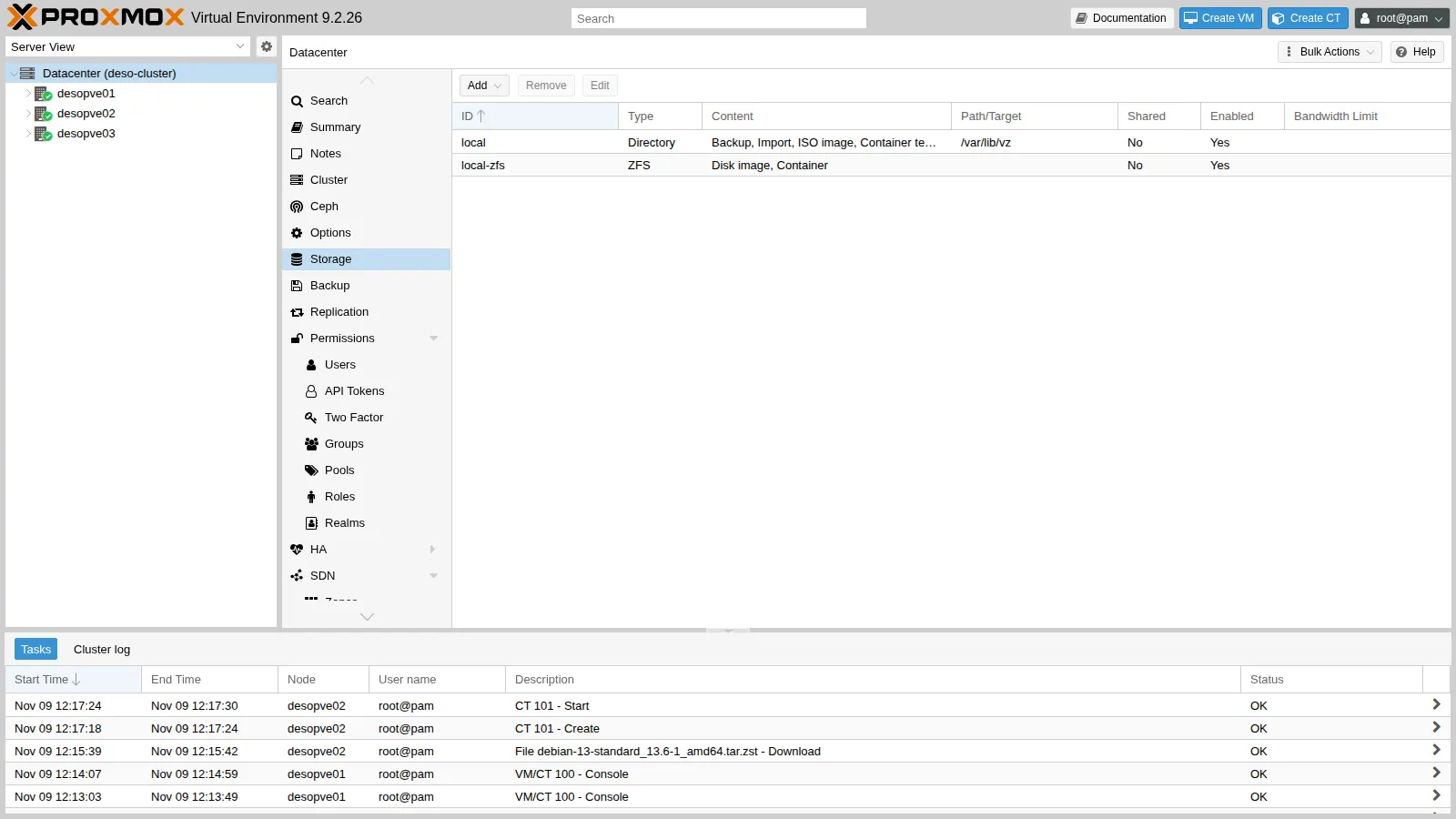
In the web interface, open Datacenter → Storage: the storages created by the installation are listed.
-
The same data are in the shared cluster file:
root@desopve01 cat /etc/pve/storage.cfgOutput dir: localpath /var/lib/vzcontent iso,vztmpl,backup,importzfspool: local-zfspool rpool/datasparsecontent images,rootdirlocalis a directory on/var/lib/vz, which the ZFS installation placed on a dedicated dataset (rpool/var-lib-vz). It contains ISOs, templates, backups and files to import: it is a file storage.local-zfsuses therpool/datadataset for VM and container disks: it is a block storage for VMs (zvols) and a file storage for containers (subvols). It issparse, hence thin.
-
The list of types is also in the
pvesmhelp:root@desopve01 pvesm help add | sed -n 1,7pOutput USAGE: pvesm add <type> <storage> [OPTIONS]Create a new storage.<type> <btrfs | cephfs | cifs | dir | esxi | iscsi | iscsidirect |lvm | lvmthin | nfs | pbs | rbd | zfs | zfspool>Storage type.
2. Query the storages with pvesm
Section titled “2. Query the storages with pvesm”-
Status of all the node’s storages, or only of those that accept a given content type:
root@desopve01 pvesm statusOutput Name Type Status Total (KiB) Used (KiB) Available (KiB) %local dir active 44854016 768000 44086016 1.71%local-zfs zfspool active 45518240 1432128 44086112 3.15%The two storages show the same available space (about 42 GiB): they sit on the same
rpoolpool and share it. -
Content of a storage, with volume ID, format and size:
root@desopve01 pvesm list localOutput Volid Format Type Size VMIDlocal:iso/debian-13.7.0-amd64-netinst.iso iso iso 792723456root@desopve01 pvesm list local-zfsOutput Volid Format Type Size VMIDlocal-zfs:vm-100-disk-0 raw images 17179869184 100 -
Actual path of a volume and space actually used. The disk of VM 100 is a zvol, that is, a block device:
root@desopve01 pvesm path local-zfs:vm-100-disk-0Output /dev/zvol/rpool/data/vm-100-disk-0root@desopve01 zfs get -H -o property,value volsize,used,refreservation,volblocksize,compression rpool/data/vm-100-disk-0Output volsize 16Gused 1.37Grefreservation nonevolblocksize 16Kcompression onThe disk is 16 GiB, but it uses 1.37 GiB on the pool: it is thin (
refreservation none) and ZFS compresses it.
3. Add a Directory storage
Section titled “3. Add a Directory storage”A dir storage can live on any mounted file system. Here you use a new ZFS dataset, but the procedure is identical with a disk formatted with ext4 or XFS.
-
Create the dataset, which ZFS mounts by itself on
/rpool/lab08:root@desopve01 zfs create rpool/lab08zfs list -o name,used,avail,mountpoint rpool/lab08Output NAME USED AVAIL MOUNTPOINTrpool/lab08 96K 42.0G /rpool/lab08 -
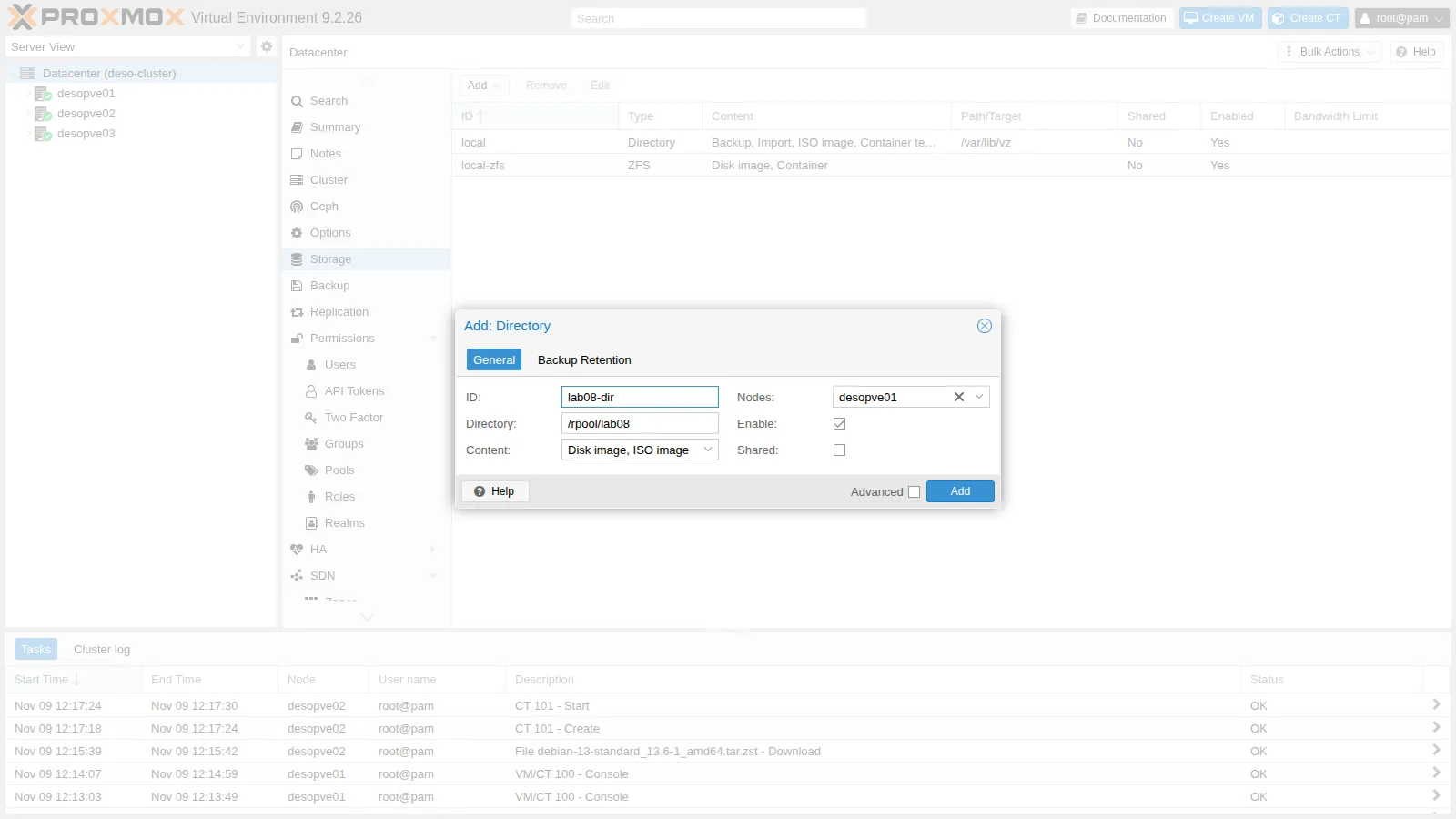
In Datacenter → Storage, click Add → Directory and fill in:
- ID
lab08-dir, Directory/rpool/lab08; - Content
Disk imageandISO image; - Nodes
desopve01: the folder exists only on this node, so the storage must be restricted to it; - Shared off: it is a local storage.
- ID
-
Click Add. The new storage appears in the list and, in the tree, only under
desopve01.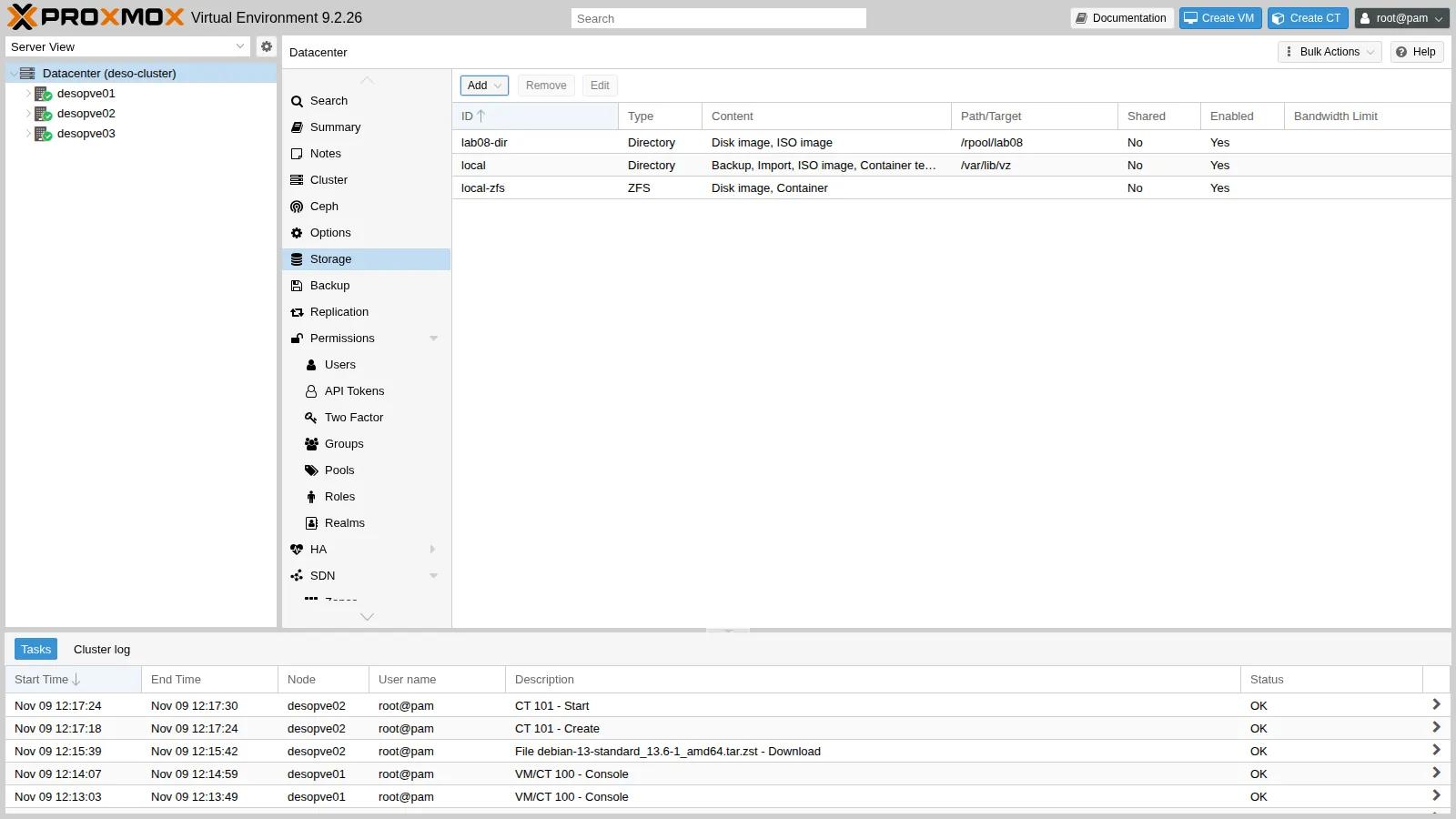
-
The storage points to a mount point. If the dataset were not mounted, Proxmox VE would write the disks into the empty folder underneath, on the system file system. The
is_mountpointoption, which you set from the command line, prevents this: if the path is not mounted, the storage is reported as inactive.root@desopve01 pvesm set lab08-dir --is_mountpoint yesgrep -A6 "dir: lab08-dir" /etc/pve/storage.cfgOutput dir: lab08-dirpath /rpool/lab08content iso,imagesis_mountpoint yesnodes desopve01prune-backups keep-all=1shared 0
4. Move the VM disk to a file storage
Section titled “4. Move the VM disk to a file storage”You move the disk of VM 100, while it is running, from local-zfs (zvol, raw) to lab08-dir (file, qcow2).
-
Open VM
100→ Hardware, select Hard Disk (scsi0) and choose Disk Action → Move Storage. -
Target Storage
lab08-dir, FormatQEMU image format (qcow2); check Delete source to delete the source disk once the copy is complete.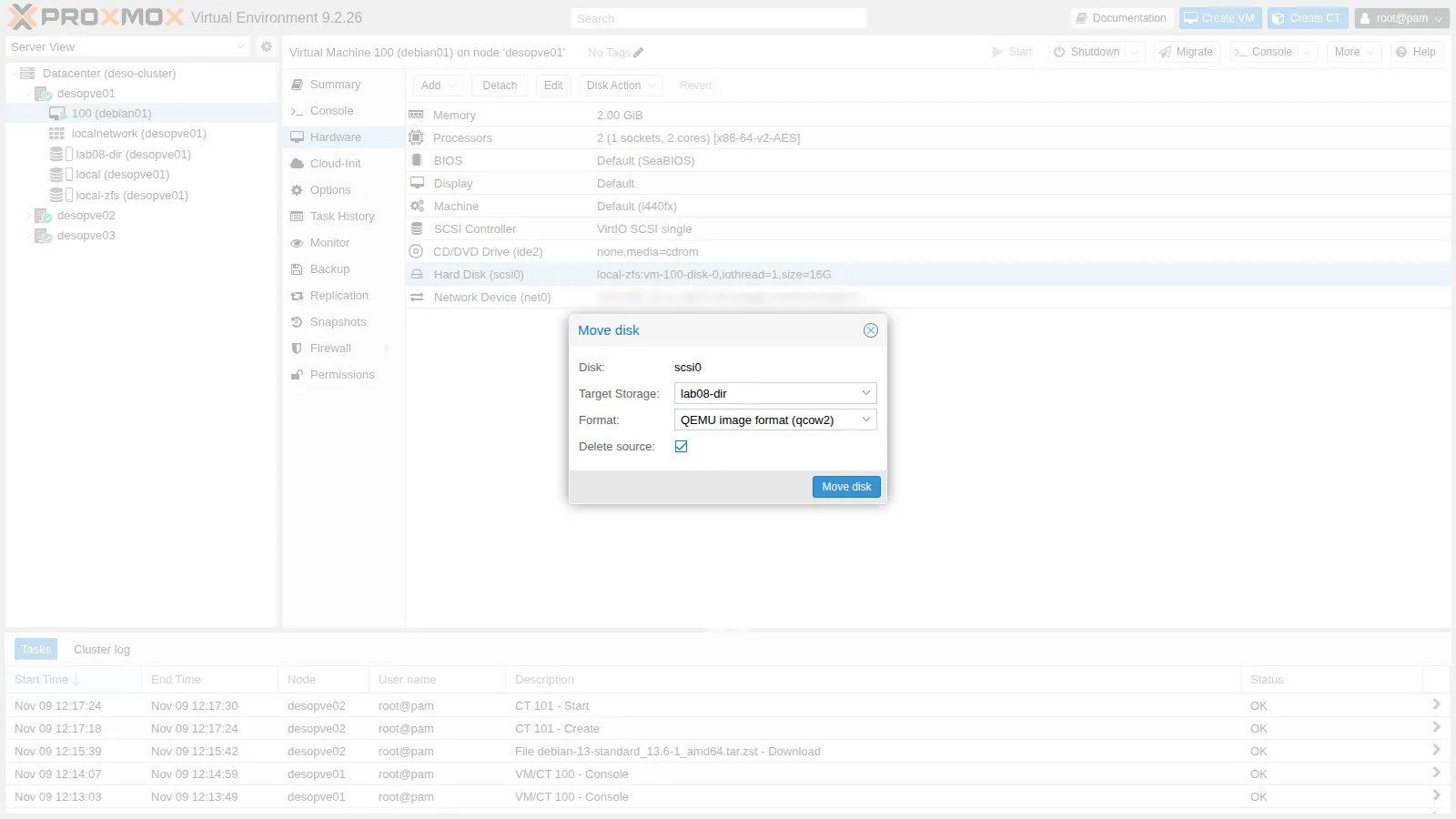
-
Click Move disk. QEMU copies the disk while the VM keeps working (drive mirror): once the copy is in sync, it switches to the new disk and deletes the old one.
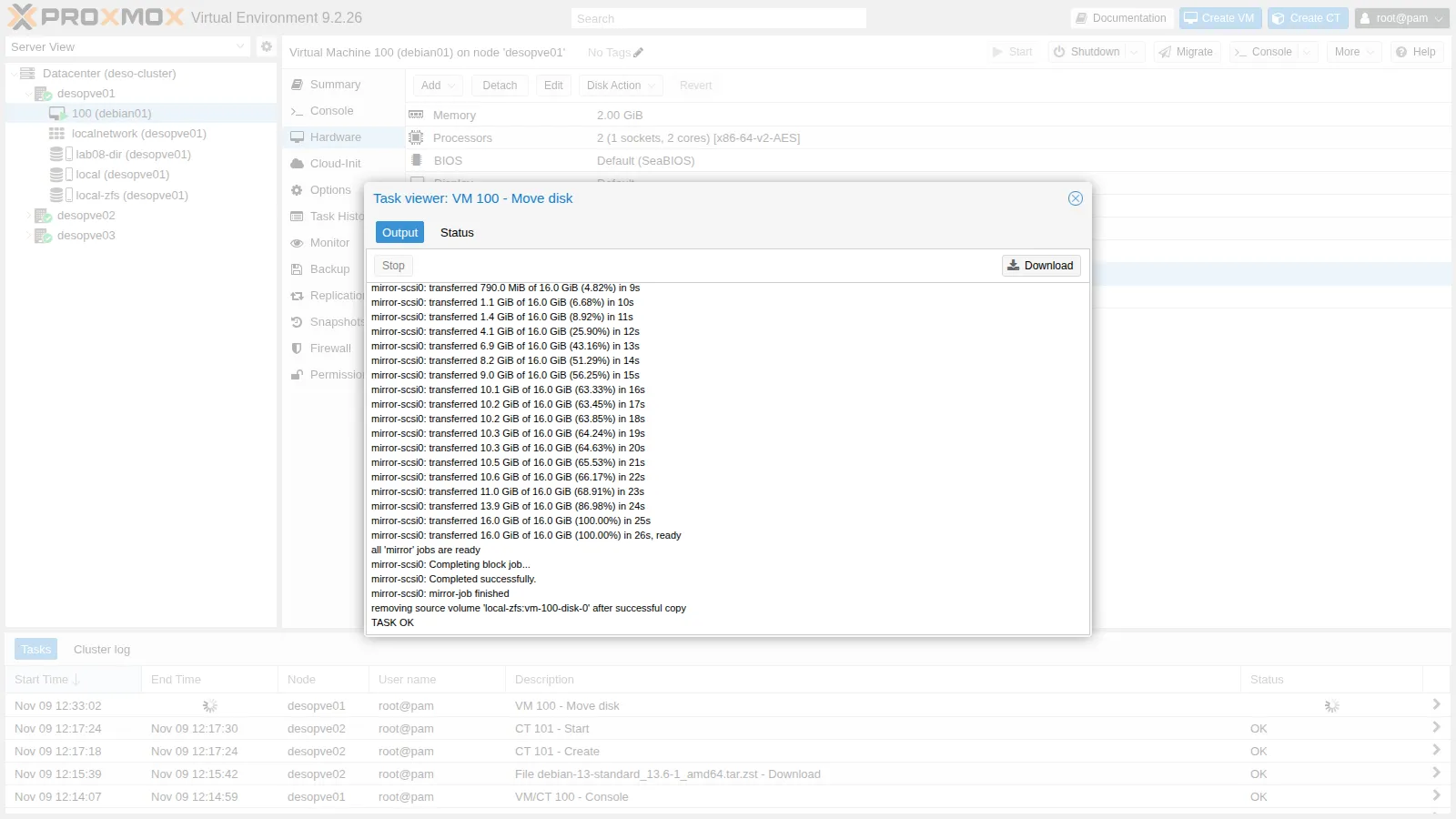 create full clone of drive scsi0 (local-zfs:vm-100-disk-0)Formatting '/rpool/lab08/images/100/vm-100-disk-0.qcow2', fmt=qcow2 cluster_size=65536 extended_l2=off preallocation=metadata compression_type=zlib size=17179869184 lazy_refcounts=off refcount_bits=16allocated target volume 'lab08-dir:100/vm-100-disk-0.qcow2'drive mirror is starting for drive-scsi0...mirror-scsi0: transferred 16.0 GiB of 16.0 GiB (100.00%) in 26s, readyall 'mirror' jobs are readymirror-scsi0: Completing block job...mirror-scsi0: Completed successfully.mirror-scsi0: mirror-job finishedremoving source volume 'local-zfs:vm-100-disk-0' after successful copyTASK OK
-
In the Hardware tab, the disk is now
lab08-dir:100/vm-100-disk-0.qcow2.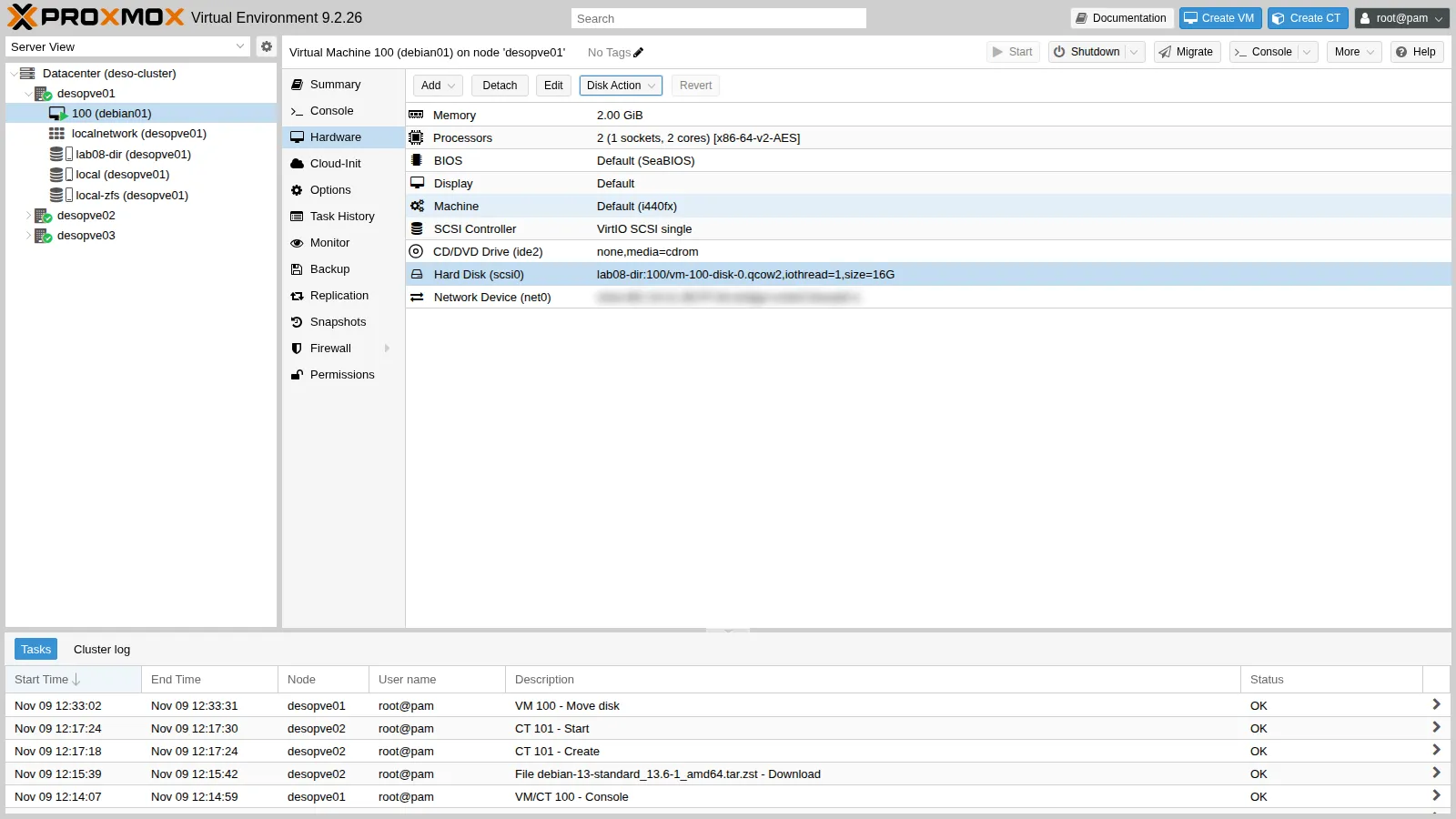
-
From the command line: the file “weighs” 17 GB as apparent size, but it uses only 1.2 GB on disk.
qemu-imgshows the virtual size of the disk and the actual size of the file.root@desopve01 pvesm list lab08-dirOutput Volid Format Type Size VMIDlab08-dir:100/vm-100-disk-0.qcow2 qcow2 images 17179869184 100root@desopve01 ls -lsh /rpool/lab08/images/100/Output total 1.2G1.2G -rw-r----- 1 root root 17G Nov 9 13:33 vm-100-disk-0.qcow2root@desopve01 qemu-img info /rpool/lab08/images/100/vm-100-disk-0.qcow2 | head -4Output image: /rpool/lab08/images/100/vm-100-disk-0.qcow2file format: qcow2virtual size: 16 GiB (17179869184 bytes)disk size: 1.18 GiB
5. Move the disk back to ZFS from the command line
Section titled “5. Move the disk back to ZFS from the command line”You can do the same move with qm disk move. Move the disk back to local-zfs, where it must stay for the following labs. The format becomes raw again, because no other format exists on a zvol.
qm disk move 100 scsi0 local-zfs --delete 1copying volume 'lab08-dir:100/vm-100-disk-0.qcow2' from current storage 'lab08-dir' to target storage 'local-zfs'create full clone of drive scsi0 (lab08-dir:100/vm-100-disk-0.qcow2)allocated target volume 'local-zfs:vm-100-disk-0'drive mirror is starting for drive-scsi0...mirror-scsi0: transferred 16.0 GiB of 16.0 GiB (100.00%) in 29s, readyall 'mirror' jobs are readymirror-scsi0: Completing block job...mirror-scsi0: Completed successfully.mirror-scsi0: mirror-job finishedremoving source volume 'lab08-dir:100/vm-100-disk-0.qcow2' after successful copyqm config 100 | grep scsi0scsi0: local-zfs:vm-100-disk-0,iothread=1,size=16Gzfs get -H -o property,value volsize,used,refreservation rpool/data/vm-100-disk-0volsize 16Gused 1.37Grefreservation noneThe disk is thin again: the copy did not write the empty blocks.
Verification and tests
Section titled “Verification and tests”Test 1 – Thin and thick on the same pool
Section titled “Test 1 – Thin and thick on the same pool”The sparse option of the storage decides whether a zvol is thin. To see it, define a second storage, lab08-thick, on the same dataset but without sparse, and create a 4 GiB volume in each. pvesm alloc creates a volume without a VM, here assigned to a nonexistent VMID (990).
pvesm alloc local-zfs 990 vm-990-disk-0 4Gsuccessfully created 'local-zfs:vm-990-disk-0'pvesm add zfspool lab08-thick --pool rpool/data --content images --nodes desopve01pvesm alloc lab08-thick 990 vm-990-disk-1 4Gsuccessfully created 'lab08-thick:vm-990-disk-1'zfs list -o name,volsize,used,refreservation,avail -r rpool/dataNAME VOLSIZE USED REFRESERV AVAILrpool/data - 5.43G none 38.0Grpool/data/vm-100-disk-0 16G 1.37G none 38.0Grpool/data/vm-990-disk-0 4G 56K none 38.0Grpool/data/vm-990-disk-1 4G 4.06G 4.06G 42.0G- The thin volume (
disk-0) uses 56 KiB. - The thick volume (
disk-1) has immediately reserved 4.06 GiB: the available space of the pool drops from 42 to 38 GiB even though nothing has been written to it.
Delete the test volumes and the lab08-thick storage:
pvesm free local-zfs:vm-990-disk-0Removed volume 'local-zfs:vm-990-disk-0'pvesm free lab08-thick:vm-990-disk-1Removed volume 'lab08-thick:vm-990-disk-1'pvesm remove lab08-thickTest 2 – An unmounted Directory storage
Section titled “Test 2 – An unmounted Directory storage”Unmount the dataset and look at the storage status: thanks to is_mountpoint, Proxmox VE reports the storage as inactive instead of writing to the system disk.
zfs unmount rpool/lab08pvesm statusunable to activate storage 'lab08-dir' - directory is expected to be a mount point but is not mounted: '/rpool/lab08'Name Type Status Total (KiB) Used (KiB) Available (KiB) %lab08-dir dir inactive 0 0 0 0.00%...zfs mount rpool/lab08pvesm status | grep lab08lab08-dir dir active 44085504 128 44085376 0.00%Cleanup
Section titled “Cleanup”Removing a storage deletes only its definition, not the data: the dataset must be destroyed separately.
pvesm remove lab08-dirzfs destroy rpool/lab08pvesm statusName Type Status Total (KiB) Used (KiB) Available (KiB) %local dir active 44853504 768000 44085504 1.71%local-zfs zfspool active 45517724 1432132 44085592 3.15%- You can read
storage.cfgand tell apart the type, content, nodes and options of a storage. - The disk of VM
100was moved live tolab08-diras qcow2 and back tolocal-zfs, with the VM running the whole time. - You have seen the difference between a thin (
sparse) zvol and a thick one. - With
is_mountpoint yes, an unmounted Directory storage shows asinactive.
Final lab state
Section titled “Final lab state”- Unchanged from lab 07: VM
100is running ondesopve01with the disklocal-zfs:vm-100-disk-0(raw, thin), and CT101is running ondesopve02. - The test storages
lab08-dirandlab08-thickand therpool/lab08dataset have been removed.
What you learned
Section titled “What you learned”- A storage has a type (the technology), allowed content types and a visibility (nodes, shared or not), all described in
/etc/pve/storage.cfg. - Volumes have a
storage:nomeID that is independent of the physical path, whichpvesm pathtranslates. - Block storages use the raw format (except LVM with volume chain, lab 16); file storages can also use qcow2, with thin provisioning and snapshots.
- Thin provisioning depends on the storage:
sparseon ZFS, always on LVM-thin, qcow2 or sparse raw on directories. - A disk can be moved between storages while the VM is running, even changing its format.
- A Directory storage on a mount point must be protected with
is_mountpoint.