

Lab 39 – Windows VM and VirtIO drivers: Windows Server 2025 with UEFI, TPM, VirtIO SCSI and guest agent
Dependencies
Section titled “Dependencies”- Previous labs:
- Node and storage: VM on
desopve02; disks onrbd-vm; ISOs oncephfs, shared among the nodes (Lab 17). - Network: the lab proxy to download the ISOs (Lab 01). The proxy whitelist must include
software-static.download.prss.microsoft.comandgo.microsoft.comfor the Windows Server ISO, andfedorapeople.orgfor the VirtIO drivers ISO. - Addresses: VM 390
win2025on 172.27.199.190. The address belonged to VM 190 from Lab 19, deleted at the end of that lab, so it is free. - Credentials:
Administrator/<lab-password>→ Appendix B.
Objectives
Section titled “Objectives”- Download the official ISOs of Windows Server 2025 Evaluation and of the VirtIO drivers directly into Proxmox VE storage.
- Create a Windows VM with the recommended settings: UEFI with Secure Boot, TPM 2.0, VirtIO SCSI single, VirtIO network device.
- Load the disk driver during the installation, when Windows does not see any disk.
- Install all the drivers and the guest agent with virtio-win-guest-tools and verify them in Device Manager and from Proxmox VE.
- Use the agent to configure Windows from the node with PowerShell.
How it works
Section titled “How it works”Windows does not include the drivers for the paravirtualized VirtIO devices, the ones that give the best performance (Lab 37). Without drivers:
- the setup program does not see the disk on VirtIO SCSI;
- after installation, the VirtIO network device, the balloon and the guest agent port remain unknown devices.
The drivers are in the virtio-win ISO, maintained by the Fedora project and signed for Windows. The standard procedure:
- two CD drives: the Windows ISO and the drivers ISO;
- during installation, load only the disk driver (
vioscsi); - once the system is installed,
virtio-win-guest-tools.exeinstalls all the other drivers, the QEMU Guest Agent and the balloon service.
Settings for modern Windows versions:
| Setting | Value | Why |
|---|---|---|
| OS type | win11 (Windows 11/2022/2025) |
Proxmox VE applies the right defaults for Windows: q35 machine with pinned version, clock in local time, Hyper-V enlightenments |
| BIOS | OVMF (UEFI) with EFI disk and pre-enrolled Microsoft keys | Secure Boot enabled, as on a modern physical server |
| TPM | v2.0 | mandatory for Windows 11, useful for BitLocker on Windows Server too |
| Controller and disk | VirtIO SCSI single, IO thread, Discard, SSD emulation | better performance and space returned to thin storage |
| Network device | VirtIO (paravirtualized) | better performance, NetKVM driver |
Procedure
Section titled “Procedure”1. The ISOs in the storage
Section titled “1. The ISOs in the storage”The ISOs go on cephfs, so they are available on all nodes.
Windows Server 2025 Evaluation. Storage cephfs → ISO Images → Download from URL, with the direct URL of the Evaluation ISO (English) and Query URL, which reads the file name and size. The URL used in the lab is the one that the Windows Server 2025 Evaluation Center page offers for the 64-bit English ISO: https://software-static.download.prss.microsoft.com/dbazure/888969d5-f34g-4e03-ac9d-1f9786c66749/26100.1742.240906-0331.ge_release_svc_refresh_SERVER_EVAL_x64FRE_en-us.iso. Microsoft changes it with every new build: copy it again from the official page.
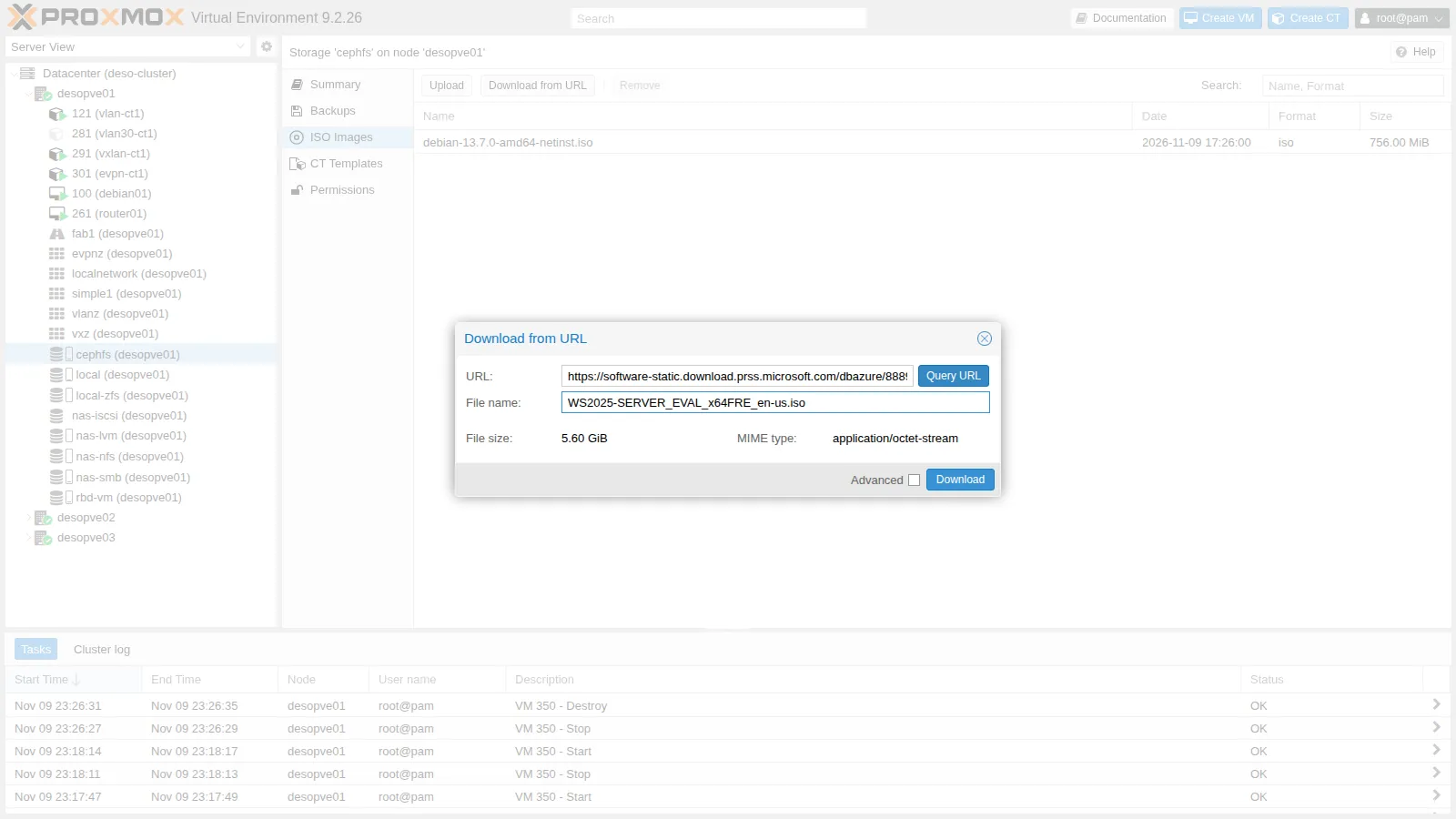
The node downloads it through the proxy configured in Lab 04:
2026-11-10 00:46:25 (71.2 MB/s) - '/mnt/pve/cephfs/template/iso/WS2025-SERVER_EVAL_x64FRE_en-us.iso.tmp_dwnl.329677' saved [6014152704/6014152704]TASK OKVirtIO drivers. The stable version, from the command line, with the same API:
pvesh create /nodes/desopve02/storage/cephfs/download-url --content iso \ --filename virtio-win-0.1.302.iso \ --url https://fedorapeople.org/groups/virt/virtio-win/direct-downloads/archive-virtio/virtio-win-0.1.302-1/virtio-win-0.1.302.iso2026-11-10 01:03:01 (12.8 MB/s) - '/mnt/pve/cephfs/template/iso/virtio-win-0.1.302.iso.tmp_dwnl.261762' saved [877373440/877373440]The URL .../stable-virtio/virtio-win.iso always redirects to the latest stable version: here the exact URL is used, so the lab is repeatable. The checksums, to be noted down to verify any later copies:
303f7ae40dad495d6ae474fdc571df58958a4dbc5c37a522d80f9a203867949d virtio-win-0.1.302.isod0ef4502e350e3c6c53c15b1b3020d38a5ded011bf04998e950720ac8579b23d WS2025-SERVER_EVAL_x64FRE_en-us.isoNo “lite” or modified versions of Windows: only official Microsoft ISOs are used.
2. The VM with the wizard
Section titled “2. The VM with the wizard”Create VM at the top right.
- General: node
desopve02, VM ID390, namewin2025. - OS: Windows ISO from
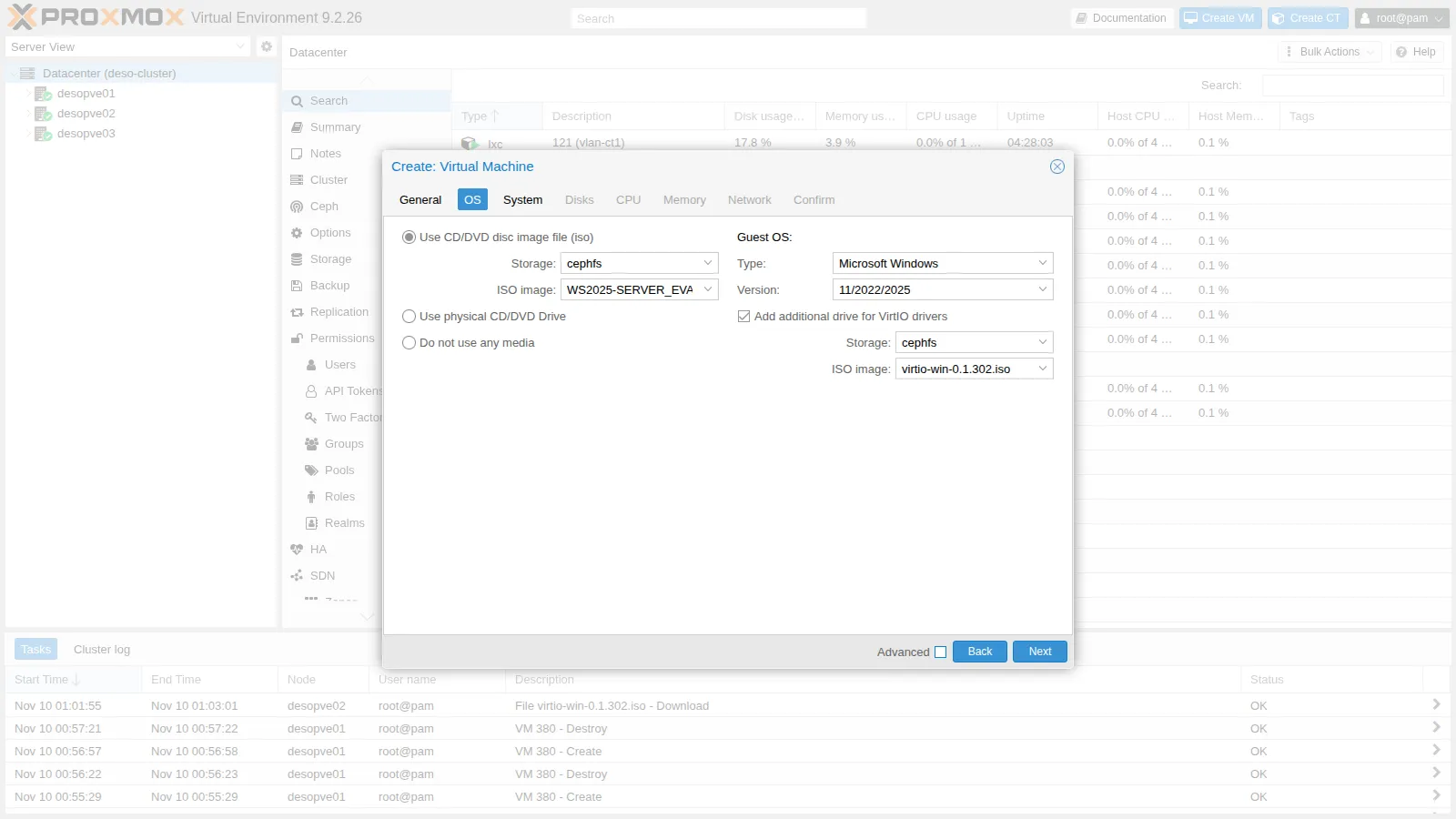
cephfs; Type Microsoft Windows, Version 11/2022/2025; Add additional drive for VirtIO drivers with thevirtio-winISO. This way the wizard adds the second CD drive.
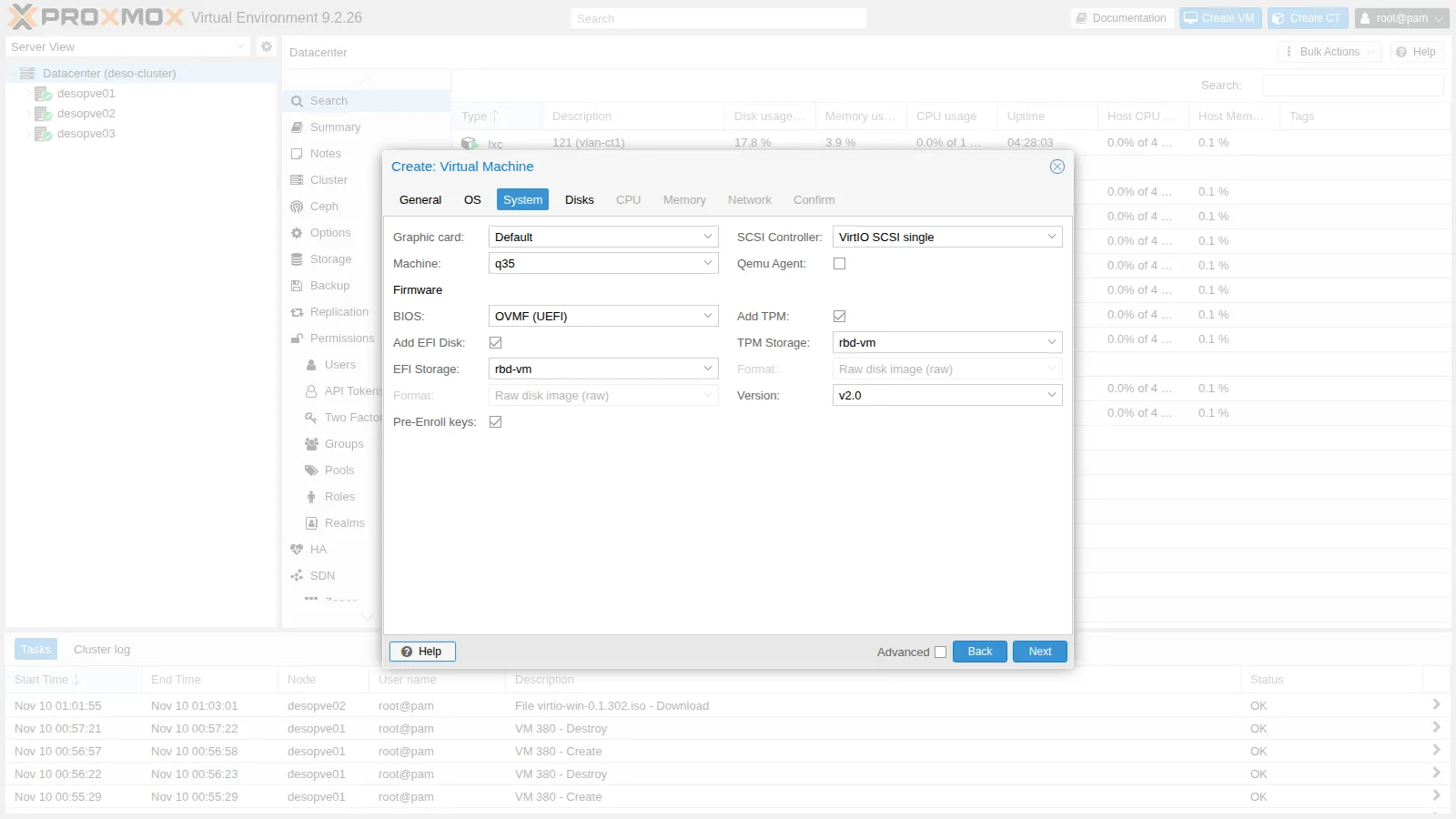
- System: when you choose Windows 11/2022/2025, the wizard automatically proposes q35, OVMF (UEFI), EFI disk with Pre-Enroll keys and TPM v2.0. Only change the storage of the EFI disk and TPM to
rbd-vm. Qemu Agent can be checked here; in this lab it is enabled after installing the drivers (section 7).
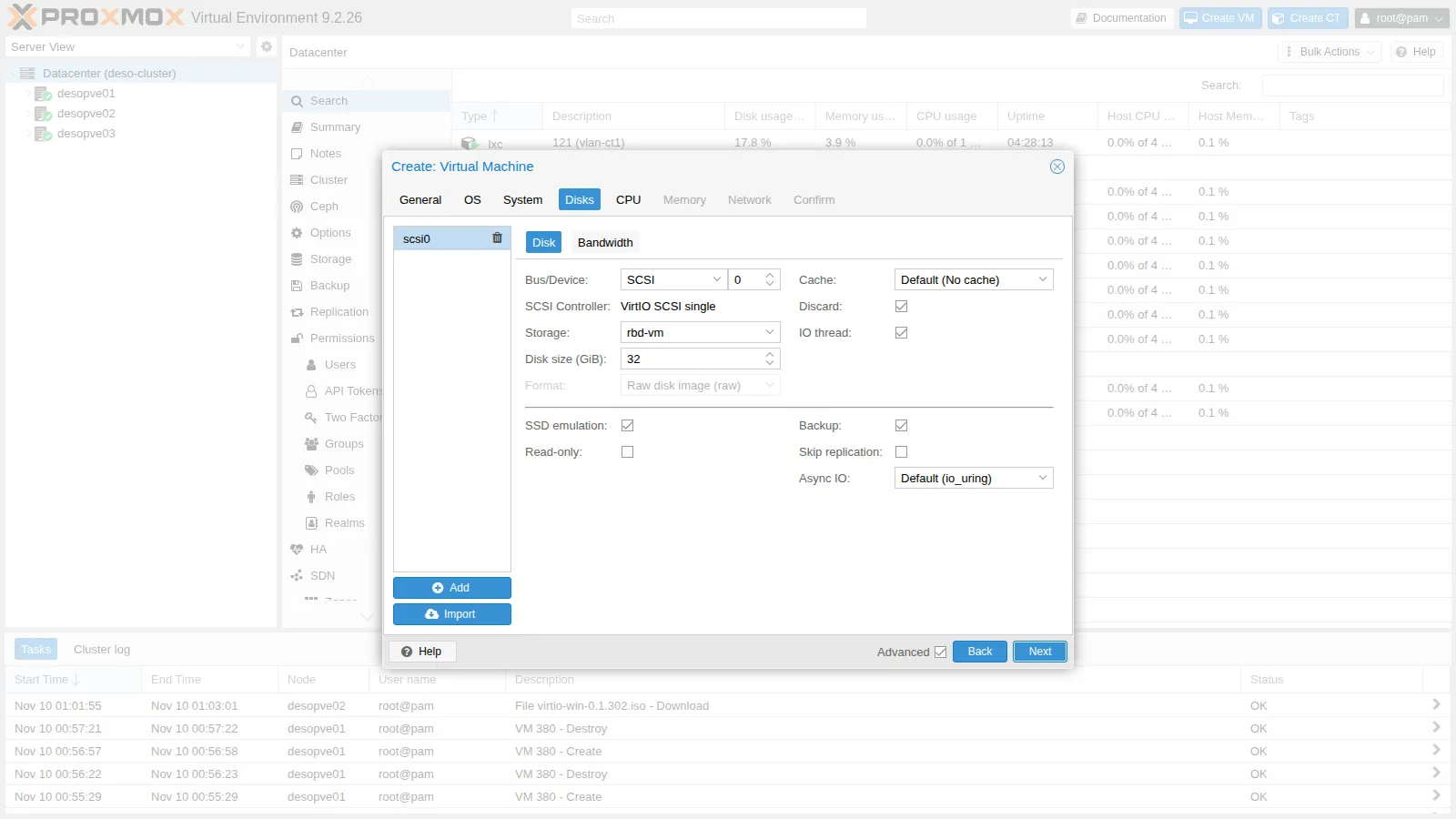
- Disks: SCSI bus,
rbd-vm, 32 GiB, Discard, SSD emulation and IO thread (with Advanced enabled).
- CPU: 4 cores, type
x86-64-v2-AES. Memory: 4096 MiB. Network:vmbr0, model VirtIO (paravirtualized).
The resulting configuration:
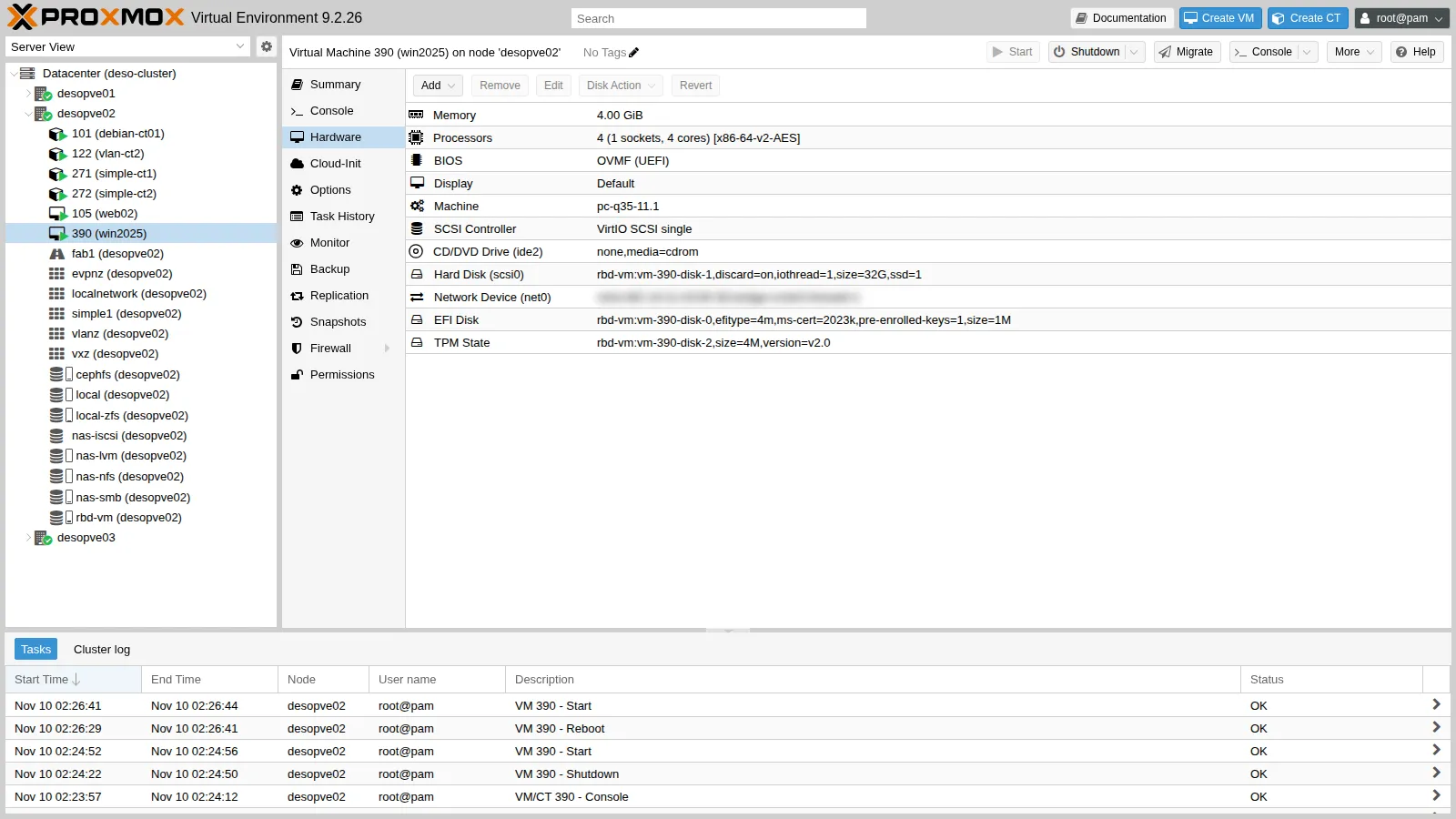
bios: ovmfboot: order=scsi0;ide2;ide0;net0cores: 4cpu: x86-64-v2-AESefidisk0: rbd-vm:vm-390-disk-0,efitype=4m,ms-cert=2023k,pre-enrolled-keys=1,size=1Mide0: cephfs:iso/virtio-win-0.1.302.iso,media=cdrom,size=856810Kide2: cephfs:iso/WS2025-SERVER_EVAL_x64FRE_en-us.iso,media=cdrom,size=5873196Kmachine: pc-q35-11.1memory: 4096name: win2025net0: virtio=BC:24:11:C6:80:3D,bridge=vmbr0,firewall=1ostype: win11scsi0: rbd-vm:vm-390-disk-1,discard=on,iothread=1,size=32G,ssd=1scsihw: virtio-scsi-singletpmstate0: rbd-vm:vm-390-disk-2,size=4M,version=v2.0machine: pc-q35-11.1: with Windows the machine version is pinned, so a QEMU update does not change the hardware seen by Windows (Lab 35).ms-cert=2023k: the EFI disk contains the Microsoft certificates for Secure Boot, including the 2023 ones.
3. The first boot from CD: mind the timing
Section titled “3. The first boot from CD: mind the timing”With UEFI, the Windows CD asks you to press a key within a few seconds (Press any key to boot from CD or DVD). On the first boot OVMF initializes the new EFI disk and can take longer than usual: if you are not watching the console at that moment, the prompt times out and the firmware finds nothing else to boot:
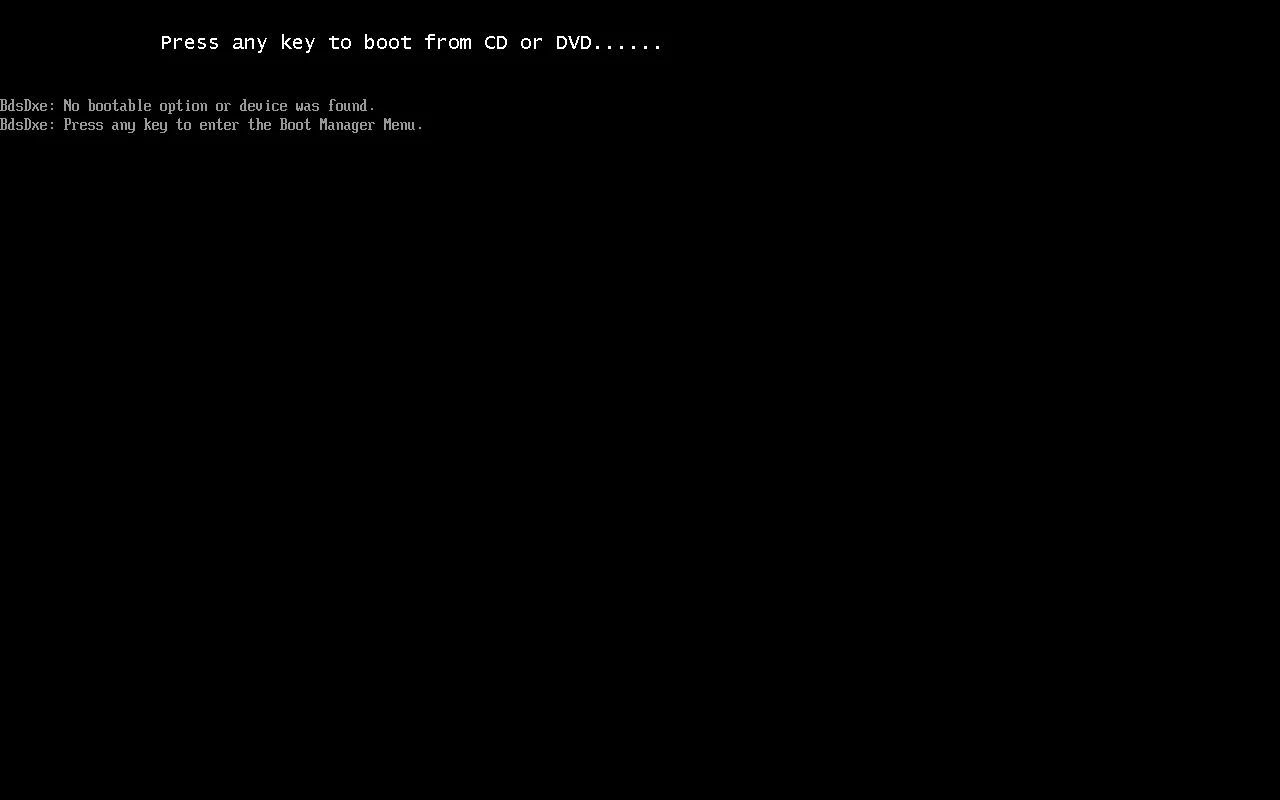
The firmware finds nothing else to boot and offers the Boot Manager at the press of any key. Choose the drive with the Windows ISO and press a key right away:
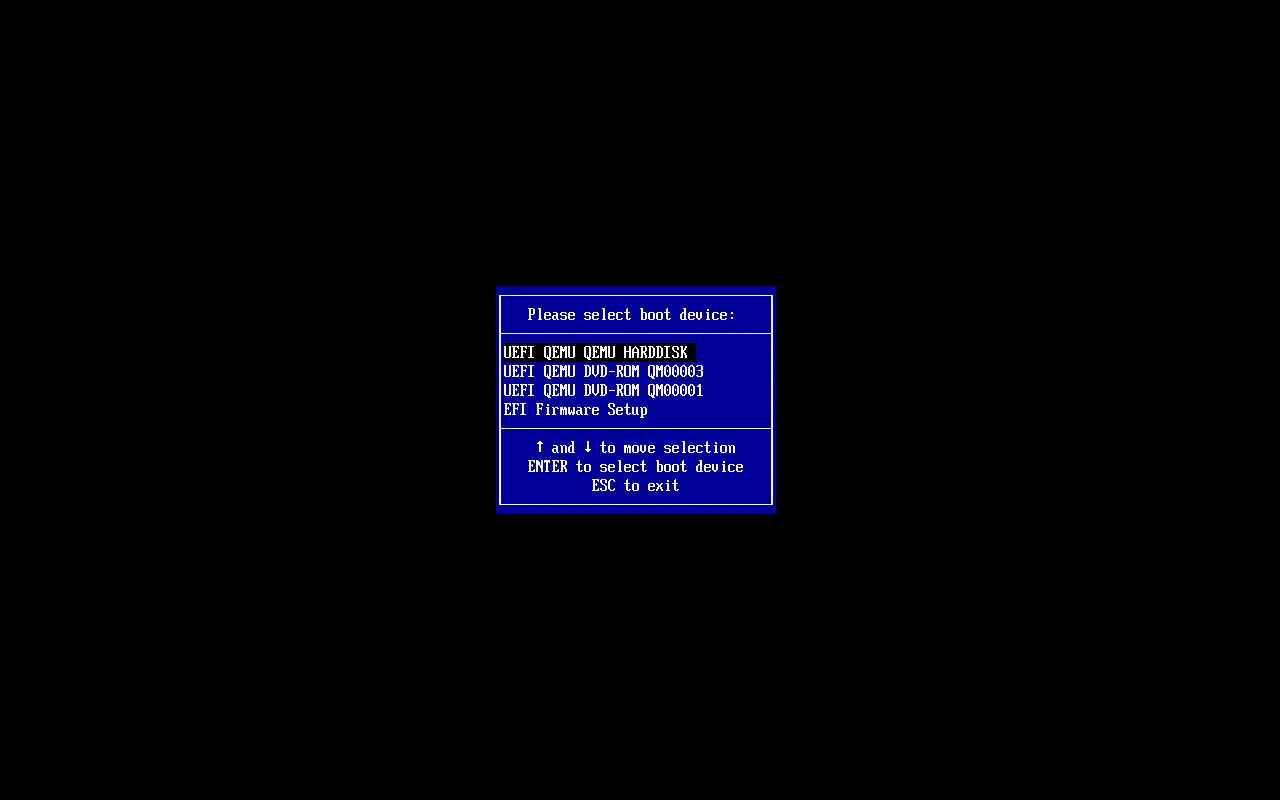
- QM00003 is
ide2, the Windows ISO; QM00001 iside0, the drivers. - From the second boot onward OVMF is much faster (about 30 seconds to the operating system).
4. The installation: the disk is missing
Section titled “4. The installation: the disk is missing”The first screens are the same as in Lab 02: language, keyboard, Install Windows Server, edition Windows Server 2025 Standard Evaluation (Desktop Experience), license. When it is time to choose the disk, the list is empty: Windows does not have the driver for the VirtIO SCSI controller.
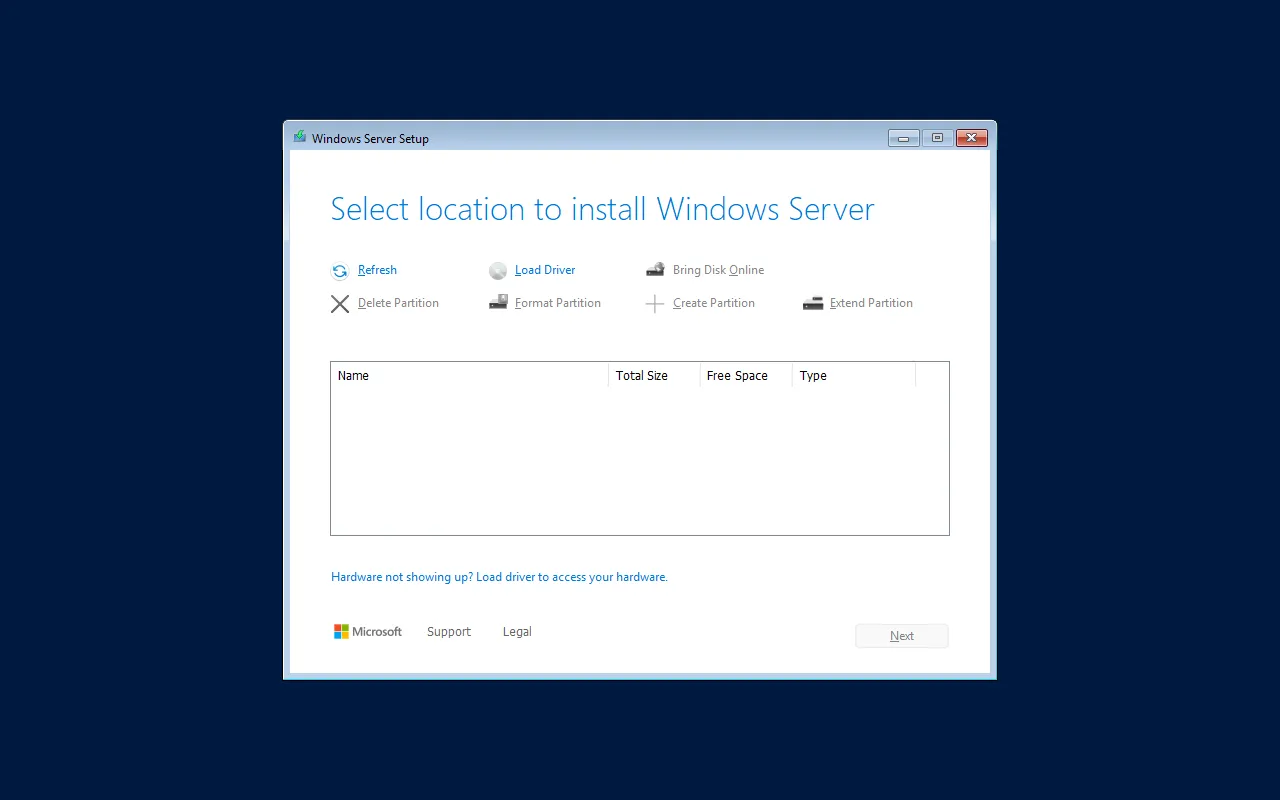
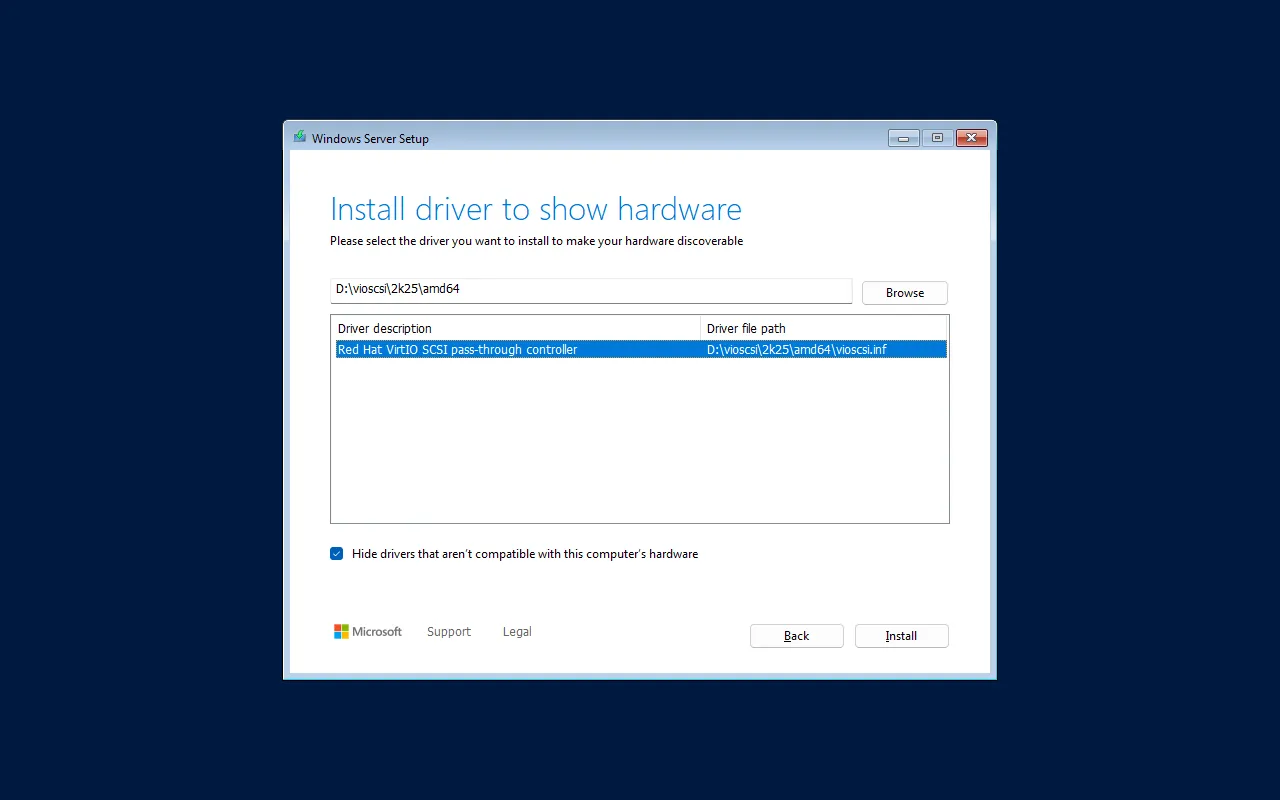
Load Driver → Browse. The CD drives are D: (virtio-win) and E: (Windows). Navigate to the driver folder for the right operating system: D:\vioscsi\2k25\amd64.
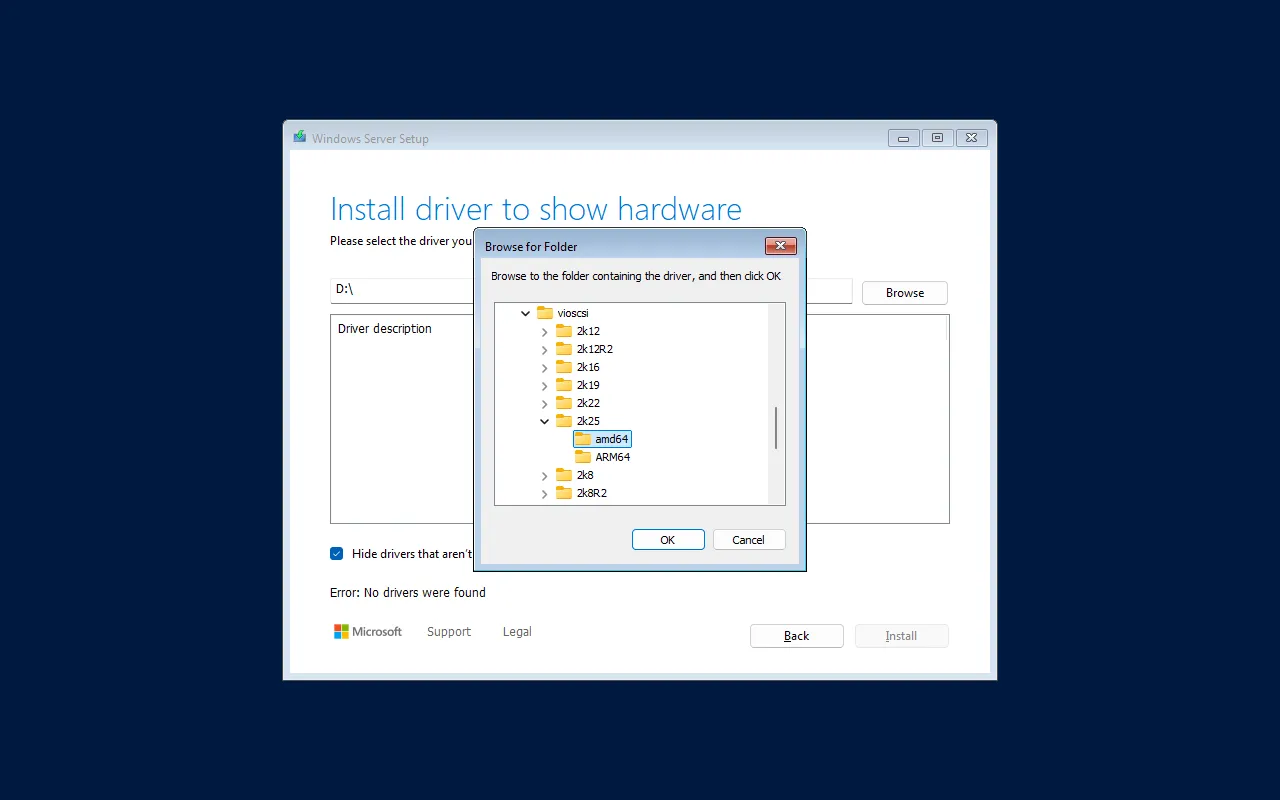
Setup shows Red Hat VirtIO SCSI pass-through controller; select it and click Install:
Now the 32 GB disk appears:
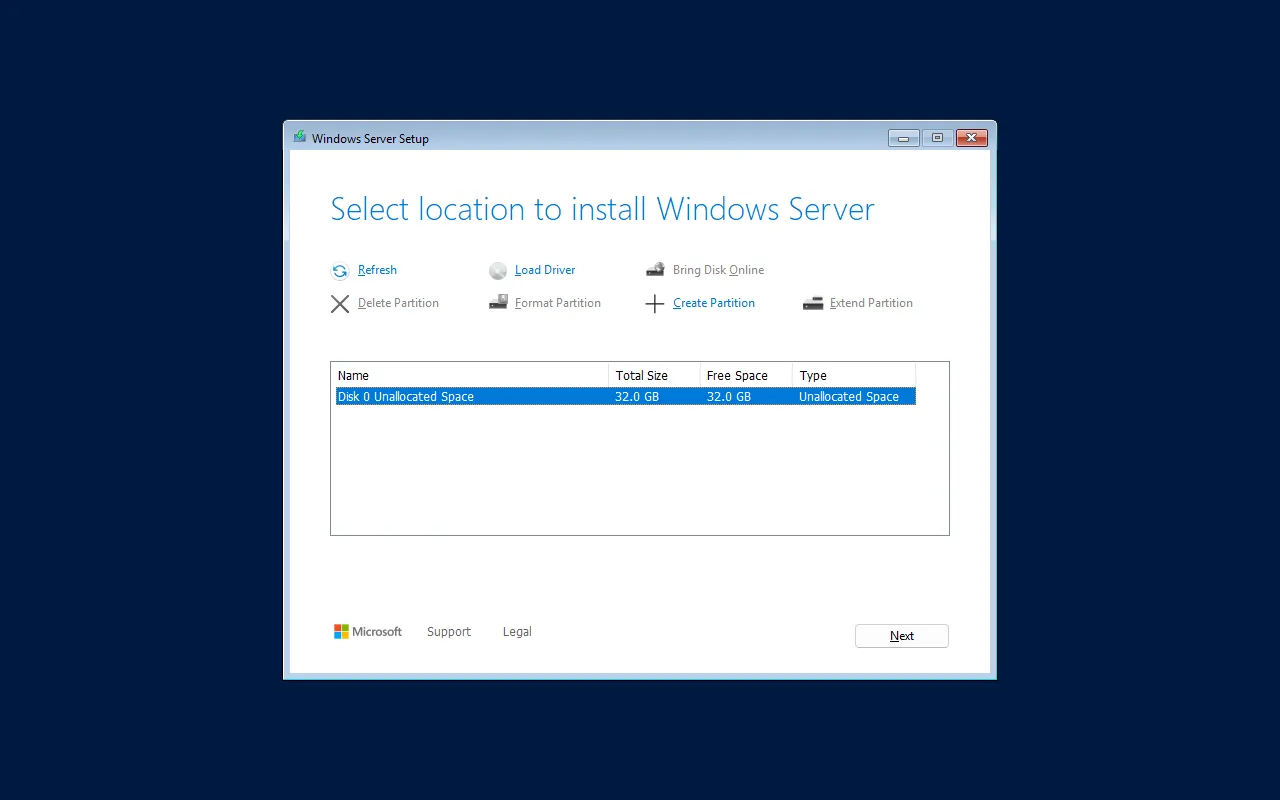
From here the installation proceeds normally: Next, Install. In the lab, on Ceph, it took about 40 minutes. If setup is restarted before installing, the driver must be loaded again: it lives only in memory until Windows is installed.
At first sign-in: the Administrator password, then Send diagnostic data with Required only, as in Lab 02.
5. Device Manager before the drivers
Section titled “5. Device Manager before the drivers”Win+R → devmgmt.msc:
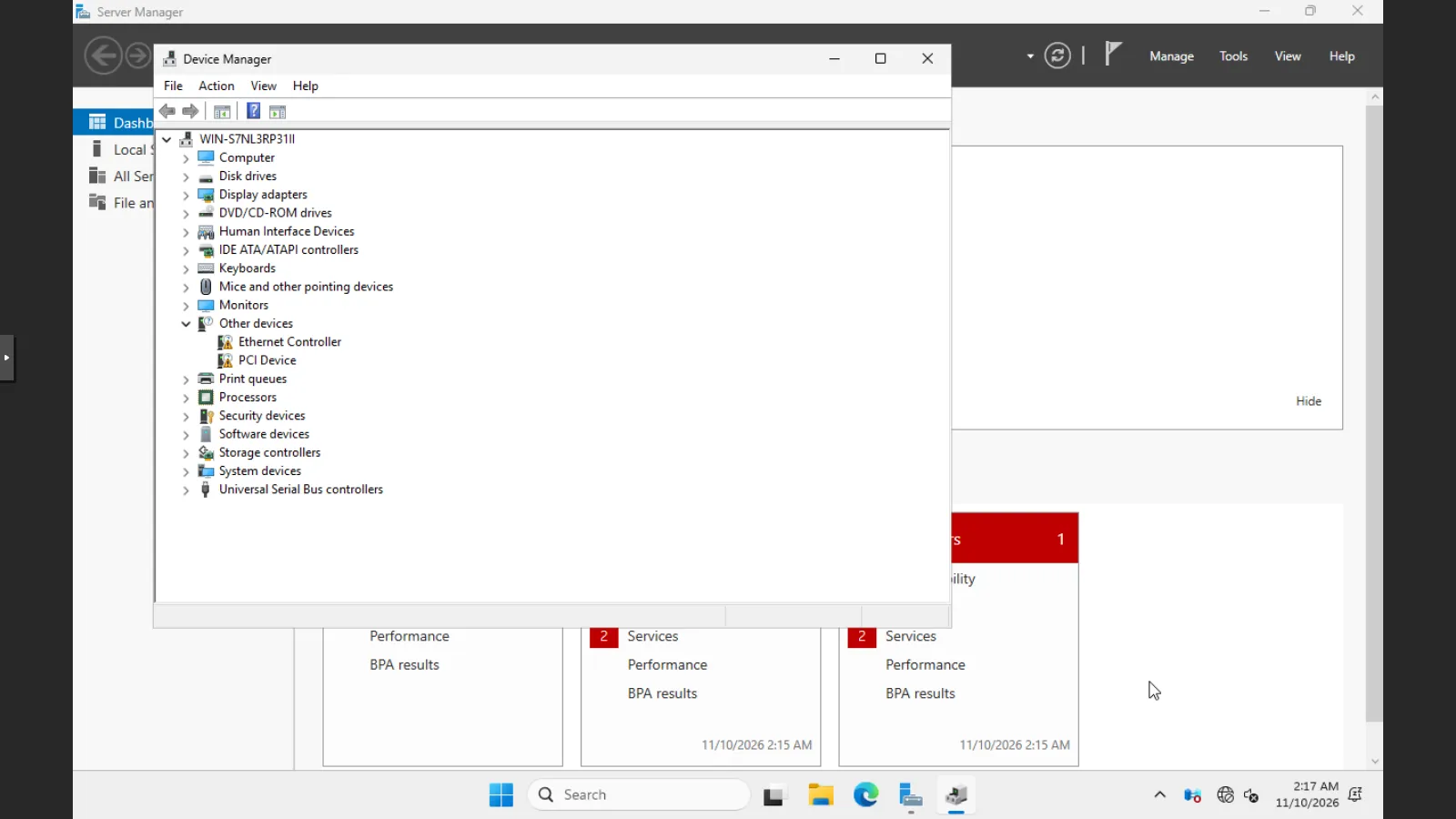
- Ethernet Controller: the VirtIO network device, so Windows has no network.
- PCI Device: the balloon device.
- The disk works because the
vioscsidriver was installed together with the system.
6. virtio-win-guest-tools
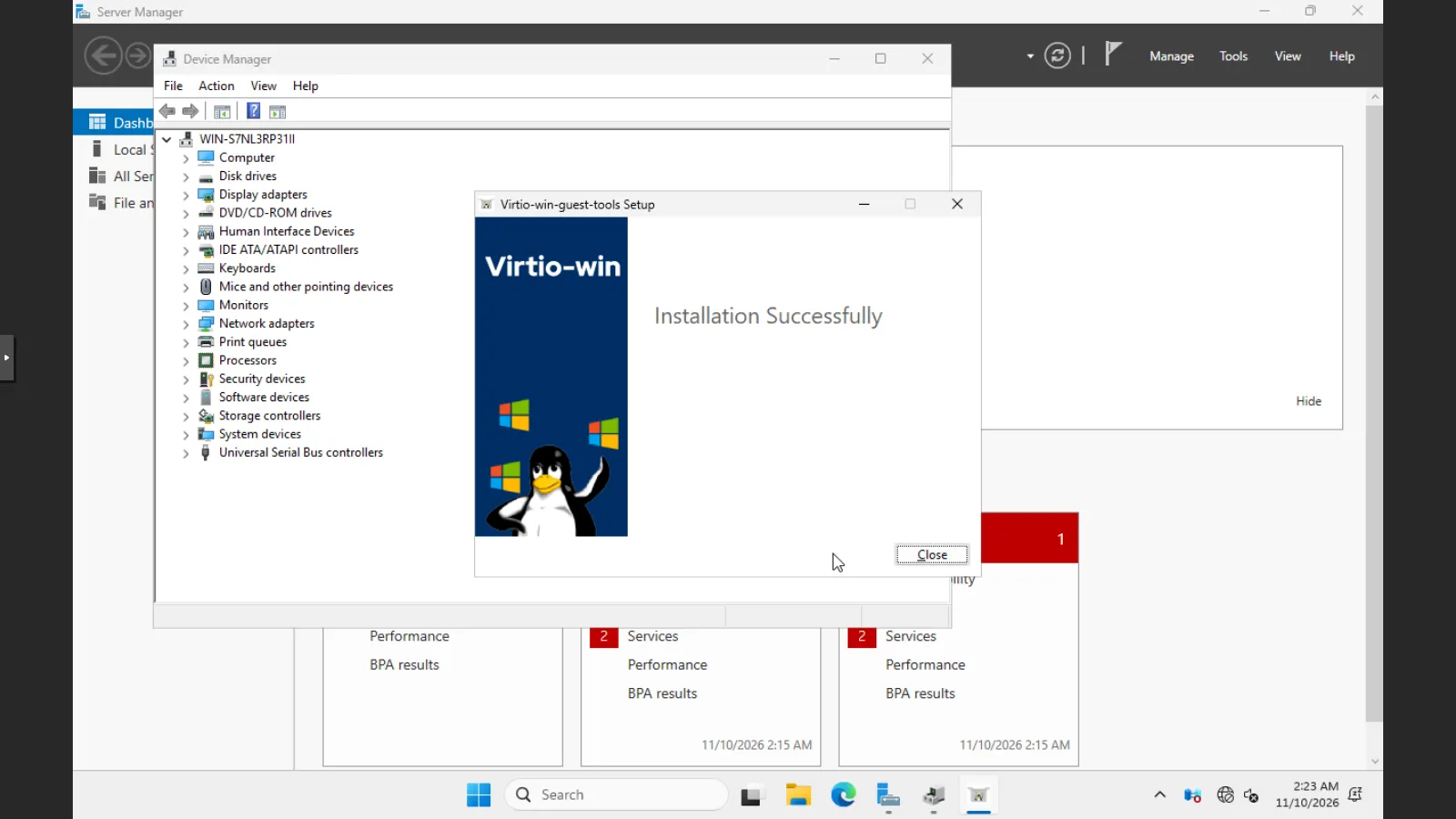
Section titled “6. virtio-win-guest-tools”From the drivers CD: Win+R → D:\virtio-win-guest-tools.exe. Accept the license and click Install:
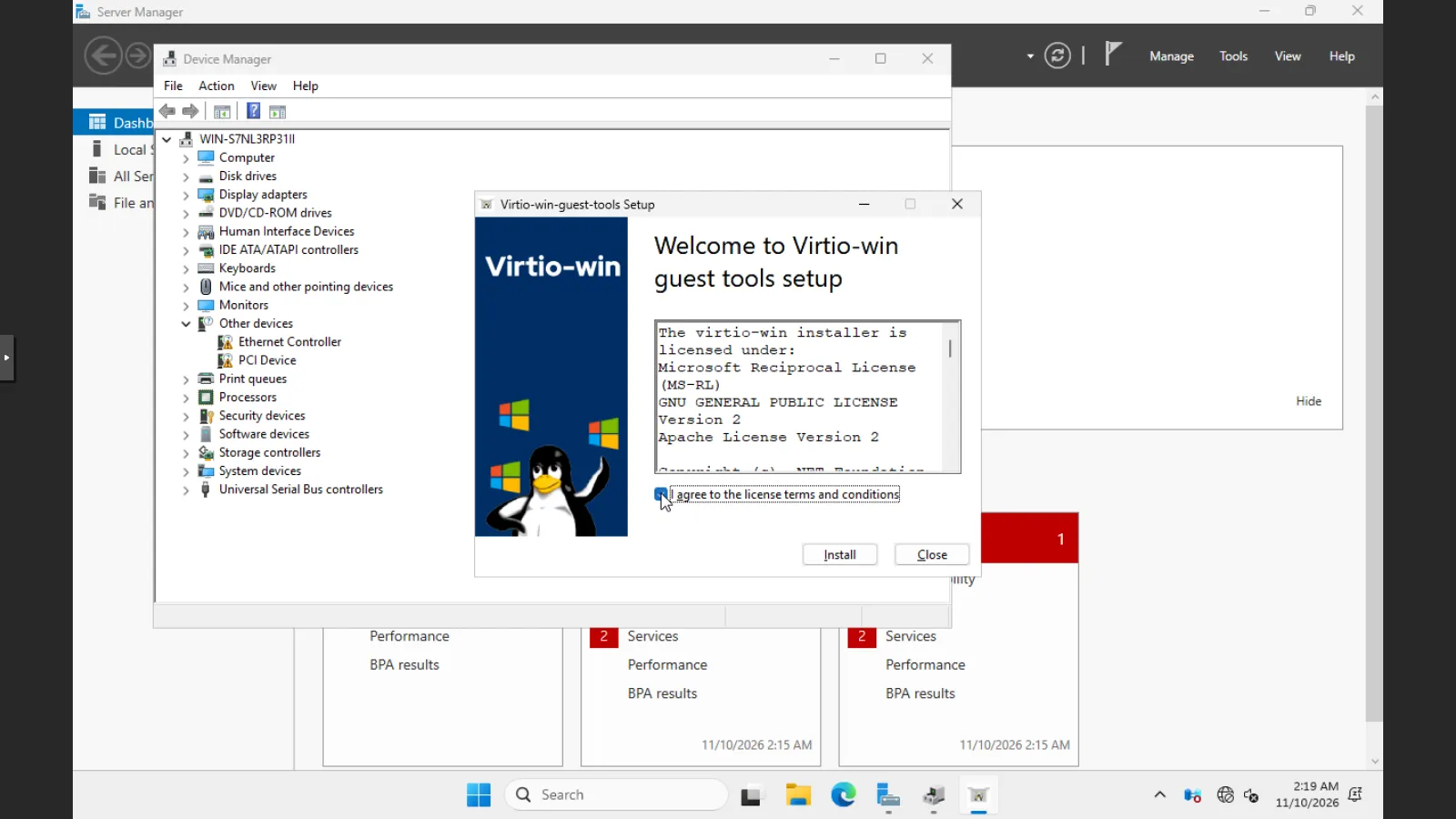
The driver package wizard opens (Next, license, Custom Setup with all components, Install, Finish); the package then installs the guest agent and ends with:
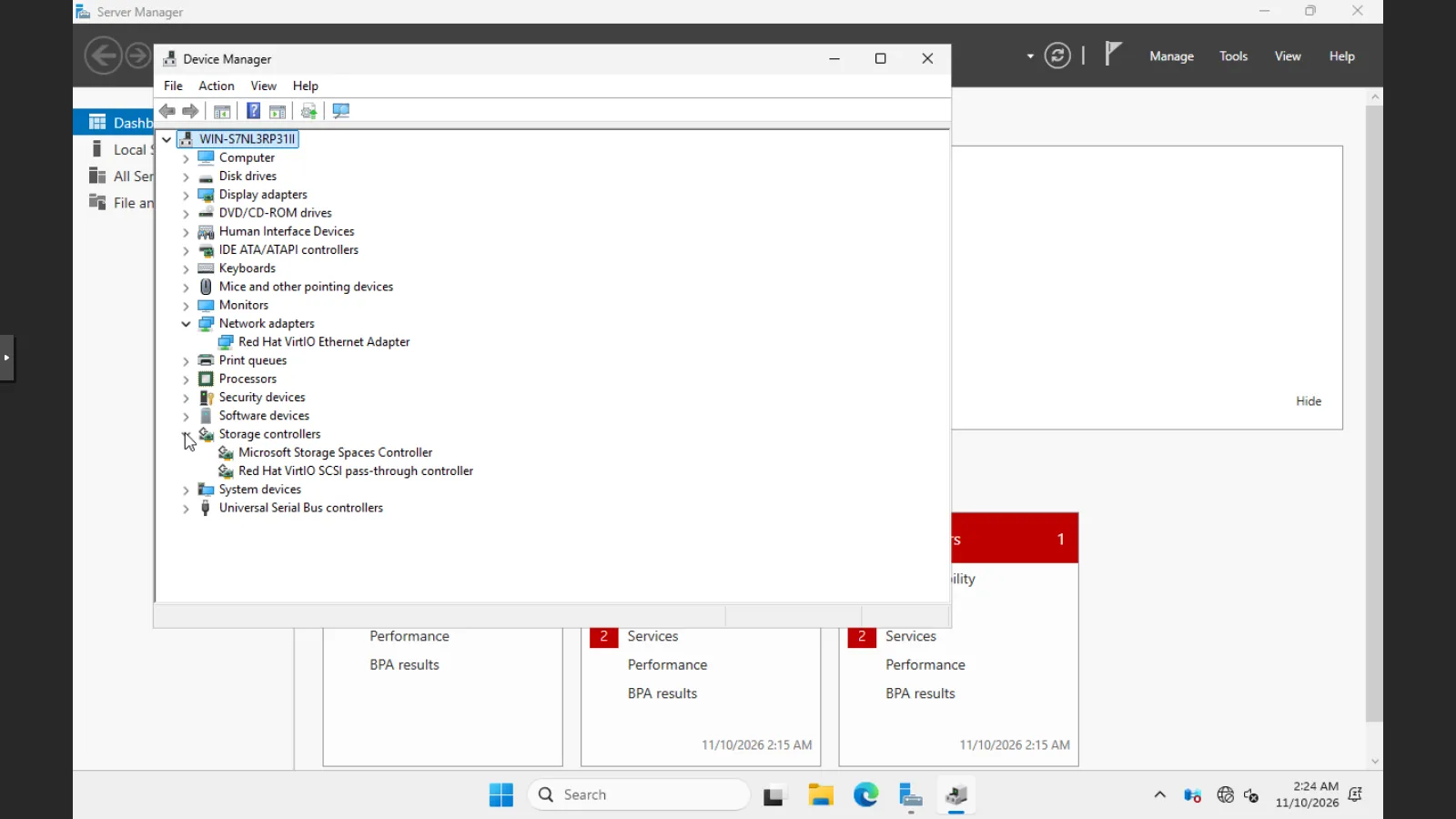
In Device Manager there are no more unknown devices: Network adapters → Red Hat VirtIO Ethernet Adapter and Storage controllers → Red Hat VirtIO SCSI pass-through controller.
7. Enabling the agent and removing the ISOs
Section titled “7. Enabling the agent and removing the ISOs”Shut down the VM from Proxmox VE with time qm shutdown 390. Without the agent, the command sends the ACPI power button event, and Windows handles it:
spenta via ACPI in 29 sThen enable the agent, empty the Windows drive and remove the drivers drive:
qm set 390 --agent enabled=1 --ide2 none,media=cdrom --delete ide0qm start 390qm guest cmd 390 get-osinfoThe agent responds about 30 seconds after startup:
{ "id" : "mswindows", "kernel-release" : "26100", "kernel-version" : "10.0", "machine" : "x86_64", "name" : "Microsoft Windows", "pretty-name" : "Windows Server 2025 Standard Evaluation", "variant" : "server", "variant-id" : "server", "version" : "Microsoft Windows Server 2025", "version-id" : "2025"}8. Configuring Windows from the node with the agent
Section titled “8. Configuring Windows from the node with the agent”qm guest exec runs PowerShell in the guest. Static IP, DNS, time zone and name, without opening the console:
qm guest exec 390 --timeout 90 -- powershell -NoProfile -Command \ "\$a=Get-NetAdapter | Select-Object -First 1; New-NetIPAddress -InterfaceIndex \$a.ifIndex -IPAddress 172.27.199.190 -PrefixLength 24 -DefaultGateway 172.27.199.1 | Out-Null; Set-DnsClientServerAddress -InterfaceIndex \$a.ifIndex -ServerAddresses 172.27.199.20; Set-TimeZone -Id 'W. Europe Standard Time'; Rename-Computer -NewName WIN2025 -Force -WarningAction SilentlyContinue; \$a.Name + ' | ' + \$a.InterfaceDescription"In the returned JSON, exitcode is 0 and out-data contains:
Ethernet | Red Hat VirtIO Ethernet AdapterThe reboot also goes through the agent (qm reboot 390): 67 seconds until the agent is active again. Then the name and address:
qm guest cmd 390 get-host-nameqm guest cmd 390 network-get-interfaces # summary: IPv4 only{ "host-name" : "WIN2025"}Ethernet ['172.27.199.190/24']The VirtIO devices and the installed services, read through the agent:
qm guest exec 390 --timeout 90 -- powershell -NoProfile -Command \ "Get-PnpDevice -PresentOnly | Where-Object FriendlyName -match 'VirtIO|Balloon|QEMU' | Sort-Object Class | Format-Table -AutoSize Status,Class,FriendlyName | Out-String -Width 120; Get-Service QEMU-GA,BalloonService | Format-Table -AutoSize Status,Name,DisplayName | Out-String -Width 120"Status Class FriendlyName------ ----- ------------OK CDROM QEMU QEMU DVD-ROMOK Computer QEMU Standard PC (Q35 + ICH9, 2009)OK DiskDrive QEMU QEMU HARDDISK SCSI Disk DeviceOK Net Red Hat VirtIO Ethernet AdapterOK Processor QEMU Virtual CPU version 2.5+OK Processor QEMU Virtual CPU version 2.5+OK Processor QEMU Virtual CPU version 2.5+OK Processor QEMU Virtual CPU version 2.5+OK SCSIAdapter Red Hat VirtIO SCSI pass-through controllerOK System VirtIO Balloon DriverOK System QEMU FwCfg DeviceOK System VirtIO Serial Driver
Status Name DisplayName ------ ---- -----------Running BalloonService BalloonServiceRunning QEMU-GA QEMU Guest AgentThe four Processor lines are the four vCPUs. Networking works: Test-NetConnection 172.27.199.20 -Port 53 from the guest returns True. Pinging the VM from the lab network, on the other hand, gets no reply: Windows Firewall blocks ICMP by default.
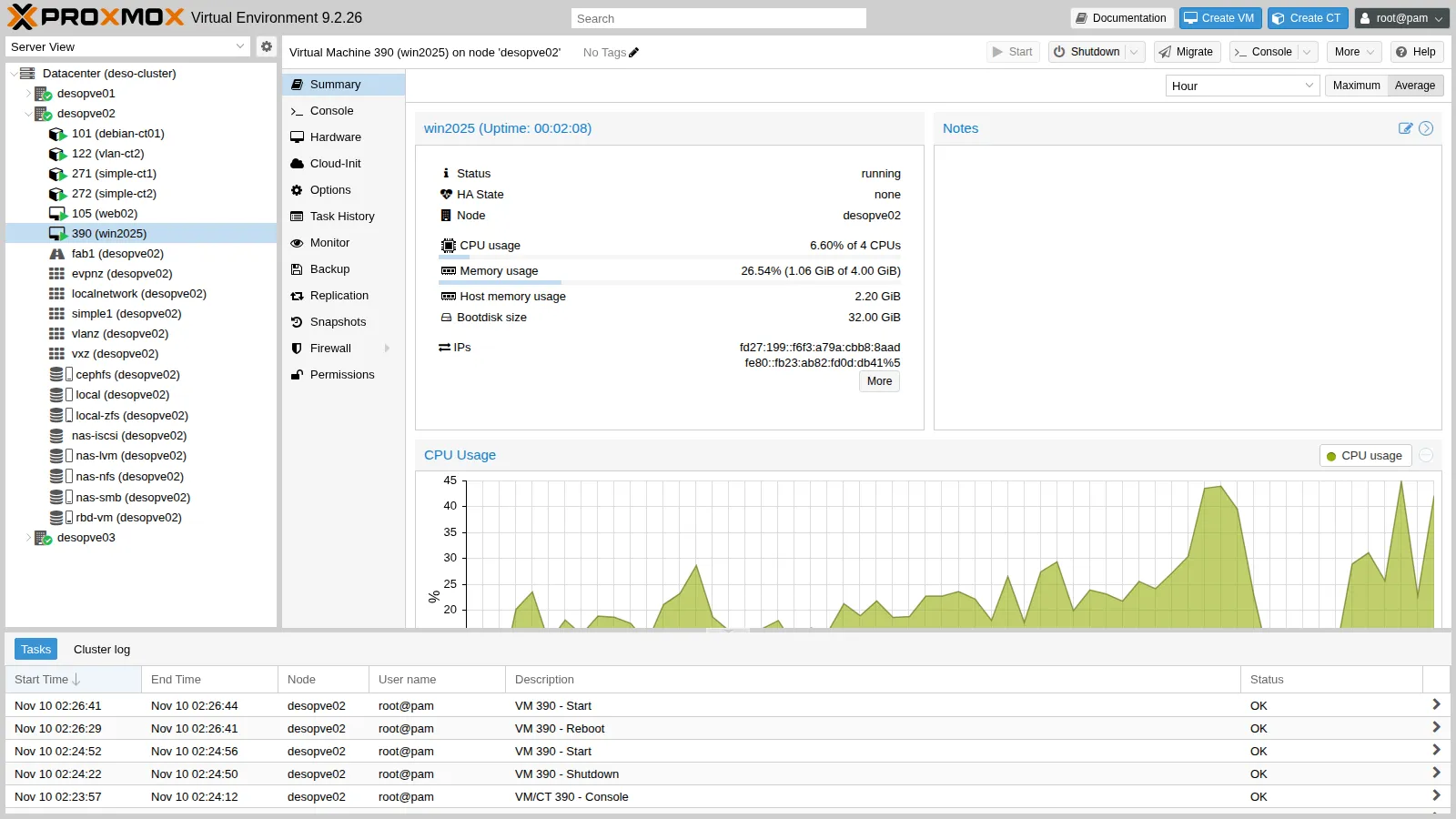
The Summary shows the addresses reported by the agent:
and the Hardware view sums up the final configuration, without the drivers drive:
Final shutdown, now through the agent, again with time qm shutdown 390:
VM 390 spenta via agent in 10 sVerification and tests
Section titled “Verification and tests”- The official ISOs of Windows Server 2025 Evaluation and virtio-win 0.1.302 are on
cephfs, with their checksums noted down. - The wizard with Windows 11/2022/2025 configures q35, OVMF with Secure Boot and TPM 2.0.
- Without drivers, setup does not see the VirtIO SCSI disk; with
vioscsi\2k25\amd64it does. The root of the CD is not enough. - After
virtio-win-guest-toolsthere are no unknown devices: network, balloon, serial and guest agent are active. - The agent responds, reports the system and addresses, runs PowerShell, reboots and shuts down the VM.
Final lab state
Section titled “Final lab state”- VM 390
win2025ondesopve02, powered off: Windows Server 2025 Standard Evaluation (Desktop Experience), nameWIN2025, IP 172.27.199.190, W. Europe time zone; VirtIO drivers and QEMU Guest Agent installed; disks onrbd-vm; no ISO attached. It is the reference Windows VM for the following labs (backup, migrations, HA). - ISOs on
cephfs:WS2025-SERVER_EVAL_x64FRE_en-us.isoandvirtio-win-0.1.302.iso. - Lab proxy: whitelist extended to
go.microsoft.comandsoftware-static.download.prss.microsoft.com. - The Evaluation version lasts 180 days.
What you learned
Section titled “What you learned”- ISOs can be downloaded directly into storage with Download from URL or
pvesh ... download-url, even behind a proxy. - For Windows, the wizard with type 11/2022/2025 sets UEFI, Secure Boot, TPM and a pinned q35 machine, and adds the VirtIO drivers CD.
- The VirtIO disk requires the
vioscsidriver during installation, picked from the exact folder for the Windows version. - With a UEFI firmware that is slow on first boot you can miss the “Press any key” prompt: the OVMF Boot Manager is the way out.
virtio-win-guest-toolsinstalls drivers, balloon and guest agent in one go.- With the agent, Windows can be configured and managed from the node, even without working networking.