

Lab 13 – NFS storage: share, performance and NAS outage
Dependencies
Section titled “Dependencies”- Previous labs: Lab 12 for the NAS
desonaswith thedati/nfsdataset, and Lab 08 for the storage and content types. - Cluster:
deso-clusterwith the three nodes (lab 06). VM 100debian01is running ondesopve01with its disk onlocal-zfs(lab 07, state at the end of lab 11). - Network: the nodes reach
172.27.199.10on the lab LAN. - Credentials:
root/<lab-password>on the nodes,truenas_admin/<lab-password>on the NAS → Appendix B.
Objectives
Section titled “Objectives”- An NFS share of the
dati/nfsdataset on TrueNAS, restricted to the lab network and without root squashing, which the nodes can see withpvesm scan nfsandrpcinfo. - The
nas-nfsstorage mounted with NFS 4.2 on every node, with the mount options actually in effect (hard,timeo,retrans) read frommount. - The disk of a running VM moved to NFS and back to local storage without stopping the VM.
- A comparison between local storage and NFS made with random data and repeated runs, knowing which tool and which layer produced each number.
- The behavior of nodes and VMs with the NAS stopped observed and described: storage inactive, processes in state
D, VM waiting, recovery when the service returns.
How it works
Section titled “How it works”NFS in Proxmox VE
Section titled “NFS in Proxmox VE”NFS (Network File System) shares a directory of the server over the network. Proxmox VE mounts it on every node under /mnt/pve/<ID> and treats it as a directory-type storage, but a shared one: all nodes see the same files.
desonas (TrueNAS) desopve01 / 02 / 03 /mnt/dati/nfs ── NFS 4.2 over TCP ──▶ /mnt/pve/nas-nfs ├── images/100/vm-100-disk-0.qcow2 VM disks ├── template/iso/ ISO images ├── template/cache/ container templates └── dump/ backups- On a file-based storage, VM disks are
raworqcow2files. Withqcow2, snapshots work on NFS too. - The storage is shared (
shared): a VM with its disk on NFS is migrated by copying only its memory, and with high availability (lab 49) it can restart on another node. - Proxmox VE accesses the files as root. On the server, the export must therefore not “squash” root to the
nobodyuser (root squash), otherwise disk creation fails with permission errors. In TrueNAS this is set with Maproot Userroot. - The mount is
hard(the default): if the server stops responding, operations wait and resume when it comes back, without returning errors to the applications. Withsoftthe client would return an error after its retries, andnfs(5)warns that this can corrupt data silently, so it is not used for VM disks. The Proxmox VE documentation suggests it only for read-only content such as ISO images.
Versions
Section titled “Versions”| Version | Features |
|---|---|
| NFSv3 | stateless on the server, additional ports (mountd, lockd, statd) |
| NFSv4.x | a single TCP port (2049), built-in locking, sessions |
| NFSv4.2 | in addition: server-side copy, sparse files (hole punching), space allocation |
In the lab we use NFS 4.2, set in the mount options of the storage.
Test environment and versions
Section titled “Test environment and versions”The measurements and the outage test in this lab come from a run carried out in November 2026 (the outage test on 9 November, as the logs show), with the configuration described below. With other versions, options or hardware, the same commands give different numbers.
| Component | Configuration used |
|---|---|
| Proxmox VE | 9.2.26, kernel 7.0.14-28-pve (Lab 04); node desopve01 with 4 cores and 32 GB of RAM (Lab 01) |
| NAS | TrueNAS Community Edition 25.10.8 (Lab 12), 4 cores and 16 GB of RAM, pool dati mirrored on two 100 GB disks, dataset dati/nfs; one network card on the lab LAN |
| NFS mount | NFS 4.2 over TCP, 1 MiB rsize and wsize, hard, timeo=600, retrans=2 (the mount output in step 3) |
| Network | management LAN 172.27.199.0/24, MTU 1500 (Lab 21) |
| Test VM | VM 100 debian01, Debian 13.7, 2 cores, 2 GiB of RAM, 16 GiB scsi0 disk with iothread=1 and the default cache (none) (Lab 07): first on local-zfs (raw zvol), then on nas-nfs (qcow2 file) |
| Local storage | local-zfs for the VM disk and local (/var/lib/vz) for fio on the node, both on the ZFS mirror of the two system disks (Lab 03) |
| Tools | dd in the VM; fio on the node, from the Debian repository (version not recorded in this lab) |
Disk models are redacted, as explained in the manual’s conventions.
What the test measures, and what it does not. The dd runs in the VM measure the path the guest sees: the VM’s kernel, the virtual disk, QEMU, and then either local ZFS or the NFS client, the network and the NAS. fio on the node measures the node’s file system instead: a file in the system ZFS dataset for local storage, and the kernel’s NFS client, the network and the NAS for NFS, with no VM and none of the virtual disks’ cache options involved. Neither test isolates the individual layers. The test files (512 MiB and 1 GiB) are small compared with the RAM of the node and of the NAS, so reads may come from the caches (ARC). There are only two or three runs per test, and the activity of the rest of the lab during the runs was not recorded: the values give an order of magnitude, not a statistic.
Procedure
Section titled “Procedure”1. The share on TrueNAS
Section titled “1. The share on TrueNAS”-
On the NAS: Shares → NFS → Add.
-
Path
/mnt/dati/nfs, DescriptionStorage Proxmox VE. Under Networks click Add and enter172.27.199.0/24: only the lab network will be able to mount the share. -
Open Advanced Options and set Maproot User
rootand Maproot Groupwheel.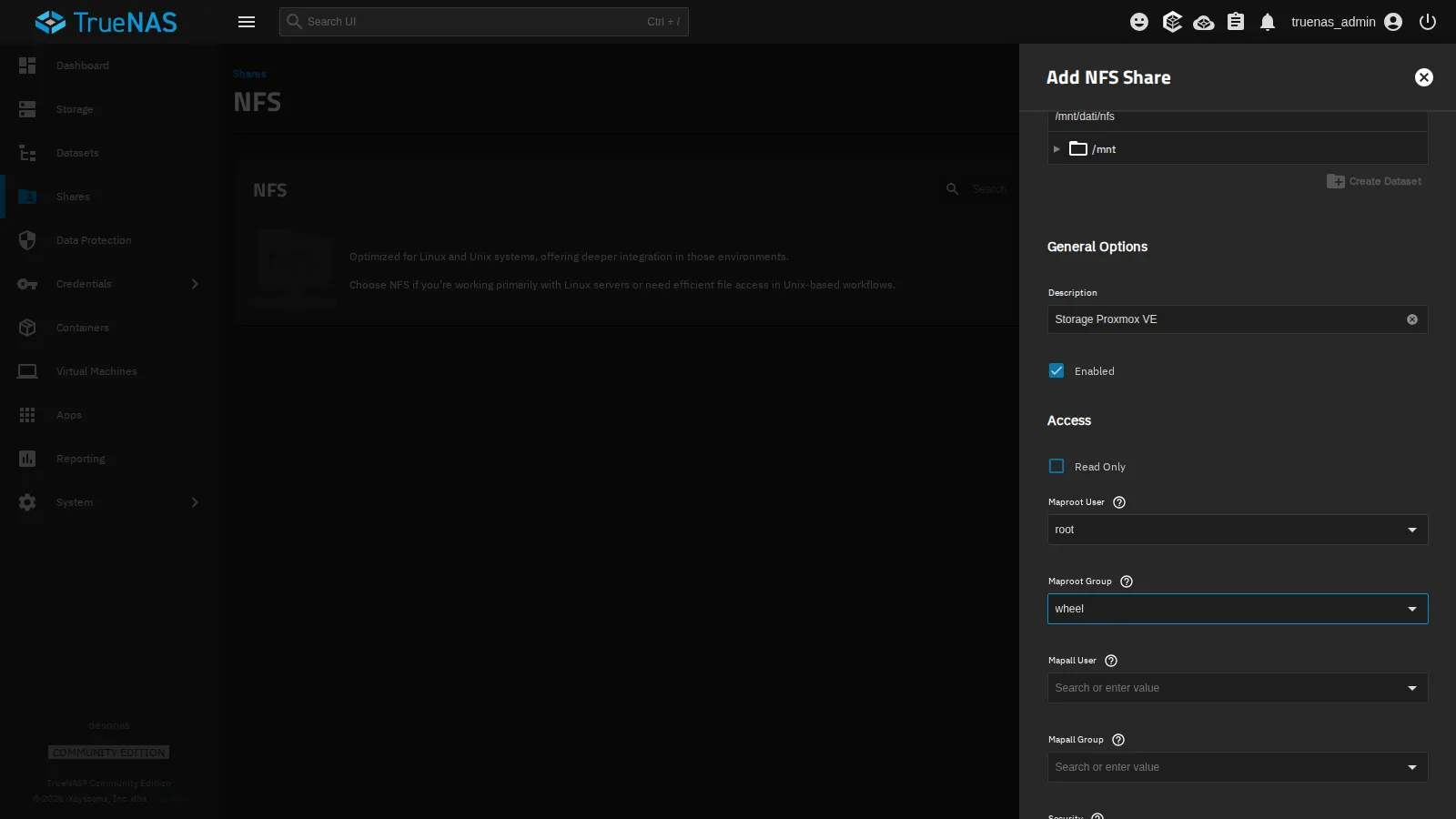
-
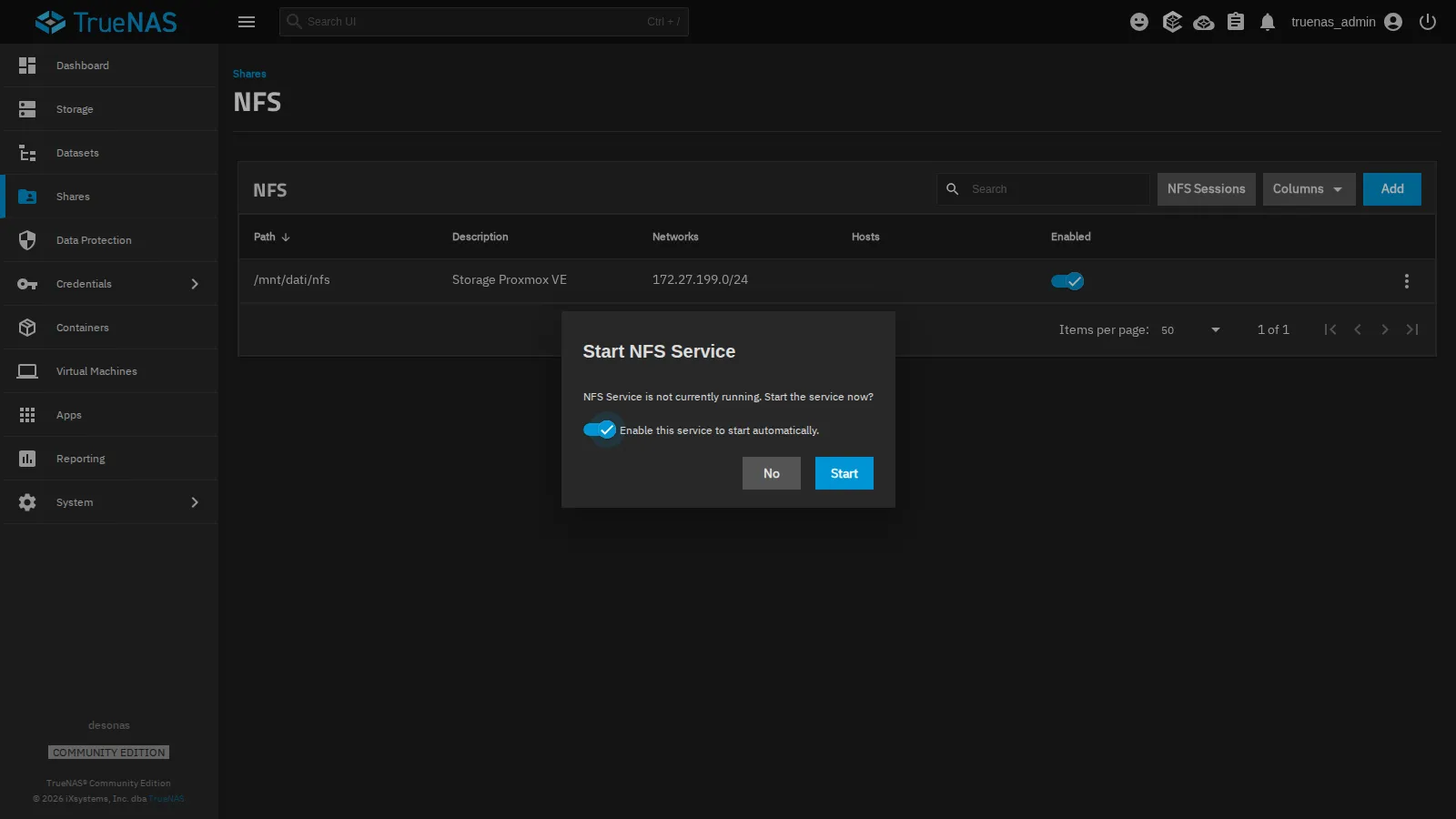
Save. TrueNAS offers to start the NFS service: leave Enable this service to start automatically checked and click Start.
-
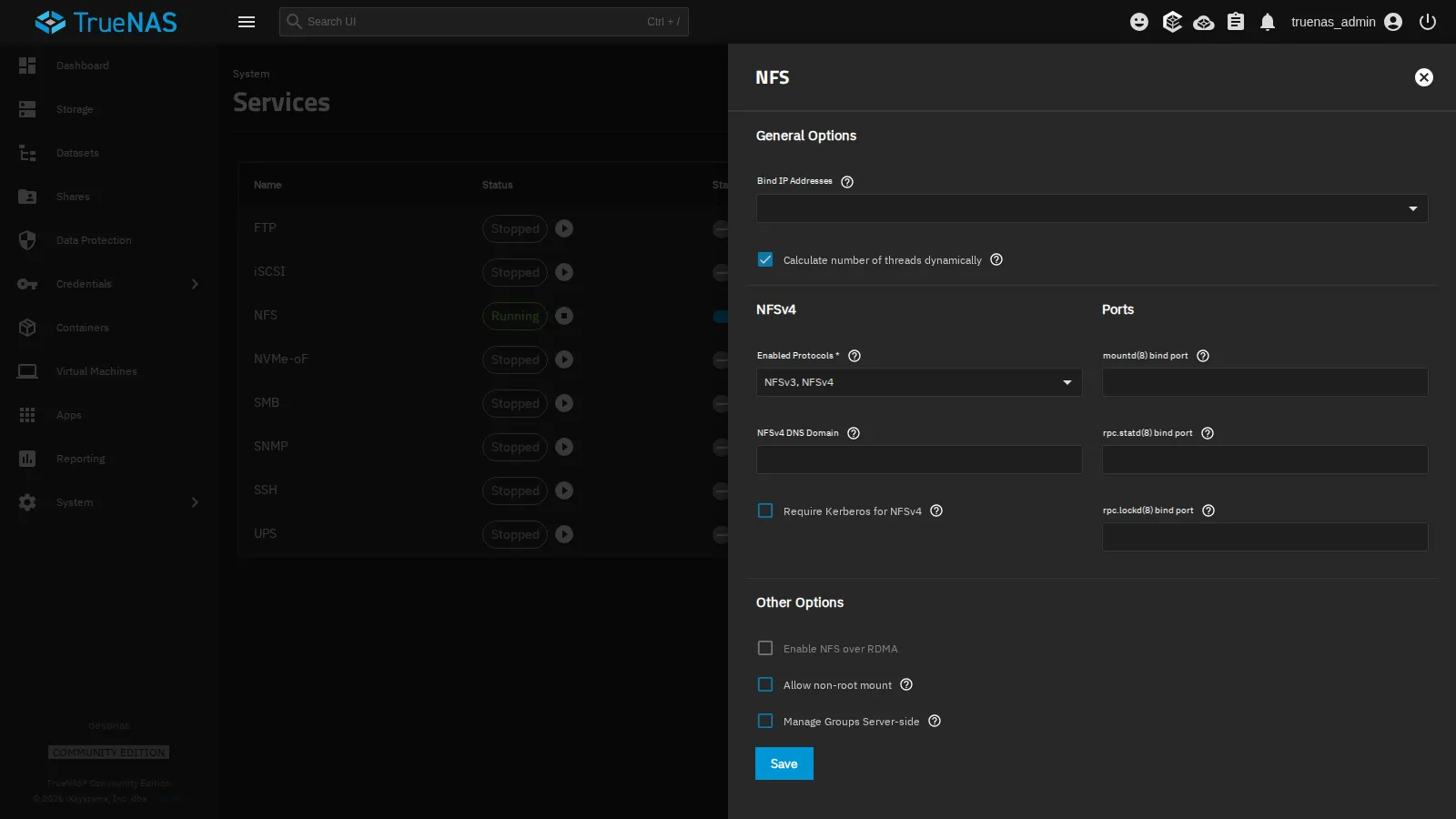
In System → Services → NFS (pencil icon) the service settings confirm that NFSv3 and NFSv4 are enabled. Nothing else needs to be changed.
2. Check the export from the nodes
Section titled “2. Check the export from the nodes”Before adding the storage, check from the node that the server exports the directory and responds over NFSv4:
pvesm scan nfs 172.27.199.10/mnt/dati/nfs 172.27.199.0/24rpcinfo -T tcp 172.27.199.10 nfs 4program 100003 version 4 ready and waiting3. Add the storage to the cluster
Section titled “3. Add the storage to the cluster”-
Datacenter → Storage → Add → NFS.
-
Fill in:
- ID
nas-nfs; - Server
172.27.199.10. Using the IP address keeps the storage independent of DNS: if DNS goes down, the storage keeps working; - Export
/mnt/dati/nfs, which the drop-down offers after querying the server; - Content:
Disk image,ISO image,Container template,Backup; - Nodes: all.
- ID
-
Check Advanced at the bottom and choose NFS Version
4.2. Leave Allow Snapshots as Volume-Chain disabled: it is a technology preview that you will see in lab 16.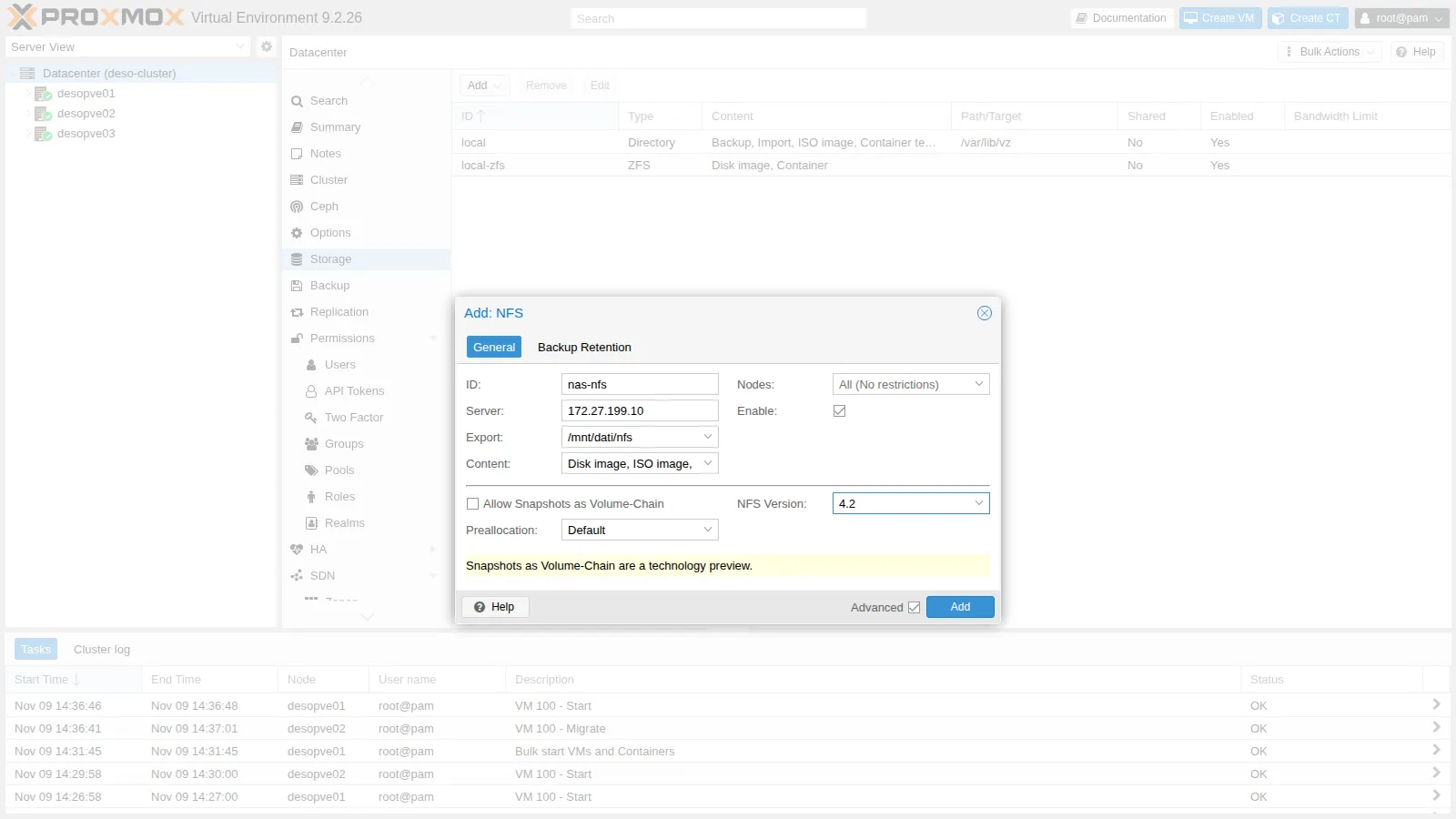
-
Add. The storage appears in the list, shared (Shared
Yes) and active: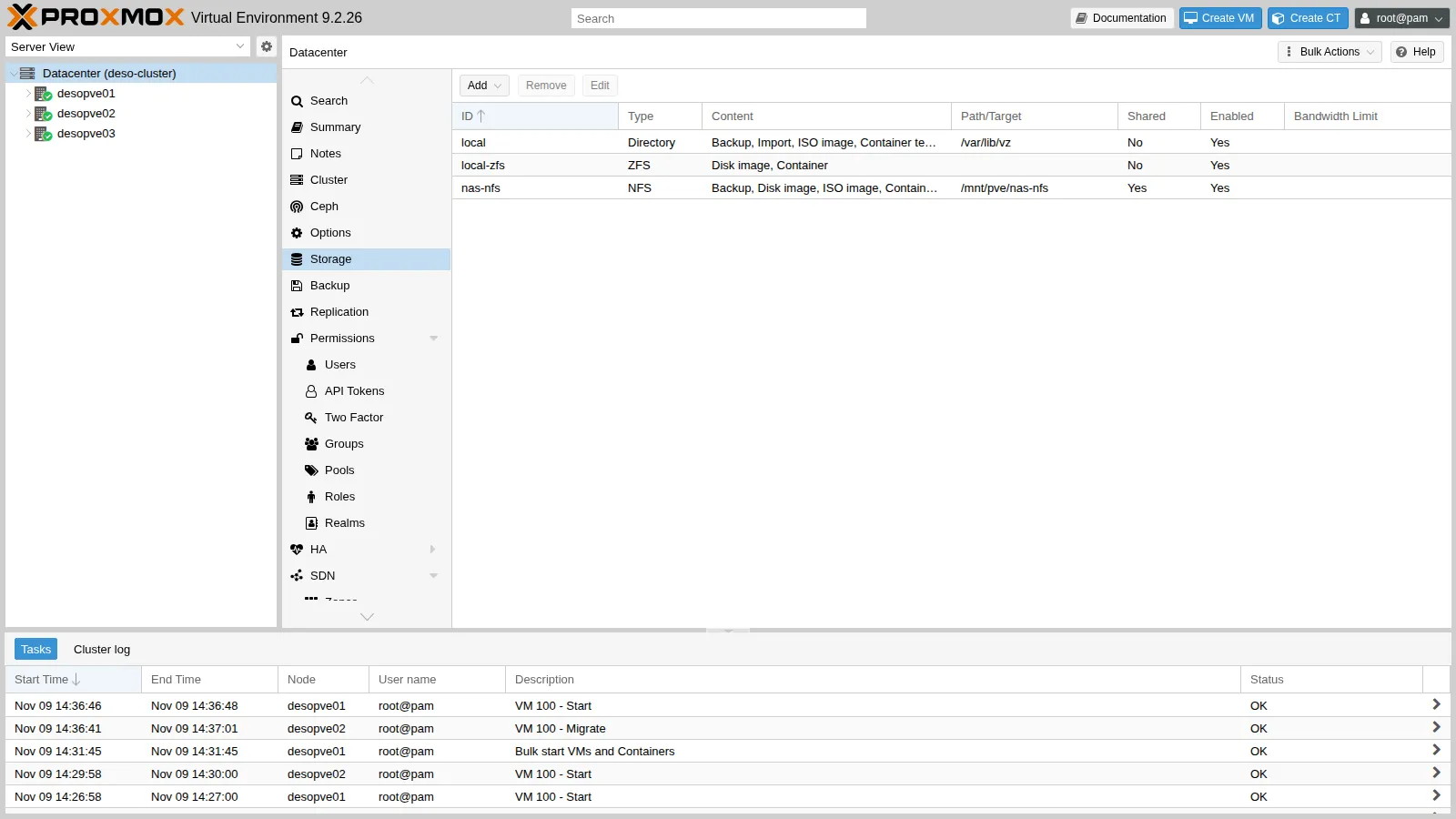
From the command line:
grep -A6 "nfs: nas-nfs" /etc/pve/storage.cfgnfs: nas-nfs export /mnt/dati/nfs path /mnt/pve/nas-nfs server 172.27.199.10 content images,iso,backup,vztmpl options vers=4.2 prune-backups keep-all=1pvesm status | grep nas-nfsnas-nfs nfs active 100070400 0 100070400 0.00%mount | grep nas-nfs172.27.199.10:/mnt/dati/nfs on /mnt/pve/nas-nfs type nfs4 (rw,relatime,vers=4.2,rsize=1048576,wsize=1048576,namlen=255,hard,fatal_neterrors=none,proto=tcp,timeo=600,retrans=2,sec=sys,clientaddr=172.27.199.21,local_lock=none,addr=172.27.199.10)ssh desopve03 ls /mnt/pve/nas-nfsdumpimagestemplatepvestatdmounts the storage by itself on every node, in the/mnt/pve/nas-nfsdirectory, and creates the subdirectories for the selected content types.- The mount options show
hard,timeo=600(60 seconds before a request is retried) andretrans=2. - The capacity is that of the
datipool on the NAS: about 95 GiB.
4. Measure the performance with the local disk
Section titled “4. Measure the performance with the local disk”Before moving the disk, measure how it performs on local storage: these are the reference values for NFS. The disk of VM 100 is on local-zfs.
A misleading test. In the VM, write 1 GiB of zeros with dd:
dd if=/dev/zero of=$HOME/test.bin bs=1M count=1024 oflag=direct1073741824 bytes (1.1 GB, 1.0 GiB) copied, 1.40965 s, 762 MB/sYou will repeat it on NFS in step 6, and there you will see why zeros are no good for measuring.
Sequential writes and reads with random data. Generate 512 MiB of random data in RAM (/dev/shm), write it to the disk with direct I/O, waiting until it has actually reached the storage (oflag=direct conv=fsync), then read it back. Repeat the write three times and the read twice, because a single value is not enough:
head -c 512M /dev/urandom > /dev/shm/rnd.binfor i in 1 2 3; do dd if=/dev/shm/rnd.bin of=$HOME/test.bin bs=1M oflag=direct conv=fsync 2>&1 | tail -1; done536870912 bytes (537 MB, 512 MiB) copied, 15.0205 s, 35.7 MB/s536870912 bytes (537 MB, 512 MiB) copied, 5.48904 s, 97.8 MB/s536870912 bytes (537 MB, 512 MiB) copied, 16.7323 s, 32.1 MB/sfor i in 1 2; do dd if=$HOME/test.bin of=/dev/null bs=1M iflag=direct 2>&1 | tail -1; done536870912 bytes (537 MB, 512 MiB) copied, 0.737017 s, 728 MB/s536870912 bytes (537 MB, 512 MiB) copied, 0.620782 s, 865 MB/srm -f $HOME/test.bin /dev/shm/rnd.binRandom writes in 4 KiB blocks, the typical workload of databases and operating systems, measured with fio directly from the node on the local storage (/var/lib/vz, in the system ZFS dataset). There is no VM in the way here: this measures the node’s file system. The --unlink=1 option deletes the test file at the end:
apt install fiofio --name=rw4k --directory=/var/lib/vz --rw=randwrite --bs=4k --size=1G \ --iodepth=16 --ioengine=libaio --direct=1 --runtime=30 --time_based --group_reporting --unlink=1 write: IOPS=2118, BW=8476KiB/s (8679kB/s)(275MiB/33273msec); 0 zone resetsfio --name=rw4k --directory=/var/lib/vz --rw=randwrite --bs=4k --size=1G \ --iodepth=16 --ioengine=libaio --direct=1 --runtime=30 --time_based --group_reporting --unlink=1 write: IOPS=11.2k, BW=43.7MiB/s (45.8MB/s)(1310MiB/30001msec); 0 zone resets5. Move the VM disk to NFS
Section titled “5. Move the VM disk to NFS”-
VM 100 → Hardware → select Hard Disk (scsi0) → Disk Action → Move Storage.
-
Target Storage
nas-nfs, FormatQEMU image format (qcow2), Delete source checked, then Move disk.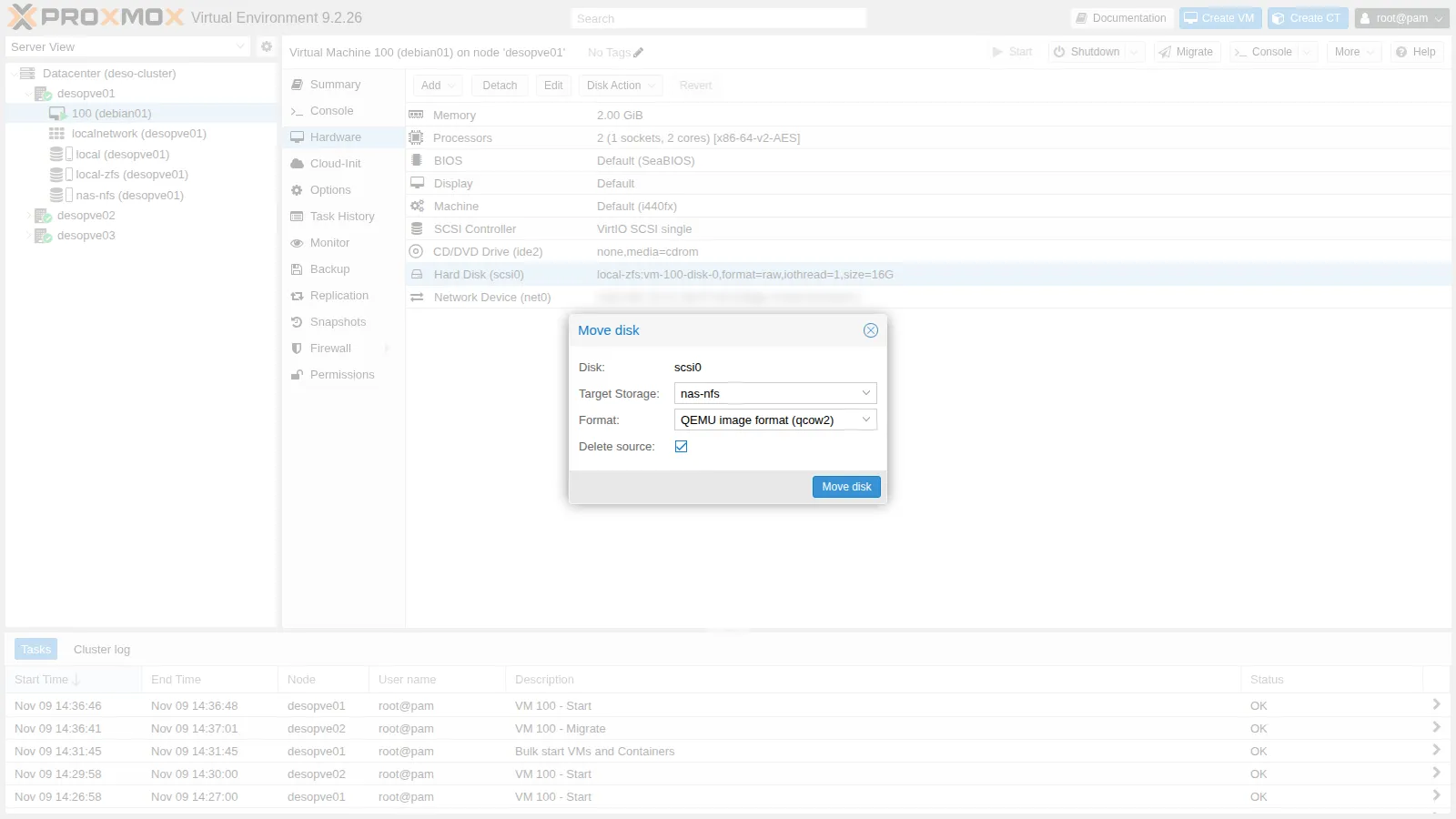
The VM stays running: QEMU copies the disk in the background (drive mirror) and at the end switches over to the new file. The task copied the 16 GiB disk in 3 minutes and 35 seconds:
mirror-scsi0: transferred 16.0 GiB of 16.0 GiB (100.00%) in 3m 35s, readymirror-scsi0: Completed successfully.removing source volume 'local-zfs:vm-100-disk-0' after successful copyTASK OK -
The disk is now a
qcow2file on the NAS: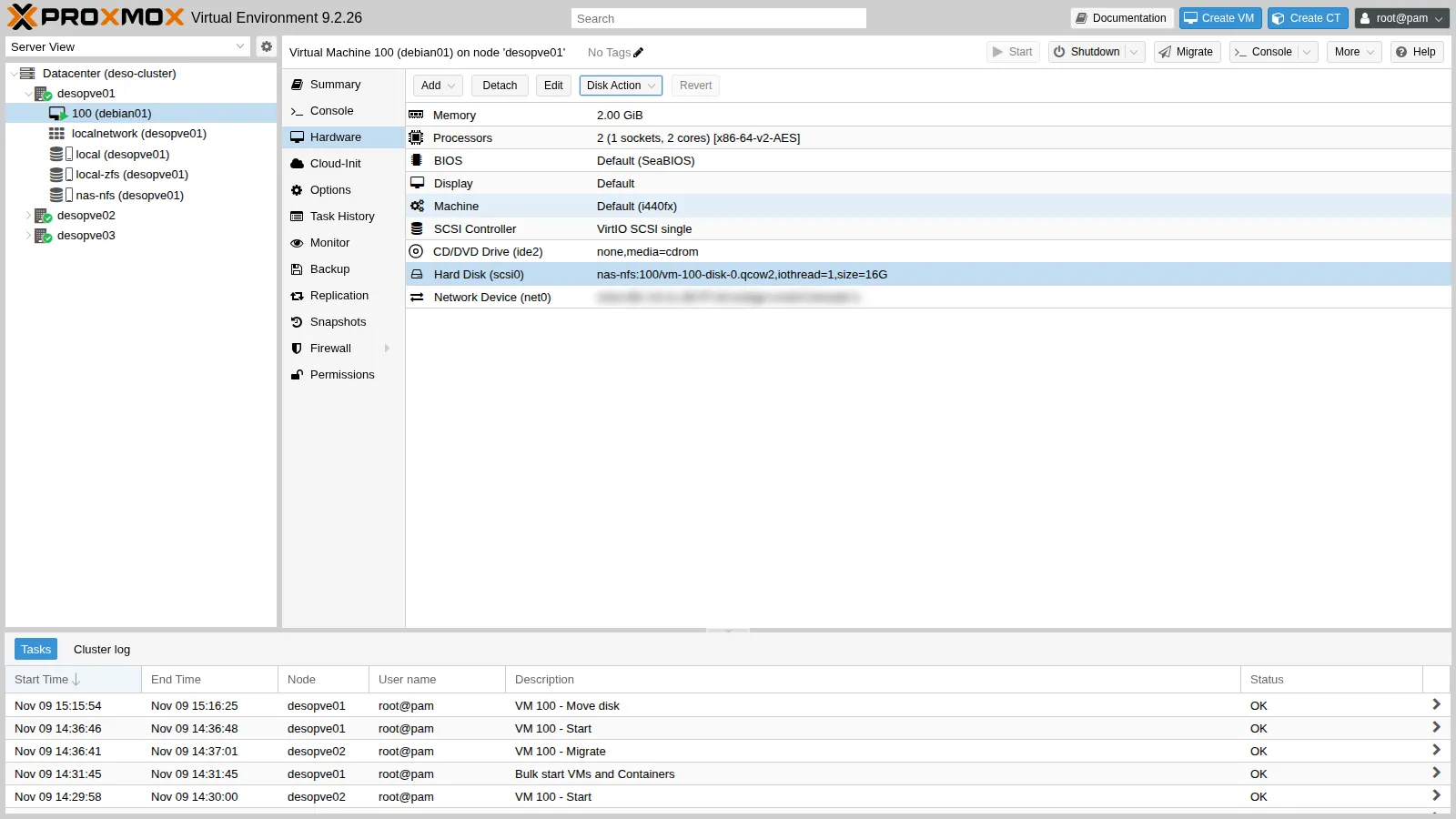
root@desopve01 qm config 100 | grep scsi0Output scsi0: nas-nfs:100/vm-100-disk-0.qcow2,iothread=1,size=16Groot@desopve01 qemu-img info /mnt/pve/nas-nfs/images/100/vm-100-disk-0.qcow2 | head -4Output image: /mnt/pve/nas-nfs/images/100/vm-100-disk-0.qcow2file format: qcow2virtual size: 16 GiB (17179869184 bytes)disk size: 6.5 GiBThe 16 GiB file takes up 6.5 GiB:
qcow2allocates space only for the blocks that contain data.
6. Repeat the measurements on NFS and compare
Section titled “6. Repeat the measurements on NFS and compare”In the VM, repeat the same commands as in step 4, now with the disk on NFS:
dd if=/dev/zero of=$HOME/test.bin bs=1M count=1024 oflag=direct1073741824 bytes (1.1 GB, 1.0 GiB) copied, 0.403307 s, 2.7 GB/shead -c 512M /dev/urandom > /dev/shm/rnd.binfor i in 1 2 3; do dd if=/dev/shm/rnd.bin of=$HOME/test.bin bs=1M oflag=direct conv=fsync 2>&1 | tail -1; done536870912 bytes (537 MB, 512 MiB) copied, 6.69699 s, 80.2 MB/s536870912 bytes (537 MB, 512 MiB) copied, 20.2377 s, 26.5 MB/s536870912 bytes (537 MB, 512 MiB) copied, 26.9102 s, 20.0 MB/sfor i in 1 2; do dd if=$HOME/test.bin of=/dev/null bs=1M iflag=direct 2>&1 | tail -1; done536870912 bytes (537 MB, 512 MiB) copied, 1.44691 s, 371 MB/s536870912 bytes (537 MB, 512 MiB) copied, 1.7027 s, 315 MB/srm -f $HOME/test.bin /dev/shm/rnd.binAnd from the node, 4 KiB random writes on the NFS share:
fio --name=rw4k --directory=/mnt/pve/nas-nfs --rw=randwrite --bs=4k --size=1G \ --iodepth=16 --ioengine=libaio --direct=1 --runtime=30 --time_based --group_reporting --unlink=1 write: IOPS=865, BW=3463KiB/s (3546kB/s)(101MiB/30007msec); 0 zone resetsfio --name=rw4k --directory=/mnt/pve/nas-nfs --rw=randwrite --bs=4k --size=1G \ --iodepth=16 --ioengine=libaio --direct=1 --runtime=30 --time_based --group_reporting --unlink=1 write: IOPS=966, BW=3867KiB/s (3959kB/s)(114MiB/30151msec); 0 zone resets| Test | Local storage | NFS |
|---|---|---|
Zeros, 1 GiB (dd in the VM, once) |
762 MB/s (local-zfs) |
2.7 GB/s |
Sequential write, random data (dd in the VM, 3 runs) |
32-98 MB/s (local-zfs) |
20-80 MB/s |
Sequential read (dd in the VM, 2 runs) |
728-865 MB/s (local-zfs) |
315-371 MB/s |
4 KiB random write, queue depth 16 (fio on the node, 2 runs of 30 s) |
2,118-11,200 IOPS (/var/lib/vz) |
865-966 IOPS |
The MB/s figures are the ones dd prints, in decimal units. Each point below separates what the test measured from how we interpret it, and names the check that would confirm the interpretation.
- Zeros.
- Measured: writing 1 GiB of zeros with
ddin the VM runs at 762 MB/s with the disk onlocal-zfsand at 2.7 GB/s onnas-nfs. - Interpretation: an NFS write faster than the local one is consistent with the zeros never reaching the NAS as data. With the Proxmox VE defaults, QEMU detects writes of zeros (
detect_zeroes) and turns them into an operation that, on aqcow2file, can be recorded in the image metadata without writing the blocks. ZFS compression, on the node and on the NAS, also treats blocks of zeros specially. The test does not tell which mechanism was at work, but it is enough to rule zeros out as test data: measurements need random data. - How to check: on the node, compare the bytes transmitted by
vmbr0(ip -s link show vmbr0) before and after thedd. If the zeros do not travel to the NAS, the difference is far below 1 GiB. Alternatively, repeat the test with the disk optiondetect_zeroes=0.
- Measured: writing 1 GiB of zeros with
- Sequential writes with random data (in the VM).
- Measured: 35.7, 97.8 and 32.1 MB/s locally; 80.2, 26.5 and 20.0 MB/s on NFS. Each
ddwrites 512 MiB, one 1 MiB block at a time, and ends with anfsync. - Interpretation: on both storages the same test varies by a factor of 3-4 from one run to the next, and the ranges overlap, so this test does not establish which of the two writes sequentially faster. Possible causes of the variability include the activity of the rest of the lab and the periodic flushes with which ZFS commits data to disk, on the node and on the NAS; the test cannot tell them apart.
- How to check: more and longer runs with the rest of the lab idle, while watching
zpool iostat 1on the node and on the NAS during the write.
- Measured: 35.7, 97.8 and 32.1 MB/s locally; 80.2, 26.5 and 20.0 MB/s on NFS. Each
- Sequential reads (in the VM).
- Measured: 728 and 865 MB/s locally; 371 and 315 MB/s on NFS.
- Interpretation: reads over NFS reach between a third and a half of the local rate. That is consistent with the cost of the network and the NAS on every request. The file, however, had just been written and is small compared with the RAM: local reads may come from the node’s ARC and NFS reads from the NAS’s ARC, and the test does not separate these contributions.
- How to check:
arcstat 1on the node and on the NAS during the read, and a read of a file larger than the RAM available to the ARC.
- 4 KiB random writes (
fioon the node, queue depth 16).- Measured: 2,118 and 11,200 IOPS on
/var/lib/vz; 865 and 966 IOPS on NFS. - Interpretation: locally, two identical runs differ by a factor of five, so the local value is unstable, and the test does not say why. On NFS the values are stable and lower than both. The NFS result is consistent with direct writes (
--direct=1) that the NAS acknowledges only once they are stable, which with ZFS means after going through the ZIL, so each write also pays a network round trip. The test does not separate the network from the NAS. Note thatfioruns on the node here, so the VM disk’s cache option plays no part; a VM disk withcache=none, the default, opens its file in the same direct mode. - How to check: on the NAS, run
zfs get sync dati/nfsand read the ZIL counters (cat /proc/spl/kstat/zfs/zil) before and after the test: if the writes go through the ZIL,zil_commit_countgrows during the run. On the node,nfsstat -mshows the effective mount options, and apingto the NAS gives the round-trip time of the network alone.
- Measured: 2,118 and 11,200 IOPS on
What to take away. Small random writes are what you should measure before putting VM disks with many small synchronous writes, such as databases, on NFS. If the check confirms that synchronous writes on the NAS are the limit, the usual options are a fast dedicated log device on the NAS (SLOG) and a faster network, to be evaluated by repeating the same measurement. In lab 19 you will repeat the tests on all storages with a more rigorous method.
Verification and tests
Section titled “Verification and tests”Test – The NAS stops responding
Section titled “Test – The NAS stops responding”You leave the VM disk on NFS and stop the NFS service on the NAS, as would happen with a NAS or network failure.
-
In the VM, start a “heartbeat” that writes the time every second and forces it to disk:
labuser@debian01 nohup sh -c 'while true; do date +%T >> $HOME/battito.log; sync; sleep 1; done' >/dev/null 2>&1 & -
On the NAS: System → Services → NFS → Stop Service and confirm with Stop.
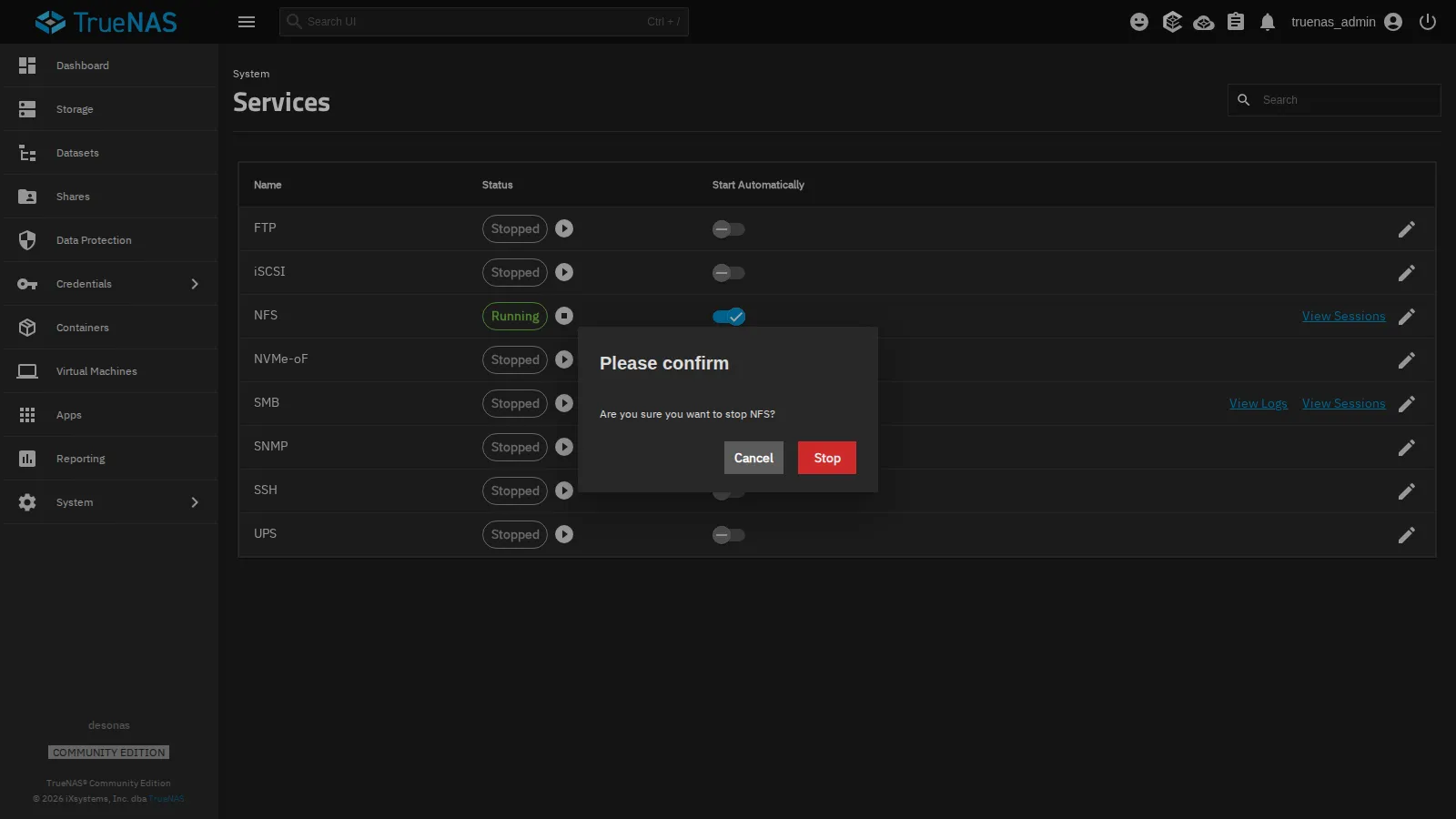
-
A minute later, on the node, the server no longer responds over NFS and
pvestatdmarks the storage as not active. The VM, however, still shows as running:root@desopve01 rpcinfo -T tcp 172.27.199.10 nfs 4Output rpcinfo: RPC: Program not registeredroot@desopve01 pvesm statusOutput storage 'nas-nfs' is not onlineName Type Status Total (KiB) Used (KiB) Available (KiB) %local dir active 46255488 768000 45487488 1.66%local-zfs zfspool active 45487664 96 45487568 0.00%nas-nfs nfs inactive 0 0 0 0.00%root@desopve01 journalctl -u pvestatd --since "-3 min" | tail -2Output Nov 09 15:21:57 desopve01 pvestatd[1611]: storage 'nas-nfs' is not onlineNov 09 15:22:07 desopve01 pvestatd[1611]: storage 'nas-nfs' is not onlineroot@desopve01 qm status 100Output status: runningIn the web interface the storage shows Active: No, with no usage data:
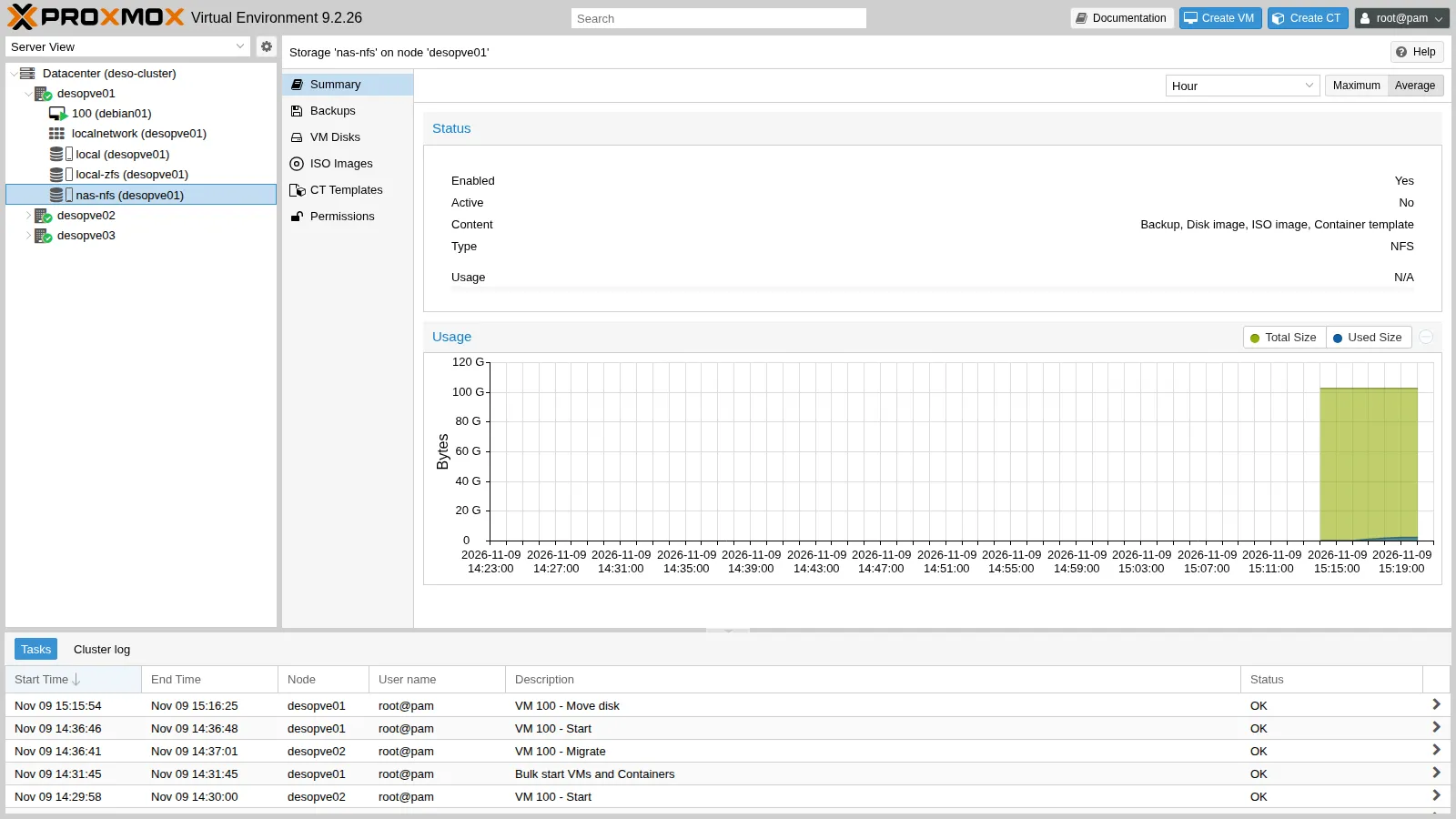
For an NFSv4 storage,
pvestatdchecks the server with the samerpcinfoquery as in step 2 before touching the mount, which is why it can mark the storage as inactive without getting stuck. Anything that accesses the files on the mount, on the other hand, is left waiting. -
Try to access the mount: the process gets stuck in state
D(uninterruptible I/O wait), waiting for the server. The kernel reports it in the log:root@desopve01 timeout 20 ls -la /mnt/pve/nas-nfs/images/100/ &ps -eo stat,pid,etime,comm,wchan:28 | awk 'NR==1 || $1 ~ /^D/'Output STAT PID ELAPSED COMMAND WCHAND 12326 00:20 172.27.199.10-m rpc_wait_bit_killableD 12419 00:03 ls rpc_wait_bit_killableroot@desopve01 dmesg -T | grep "nfs: server"Output [Mon Nov 9 15:24:04 2026] nfs: server 172.27.199.10 not responding, still tryingThe first process is the kernel thread that manages the NFSv4 state with the server. Linux counts processes in state
Din the load average, so with the NAS stopped the nodes’ load average can rise even while the CPUs are idle. This test did not record it;uptimeduring the outage shows it.The
not respondingmessage arrives at 15:24:04, about three minutes after the last heartbeat line (15:20:58). That is consistent with the mount options: according tonfs(5), the client reports the server afterretransretries, with a timeout that starts attimeo(60 seconds) and grows by 60 seconds with each retry, so 60 + 120 = 180 seconds. The test does not prove it, because the moment of the first unanswered request is not known. -
In the VM, I/O to the disk is frozen. The heartbeat stopped at 15:20:58, and two minutes later the VM’s kernel reports on the console the processes blocked on the disk, starting with the file system journal (
jbd2); two minutes is the kernel’s default threshold for reporting a blocked task: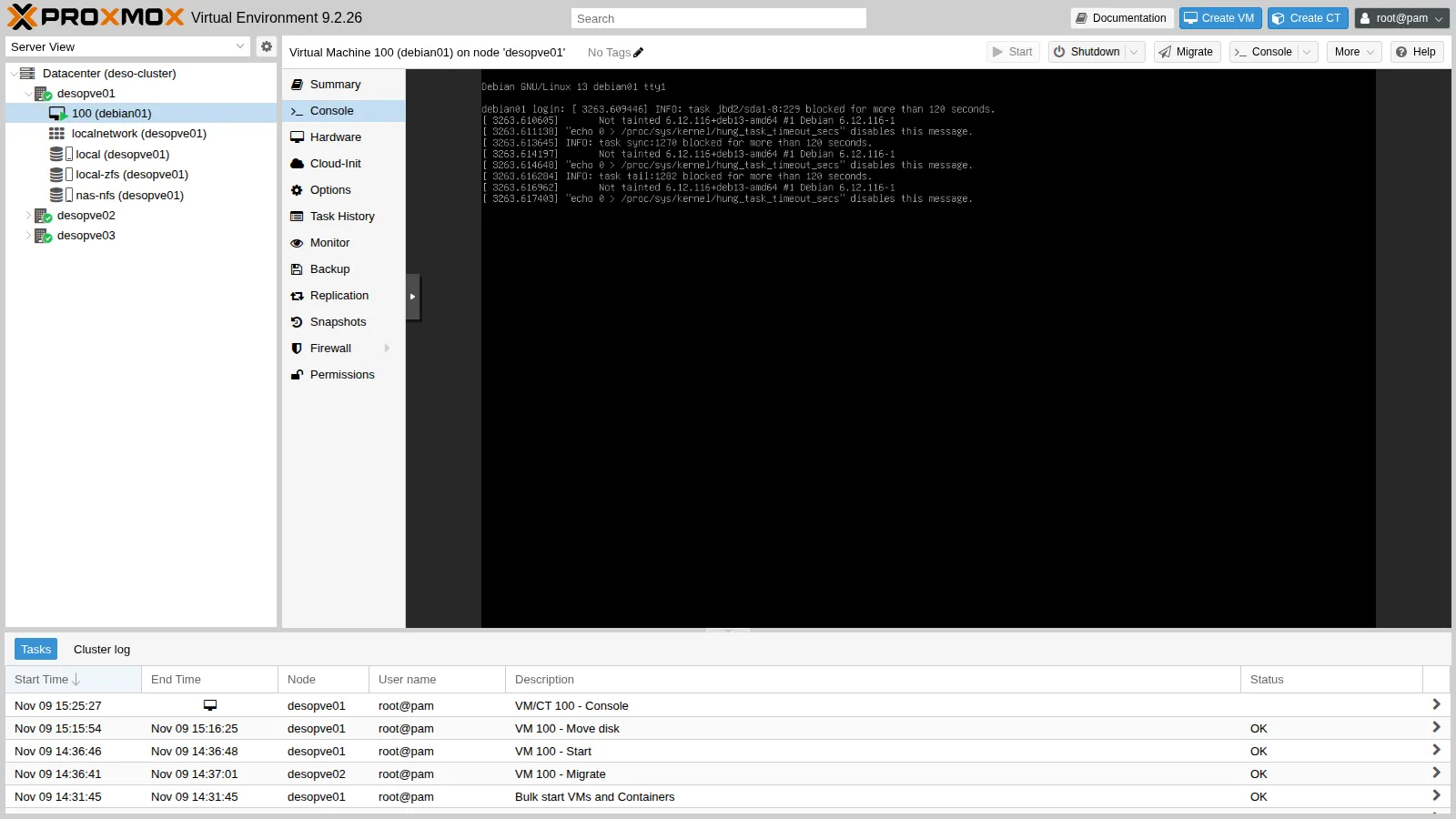
The VM does not fail and does not shut down: it waits, just like the processes on the node.
-
Restart the service on the NAS (Start Service). The node’s kernel logs the recovery, the storage becomes active again and no process is left in state
D:root@desopve01 dmesg -T | grep "nfs: server" | tail -1Output [Mon Nov 9 15:37:36 2026] nfs: server 172.27.199.10 OKroot@desopve01 pvesm status | grep nas-nfsOutput nas-nfs nfs active 100069376 2021376 98048000 2.02%root@desopve01 ps -eo stat,comm | awk '$1 ~ /^D/' | wc -lOutput 0What was observed. About 16 and a half minutes passed between the last heartbeat line written before the stop (15:20:58) and the
nfs: server 172.27.199.10 OKmessage (15:37:36). These are two different observations, one in the VM and one in the node’s kernel; the exact times at which the service was stopped and restarted on the NAS were not recorded. After the recovery the VM was still running, without a reboot, and the node had no processes left in stateD.Interpretation. This is the behavior
nfs(5)describes for ahardmount: requests are retried until the server answers. The test does not show, however, that the VM completed all of its pending writes without errors.How to check. In the VM,
tail $HOME/battito.logshould show the gap followed by one line per second again, andsudo journalctl -k | grep -iE 'I/O error|EXT4-fs error'should find no disk errors.
Cleanup
Section titled “Cleanup”Stop the heartbeat and move the VM disk back to local storage. The nas-nfs storage stays configured for the following labs.
pkill -f battito.log; rm -f $HOME/battito.logqm disk move 100 scsi0 local-zfs --delete 1…mirror-scsi0: transferred 16.0 GiB of 16.0 GiB (100.00%) in 38s, readyremoving source volume 'nas-nfs:100/vm-100-disk-0.qcow2' after successful copyqm config 100 | grep scsi0scsi0: local-zfs:vm-100-disk-0,iothread=1,size=16GThe copy back took 38 seconds, against 3 minutes and 35 seconds for the copy to NFS. The two task times are not a storage measurement: direction, file format and the amount of data actually read all differ, and this lab did not investigate the gap.
Summary of the checks
Section titled “Summary of the checks”| Check | Expected result | Observed in this run |
|---|---|---|
| Export | /mnt/dati/nfs exported only to 172.27.199.0/24, with root mapped to root |
pvesm scan nfs: /mnt/dati/nfs 172.27.199.0/24 |
| Mount | NFS 4.2 on all three nodes, hard |
vers=4.2, hard, timeo=600, retrans=2; subdirectories visible from desopve03 |
| Live move | disk to NFS and back to local storage with the VM running | TASK OK in 3 min 35 s to NFS, 38 s back; qm config shows local-zfs again |
| Measurements | random data and repeated runs; for each number, the tool and the layer it measures | table in step 6 |
| NAS stopped | storage inactive, processes in state D, VM waiting; recovery on its own when the service returns |
inactive, two processes in D, VM running; server ... OK at 15:37:36 and no processes left in D |
Final lab state
Section titled “Final lab state”- NAS: NFS share
/mnt/dati/nfsfor172.27.199.0/24, Maprootroot:wheel; NFS service running and set to start automatically. - Cluster: storage
nas-nfs(NFS 4.2,172.27.199.10:/mnt/dati/nfs, contentimages,iso,backup,vztmpl, shared, on all nodes), mounted at/mnt/pve/nas-nfsand empty. - VM 100
debian01running ondesopve01, with its disk onlocal-zfs. fioinstalled ondesopve01.
What you learned
Section titled “What you learned”- How to expose an NFS dataset to Proxmox VE: an export restricted to the nodes’ network, root mapped to
root(Maproot), the server given by IP address; before adding the storage,pvesm scan nfsandrpcinfofrom the node. - When to put VM disks on NFS: it is shared storage (memory-only migration, high availability) and disks can be moved live; for workloads with many small synchronous writes, first measure 4 KiB random writes on your own NAS, as in step 6.
- How to measure without being fooled: random data rather than zeros, repeated runs, ranges rather than single values, and for every number the tool and the layer it measures (the VM or the node).
- What to expect when the NAS stops, and how to prepare for it: with
hard, I/O stops without errors and resumes when the server returns; meanwhile the VMs are blocked and the node’s processes sit in stateD. Plan the availability of the NAS, and of the network to it, as you plan the nodes’, and do not usesoftfor VM disks.